Decomposition Wizard
Use the Decomposition Wizard to generate decomposition candidates by using the directed Louvain algorithm. This workflow helps you identify candidate clusters based on the imported module landscape before you manually refine bounded contexts. Use it when you want an algorithmic starting point for decomposition rather than building every context by hand.
For this guide, work in Project > Test 3 and open Decomposition > Decomposition Wizard.
The initial wizard view shows the Louvain tab with two accordion steps.
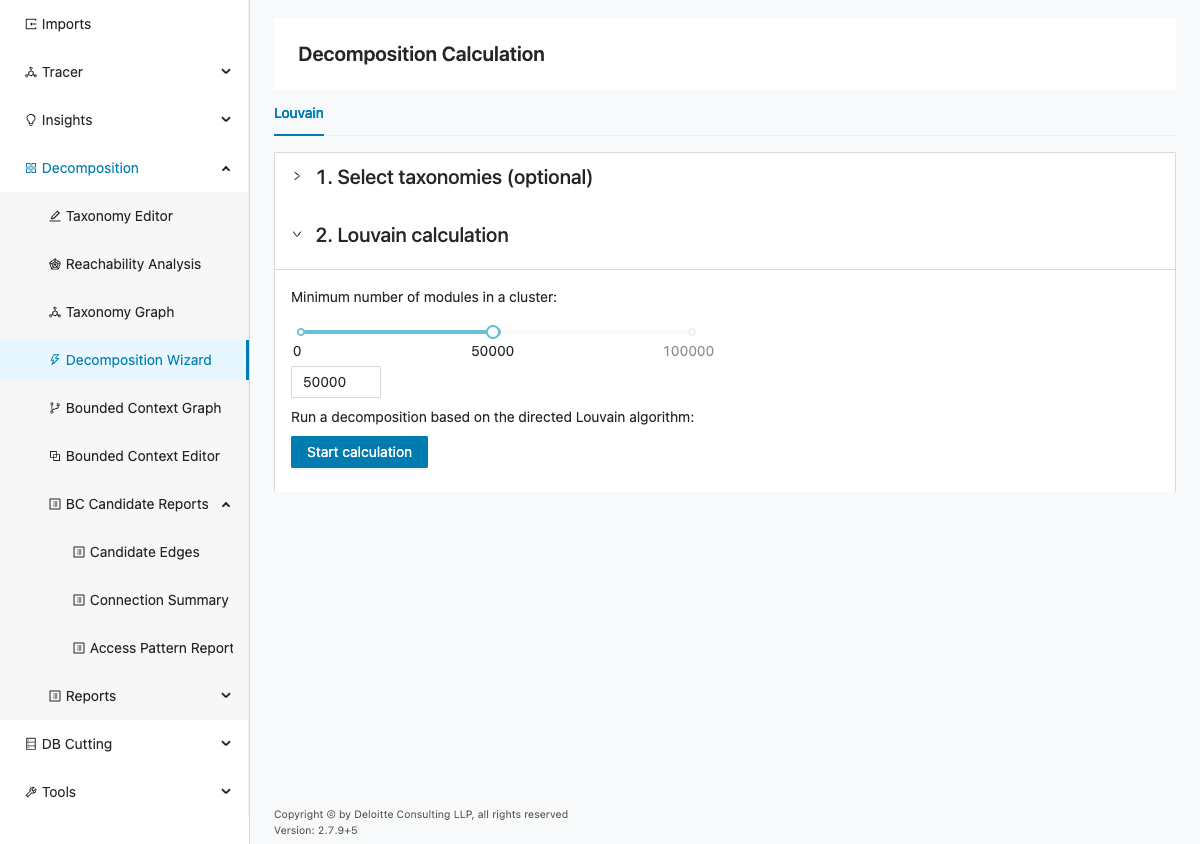
The page contains a single Louvain tab with two steps:
- Select taxonomies (optional)
- Louvain calculation
In Project > Test 3, the taxonomy list may be empty depending on your imported data. Continue with the Louvain calculation even if no taxonomy is selected.
Info
Before you run this workflow, ensure project data was imported successfully (schema, modules, module relations, and queries).
Run the Louvain calculation
This step starts the actual clustering run and applies the Louvain settings to the current project data. The selected parameters affect how many modules are grouped together and whether small clusters are retained. Review the inputs before running the calculation so the resulting candidates are easier to interpret.
To run the calculation in Project > Test 3:
- Open Decomposition > Decomposition Wizard.
- Expand Select taxonomies (optional). If taxonomies are listed, select the relevant entries and click Next. If none are listed, continue to the next step.
- Expand Louvain calculation and set Minimum number of modules in a cluster by using the slider or numeric input.
- Keep the default value unless you have a specific clustering target. In this scenario, use
50000. - Click Start calculation.
Expected output:
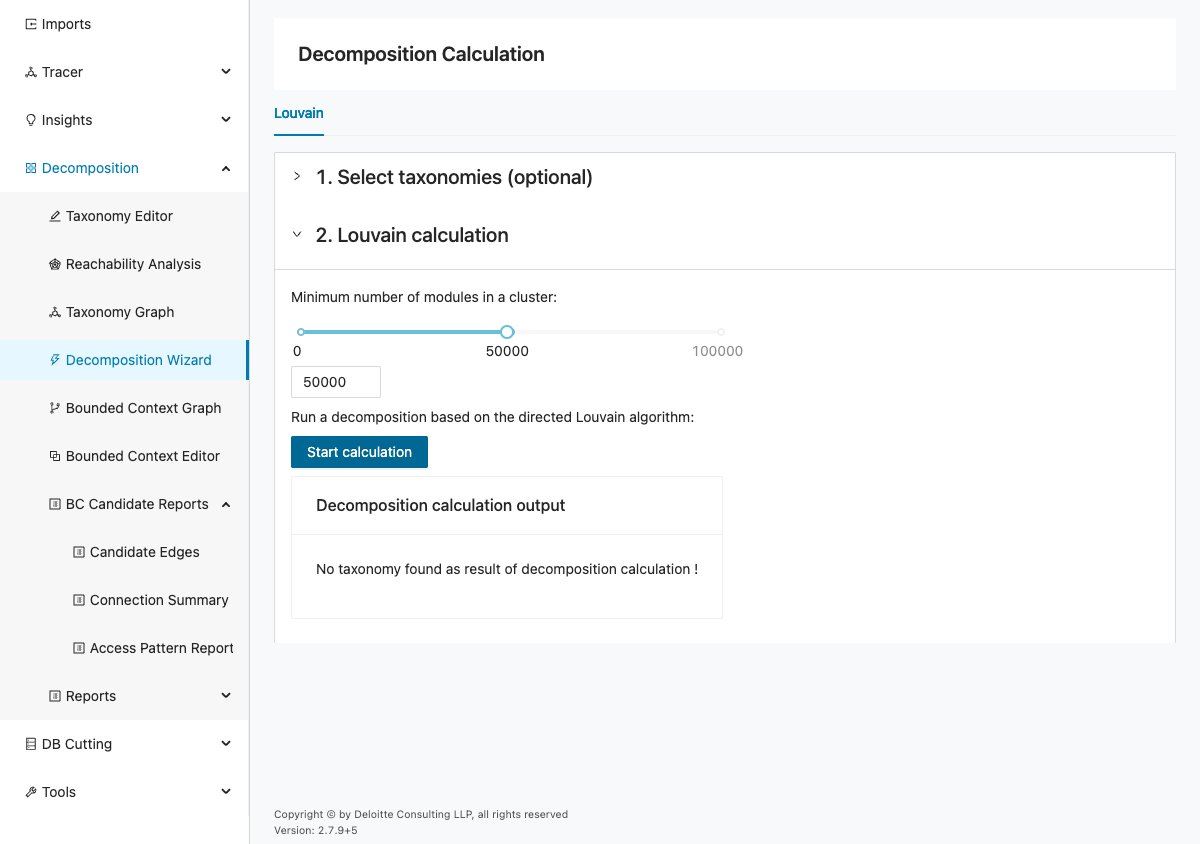
- A Decomposition calculation output panel appears below the wizard controls.
- The panel shows the generated result state for Project > Test 3.
Verify the result and continue
After the calculation finishes, review the output carefully before moving on to later decomposition steps. The result tells you whether the current settings produced usable candidates or whether you need to adjust the thresholds and rerun the workflow. Treat this verification step as the handoff from algorithmic grouping to manual context refinement.
After clicking Start calculation, review the output panel before moving to the next feature.
In the previously inspected state, the panel showed:
No taxonomy found as result of decomposition calculation !
The screenshot below shows that output layout.
If your Test 3 run generates candidates, continue with Bounded Context Editor to convert selected taxonomies into bounded contexts.
If your run does not generate candidates, reduce Minimum number of modules in a cluster, rerun the calculation, and recheck the output panel.