Knowledge Cockpit
The Knowledge Cockpit is your central hub for knowledge ingestion, management, and retrieval. Here, you can leverage industry or client documentation, raw source code, or Mining metadata to build a strong knowledge repository where anyone interested in documenting or extracting information about technical systems in general and detailed terms can do so with ease. The Knowledge Cockpit integrates Mining and also the Knowledge and Prompt services to gather required information.
Categories of knowledge
There is no limit to where the documents/files the Knowledge Cockpit pulls information from originate. This means that as your core base of knowledge material grows, it becomes important to categorize it to provide the most relevant knowledge retrieval. When doing searches on available knowledge later on, you can select from the drop-down which categories of knowledge you would like the search to be based on.
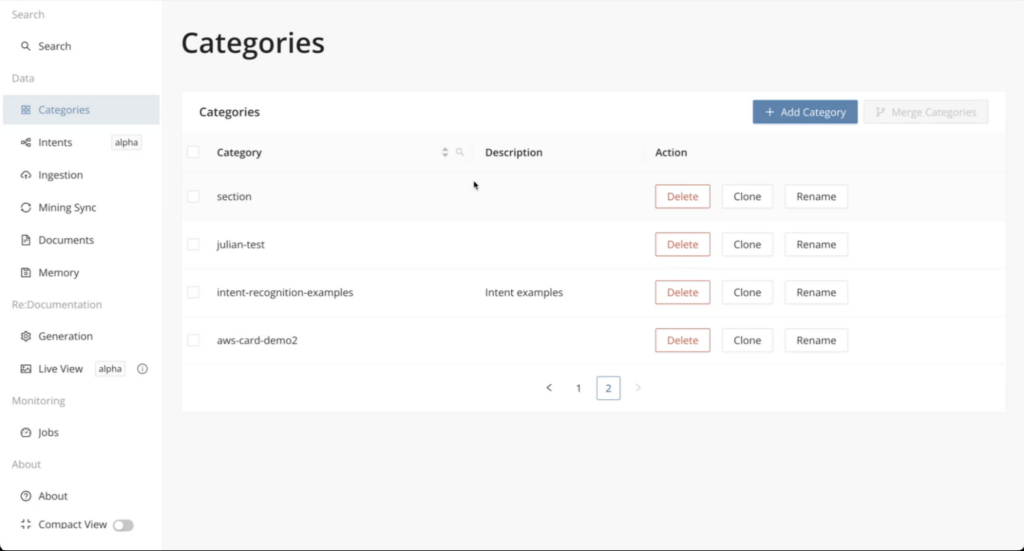
Adding a category
Step 1
Click + Add Category on the top right.
Step 2
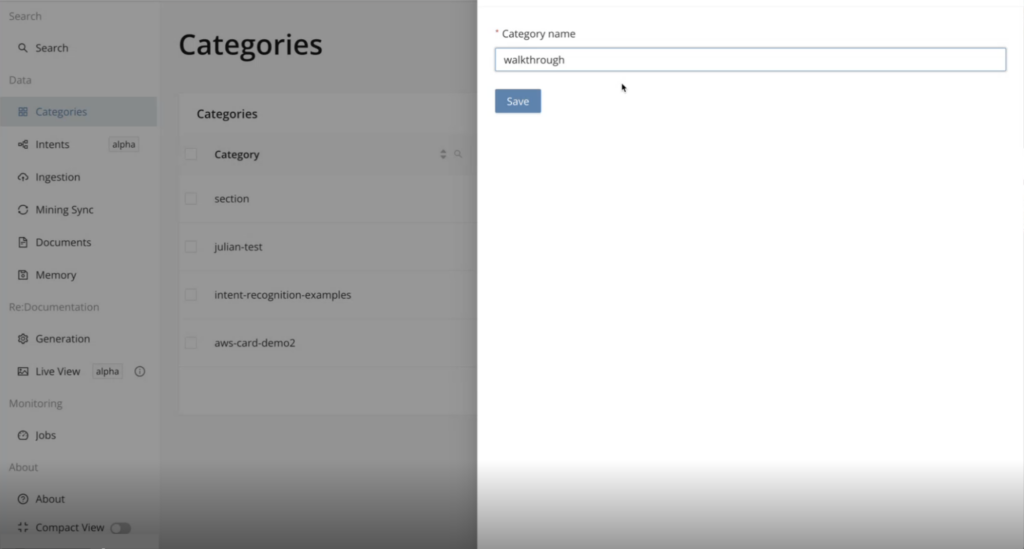
A side panel opens where you can specify the new category name and click Save .
Cloning a category
In the Categories table, select the category(s) you would like to clone and click Clone under Actions.
Deleting a category
In the Categories table, select the category(s) you would like to delete and click Delete under actions.
Merging categories
Click Merge Categories on the top right.
Renaming a category
In the Categories table, select the category(s) you would like to rename and click Rename under actions.
Ingestion of knowledge
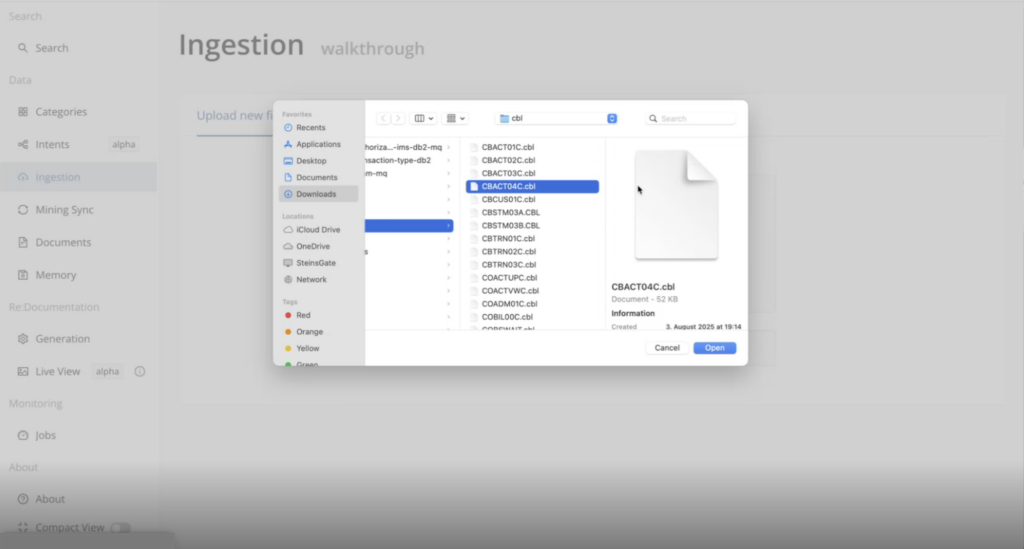
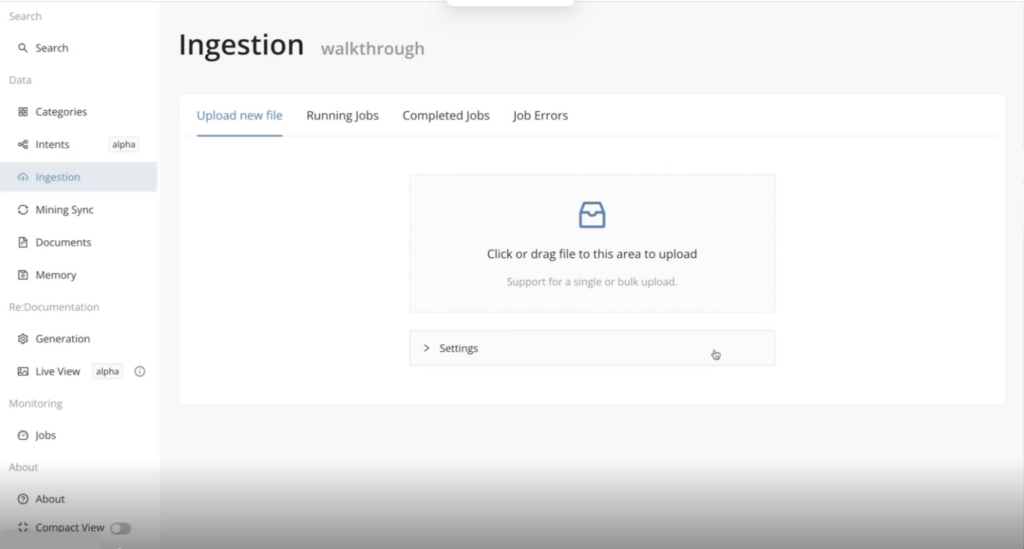
After creating your initial categories of knowledge, you can begin to ingest documents and other files into the Knowledge service under those specific categories, making it easier to pull from the right sources later on when searching the knowledge base. There are no limits to the number of documents you can ingest, and they are uploaded via the Job Framework asynchronously so that you are free to work on other tasks in parallel.
Info
Supports PDF files, Excel files, text files, markdown files, and also source code (COBOL, Natural, PL/1, and Java).
Uploading files
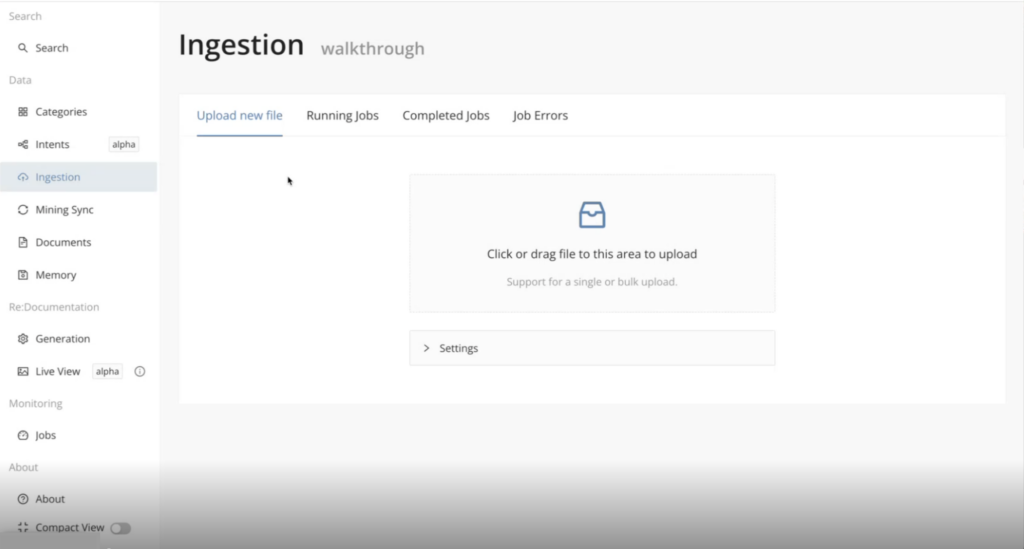
Click in the middle of the UI to select files or drag your files into the UI.
Search
With the documented information and source files to extract knowledge from available you can begin to search for this information. Very generic search queries can be issued, so it does not require having in-depth personal knowledge about which documents or files certain information should be found; you can simply query and explore with only a high-level understanding of the file system. With Knowledge cockpit search, you can forgo the extensive manual analysis to find information about your system in favor of quick semantic queries such as "Where is interest calculated?" or "Where does ticket issuance occur?".
Info
For better results, select the most relevant category of knowledge before your search and adjust the prompt (via Prompt service) to tailor the depth and general understandability of the responses.
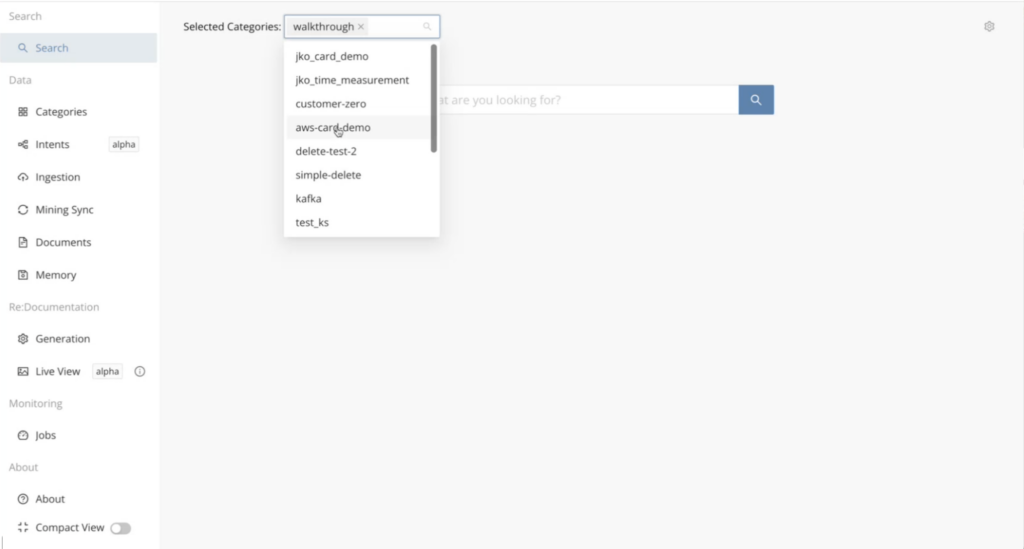
Select one or more categories of knowledge to base your search on.
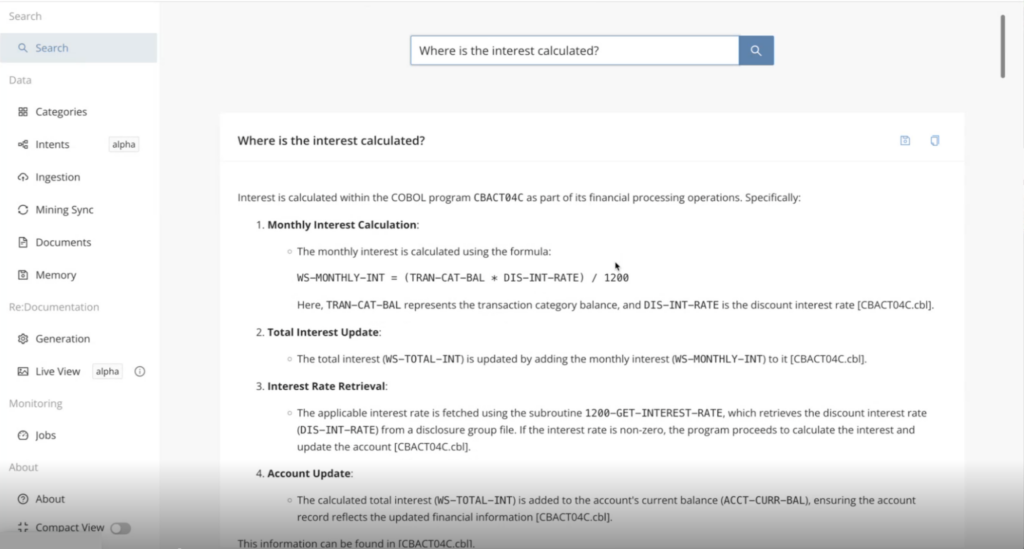
Your search results can be copied to the clipboard for faster and more efficient knowledge retrieval in the future by clicking the copy icon on the top right of the results card. You can also save a memory snapshot of the search query and result by clicking the save icon.
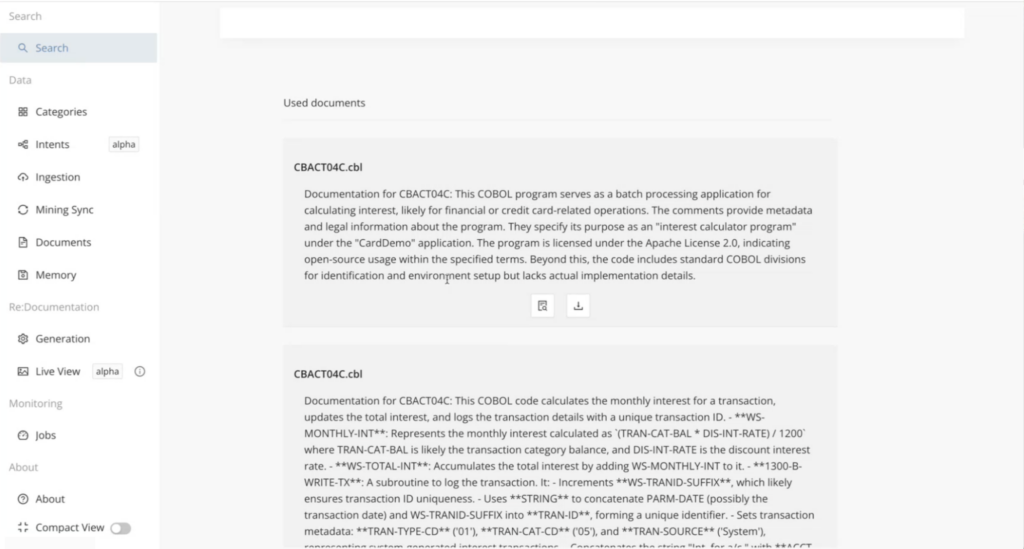
Scrolling down past the search results, you will also see the actual documents used to produce the search results for reference.
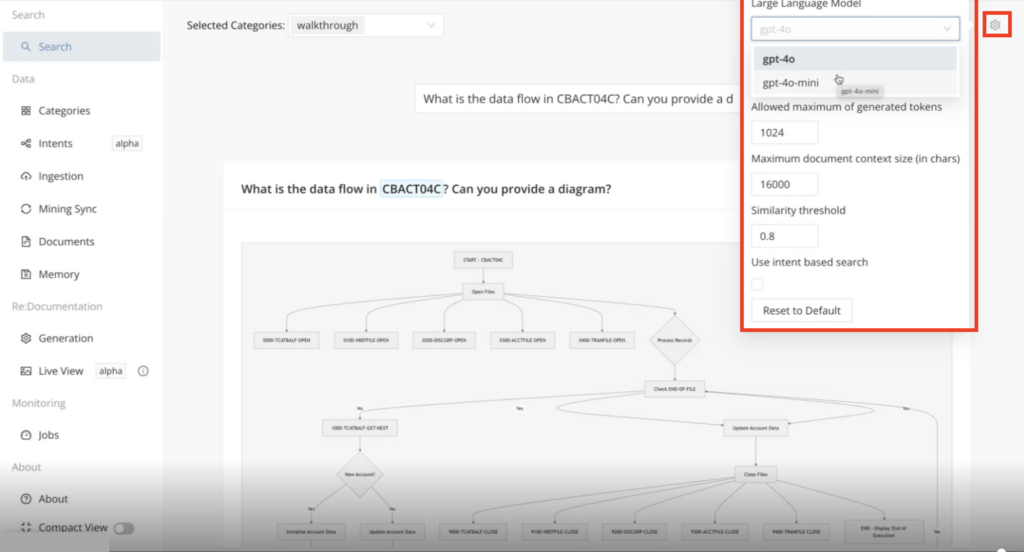
You can configure semantic search based on your desired results directly from the search page by clicking the settings icon on the far top right corner. This includes the selection of the LLM (Large Language Model) used, maximum generated token, maximum document size, and more.
Memory
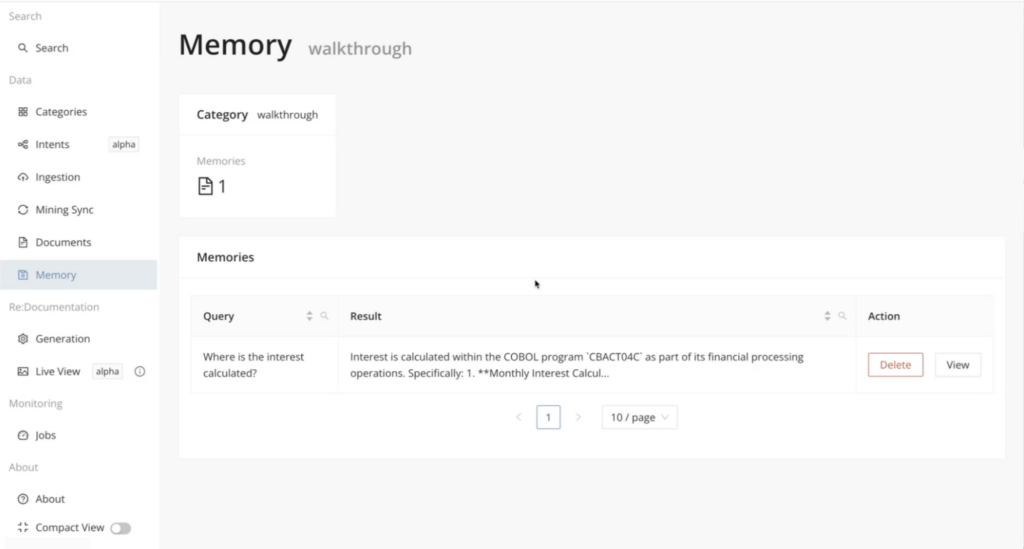
You can save the results from your search as a memory snapshot in the database (under a knowledge category) for future reference when searching. When the system encounters a question that is similar to one from the memory snapshot, it can quickly refer to it. The Memory page provides a place where all of your saved memory snapshots can be managed, including seeing the query in memory and what the result was. Additionally, you can delete memory snapshots that are no longer relevant.
Mining Sync
As the Knowledge service integrates with the Mining API server, here you can select a Mining project, and you’ll have the option to sync all of the Mining project’s modules or just selected modules. The available Module and Functional Block descriptions will be ingested into the Knowledge service, scoped to your selected knowledge category, bolstering the search output around this project when using the category of knowledge. You can also reprocess modules that have already been ingested previously.
Info
This feature depends on the Mining data (Module and/or Functional Block Descriptions) already being available within the Mining project.
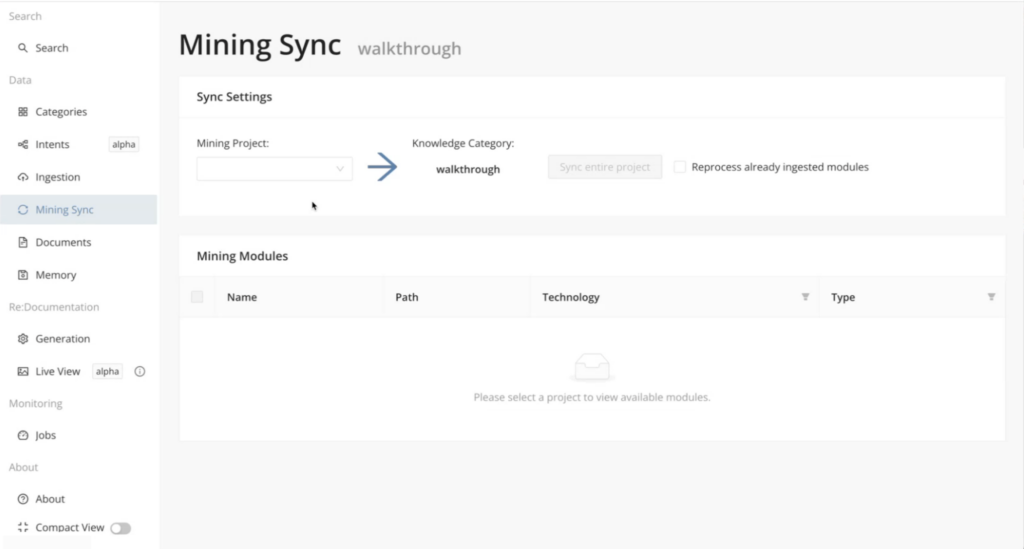
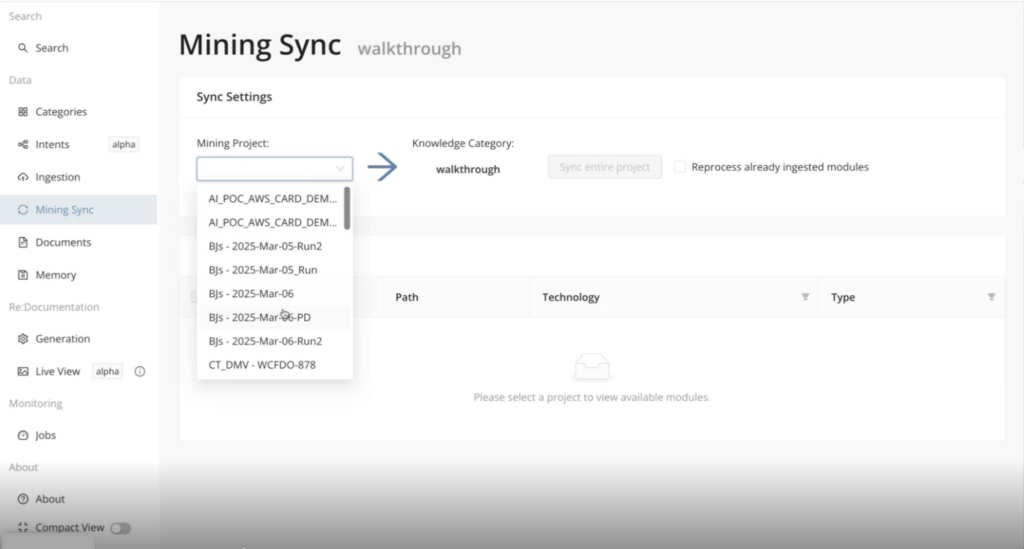
Select your mining project that has the modules whose descriptions you would like incorporated into the Knowledge service.
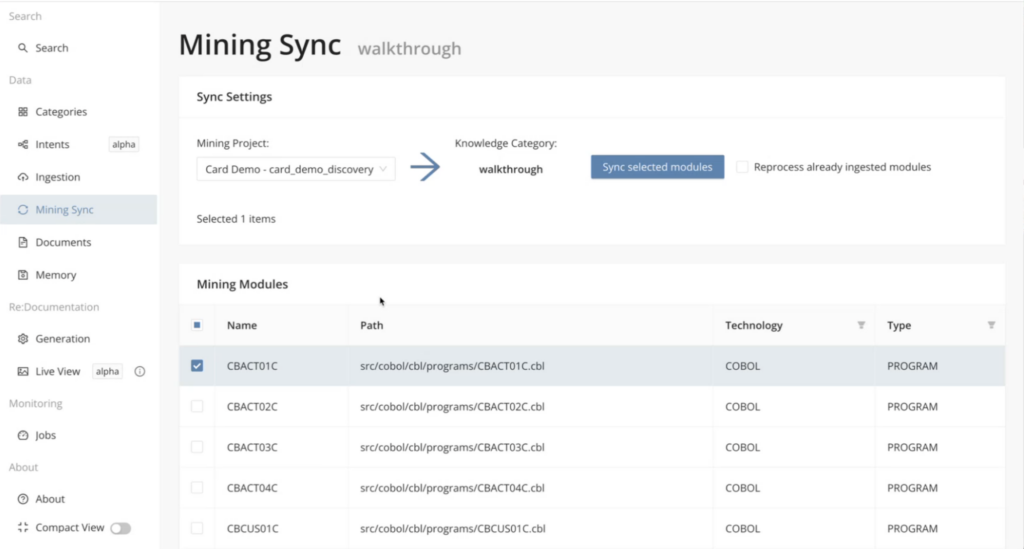
After selecting the Mining project of interest, you can select all or cherry-pick the modules you would like to sync with the Knowledge service and click Sync selected modules .
ReDocumentation
Create sophisticated documentation for COBOL modules. First, select the modules you would like to document. You can auto-tag modules here, similar to taxonomies, to describe and document their business domain along with their purpose. Once the tags are created, you can execute auto tagging, where the LLM will look at the source and decide which module is applicable to apply the tag. Alternatively, you can sync in existing taxonomies from Mining. This also requires that you do the source code (needed by redocumentation) ingestion, as the Mining sync only pulls in the descriptions.
You can view the generated documentation in Live View mode, or you can click the Download Result.zip button on the generation page to download the zipped markdown files.
Also, the generated documentation can be added as knowledge under your specified knowledge category
Info
The documented module descriptions that are generated are built from scratch using the source files and do not take into account existing module or Functional Block descriptions from Mining.
Setup
Before generating the documentation, you'll need to set up the LLMs (Large Language Models) you would like to use for code explanation, code generation, and reasoning. The Knowledge Cockpit provides flexible integration with a range of LLMs, including Azure OpenAI, Antropic Claude, and LLMs provided via AWS Bedrock.
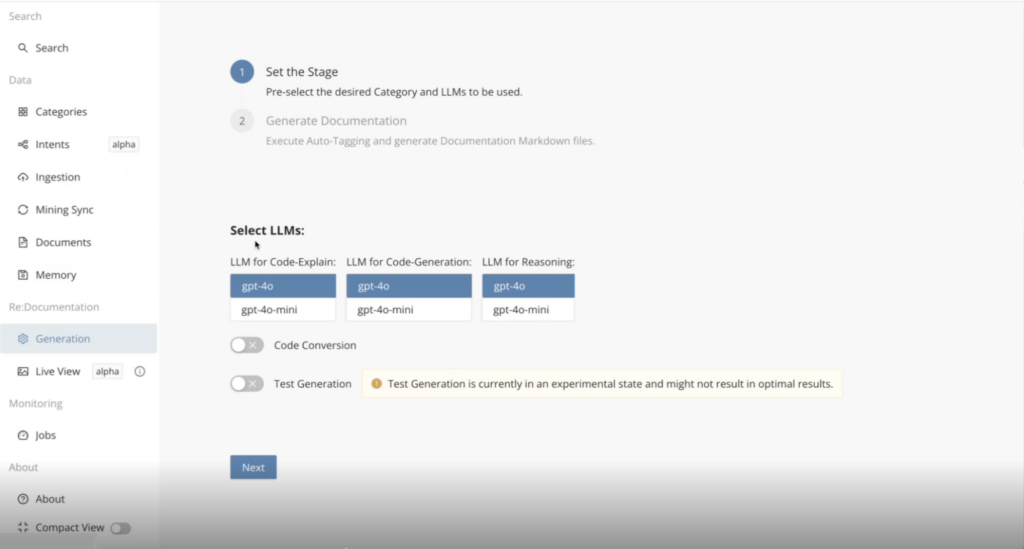
Select your LLMs of choice and click Next .
Documentation generation
After the documentation setup stage, you are ready to begin generating documentation for selected modules. Additionally, here you conduct tag management and auto-tagging of your selected modules to classify within the documentation which application business domain each module should be classified with.
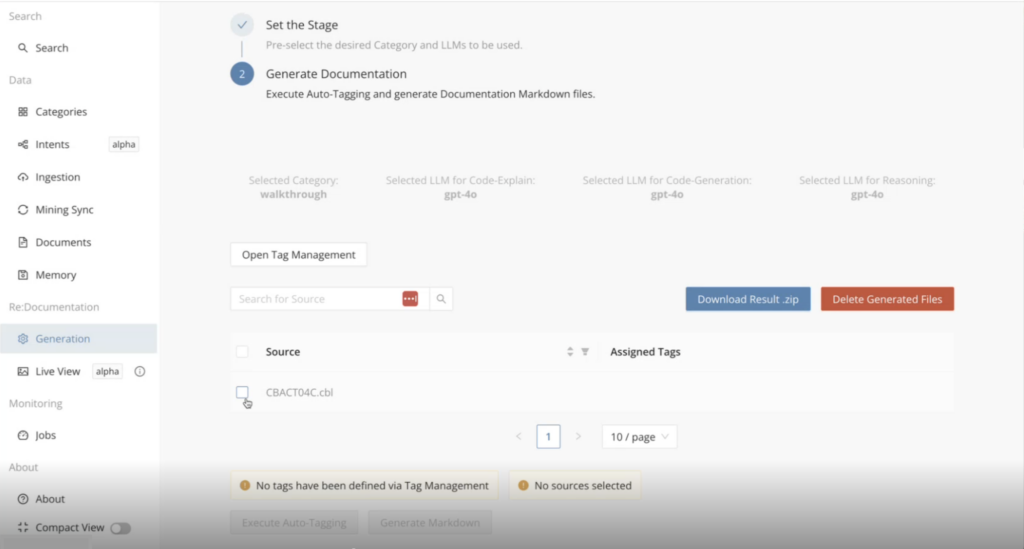
Auto-Tagging
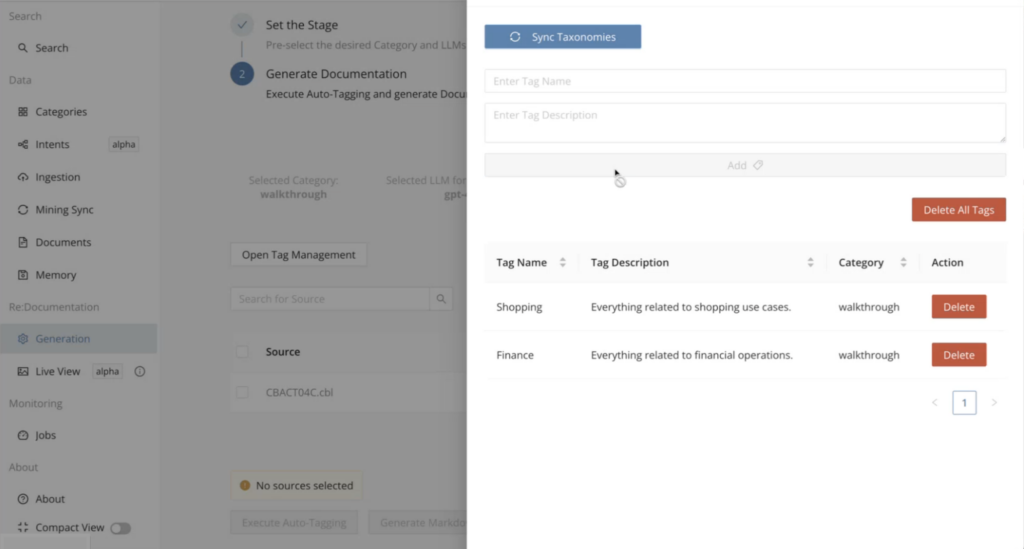
You can either manually create tags to classify modules under business domains, or you can sync taxonomies from Mining if they already exist.
Step 1
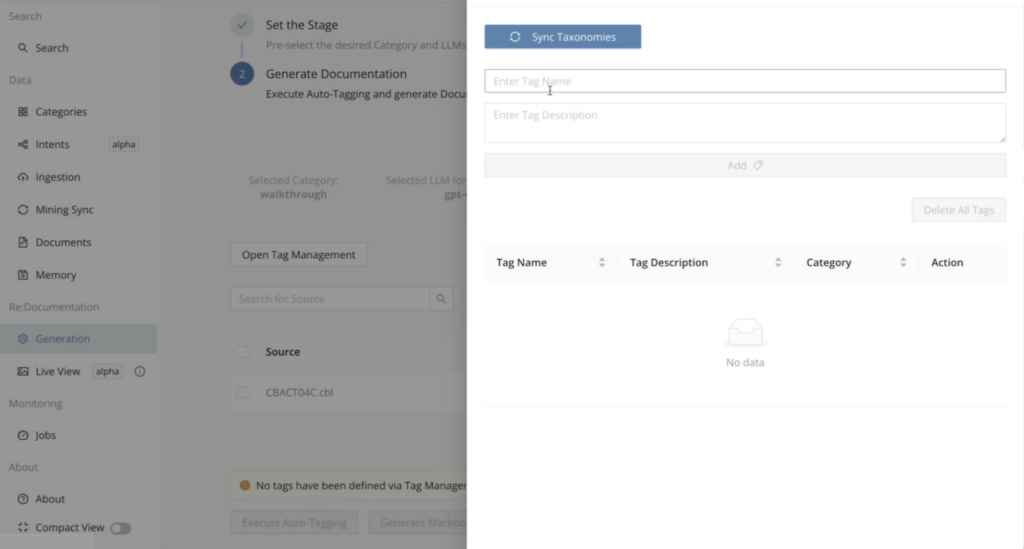
Click Open Tag Management .
Step 2
In the Side Panel that opens, either click Sync Taxonomies to pull in taxonomies from Mining, or you can manually tag names/descriptions and click Add .
Step 3
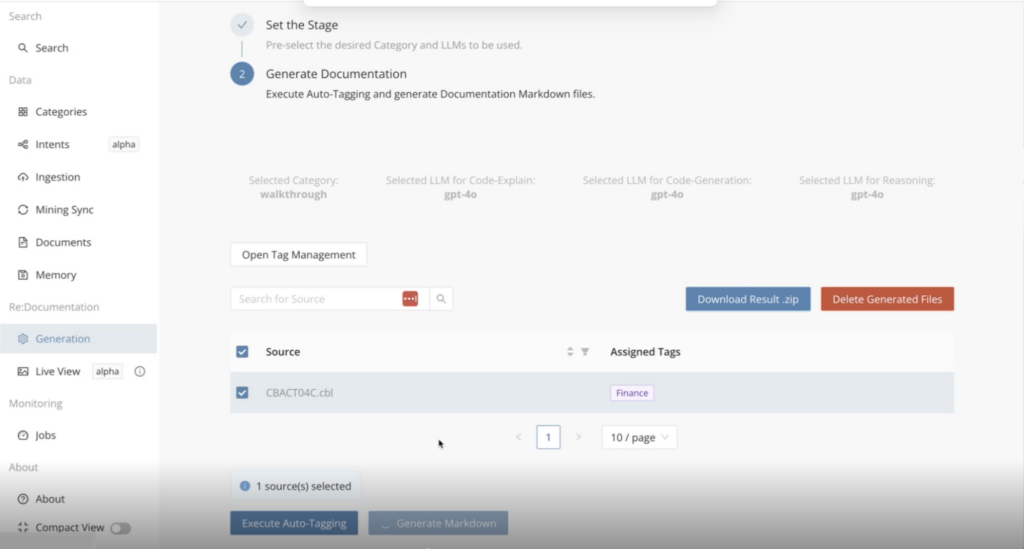
Close the side panel and click Execute Auto-Tagging to automatically assign tags to modules.
Generate Markdown
Once your modules are autotagged, click Generate Markdown button to trigger the documentation generation job. Upon completion, you can click Download Result.Zip to download a zipped package of the documentation (markdown files), or you can view the results directly in the UI can navigating to the "Live View" page on the main menu under Re:Documentation.
Live View
Once you have generated the markdown files for the documentation, you can view this auto-generated documentation directly in the UI by clicking on Live View in the left main menu under ReDocumentation. There will be an Index page overviewing the entire application based on the selected modules and individual detail pages per module.
Index page
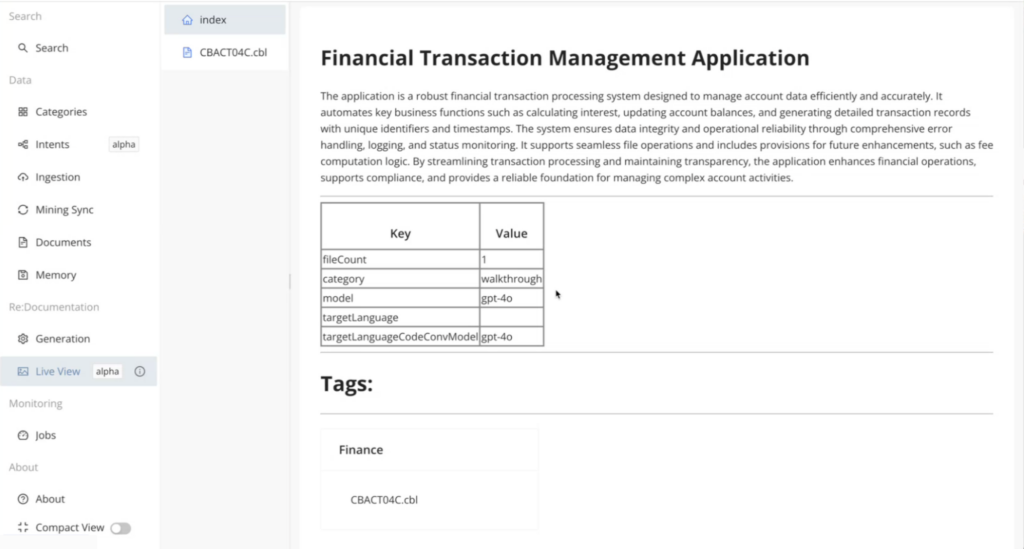
Summary of the purpose of the application.
Module page - Table of contents
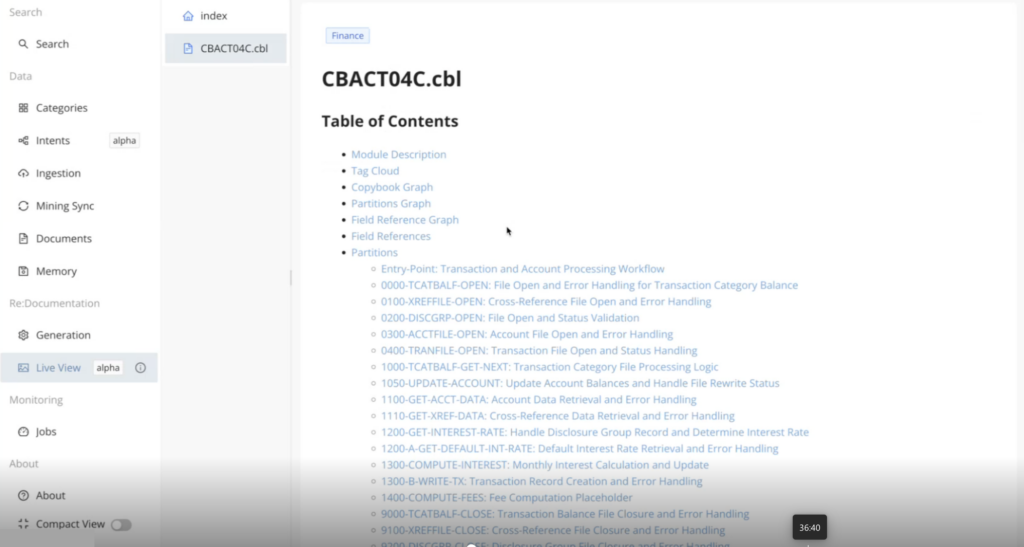
The Table of Contents provides an overview of the documentation on each module with hyperlinks to quickly jump to each section.
Module page - Description
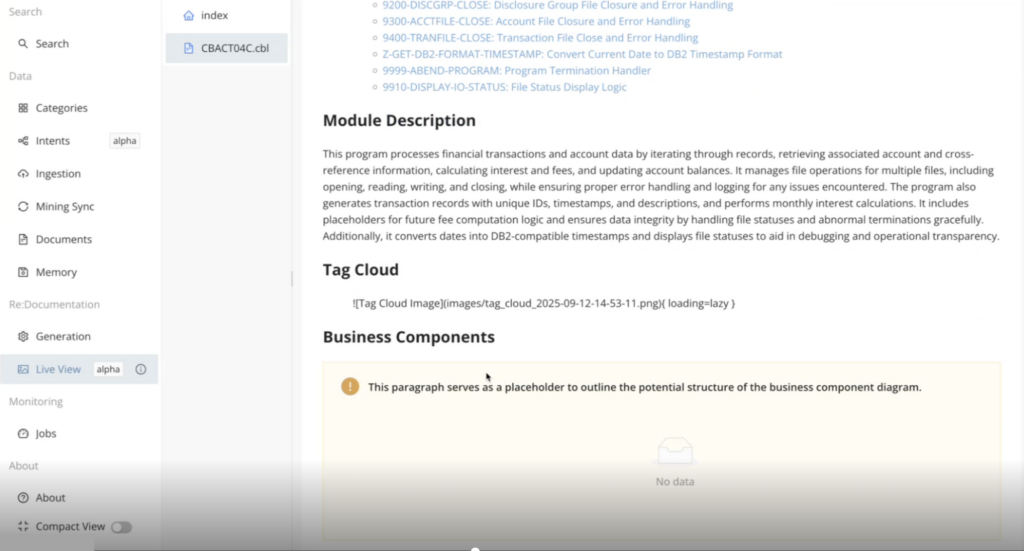
Summary overview of the purpose of each module.
Module page - Partitions graph
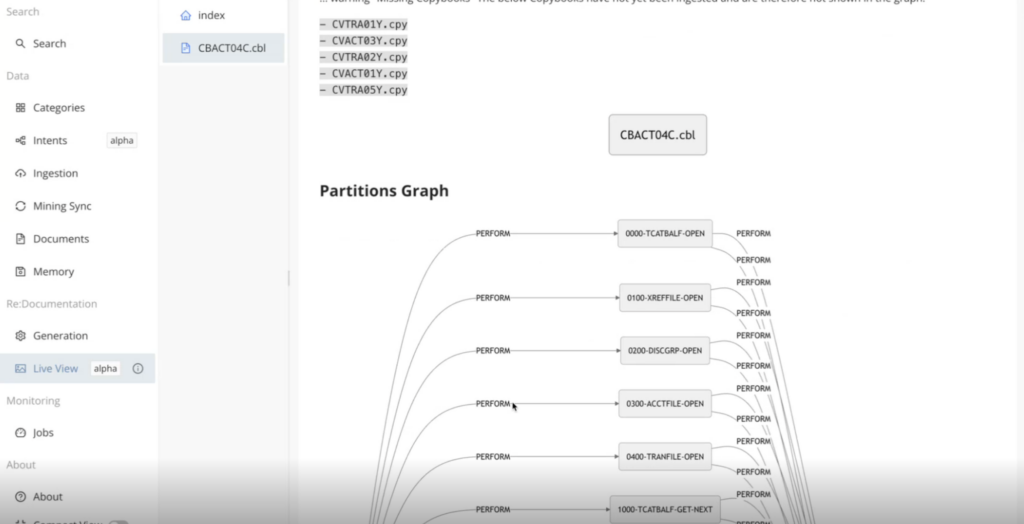
Shows how the different sections and subroutines of a program are called graphically.
Module page - Field references
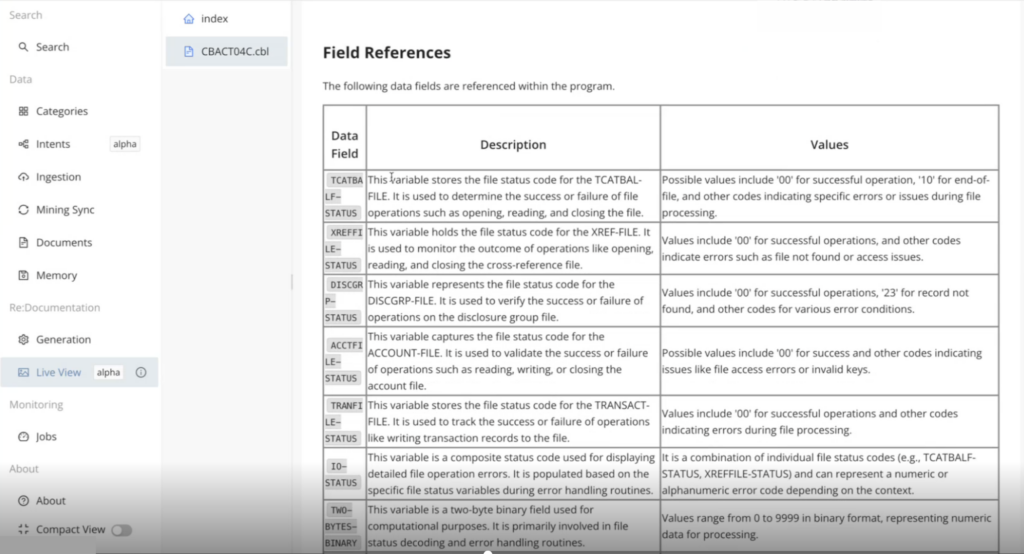
Provides a summary overview of all the fields referenced inside the program, including descriptions and the potential values they may store.
Module page - Partitions
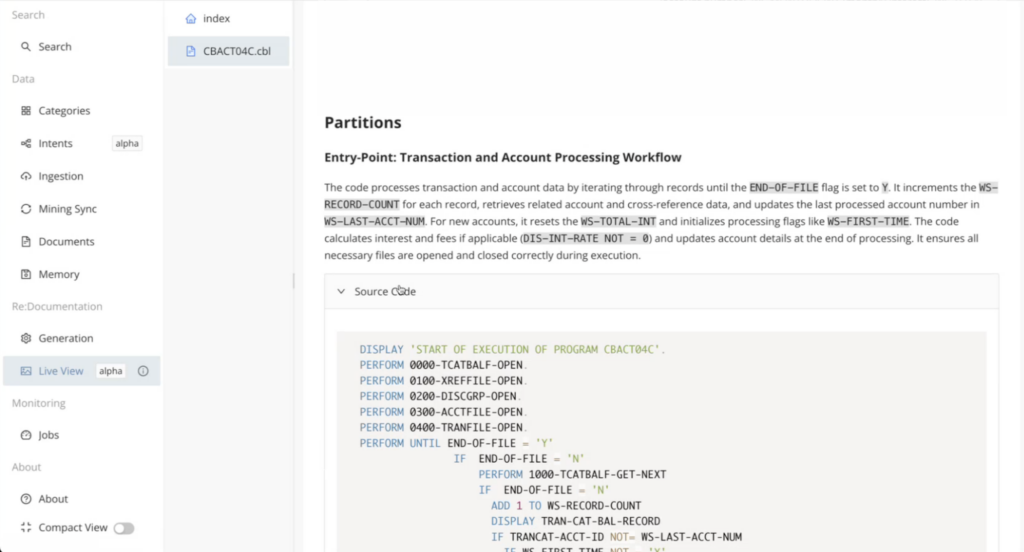
Provides a summary breakdown of each of the different sections and subroutines of a program, explaining the functional workflows while showing the associated source code.
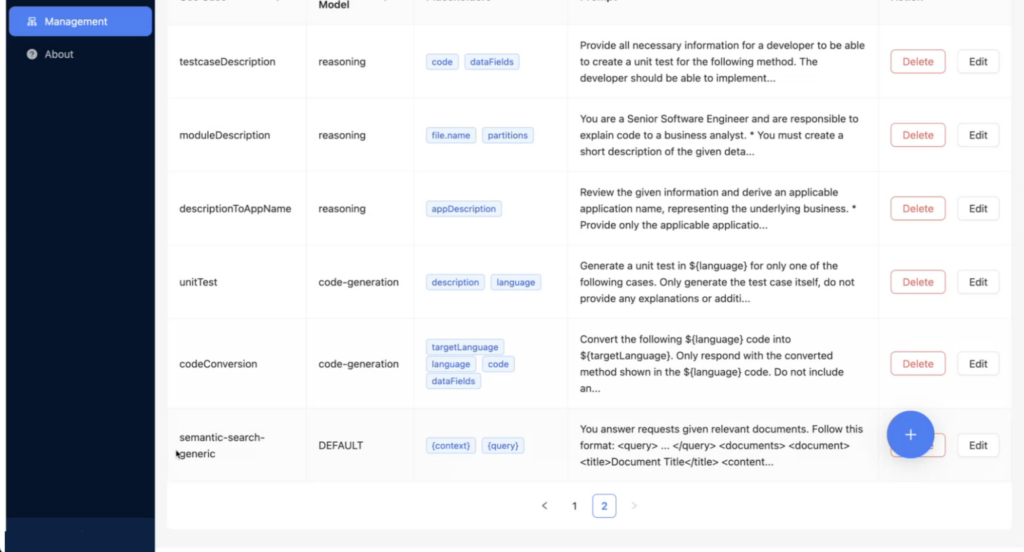
Prompt management
The prompts contain the exact instructions provided to the AI models on how to generate a response to a particular query, including the GenAI features in Mining (Annotation Descriptions, Module Descriptions, etc.), and also Knowledge Cockpit semantic search and documentation generation. Within the prompt management page, you add new prompts or edit/delete existing prompts based on your tailored response needs.