Bounded Context Editor
The Bounded Context Editor is where you turn taxonomy work into explicit bounded contexts that can be reviewed in later graph and report pages. It provides a controlled step between exploratory taxonomy analysis and more formal decomposition outputs. Use this page when you are ready to promote selected taxonomies into context candidates.
Info
Before you use this page, create a client and project, then upload schema, modules, queries, taxonomy, and module-relations CSV files.
For this workflow, use Project > Test 3. Open Decomposition > Bounded Context Editor and switch to the Taxonomy To Context tab.
Convert taxonomies to bounded contexts
This workflow copies selected taxonomies into bounded contexts so they can be analyzed independently of the original taxonomy set. It is the main transition point from taxonomy-based grouping to context-based decomposition. Complete these steps after you are satisfied with the taxonomies you want to promote.
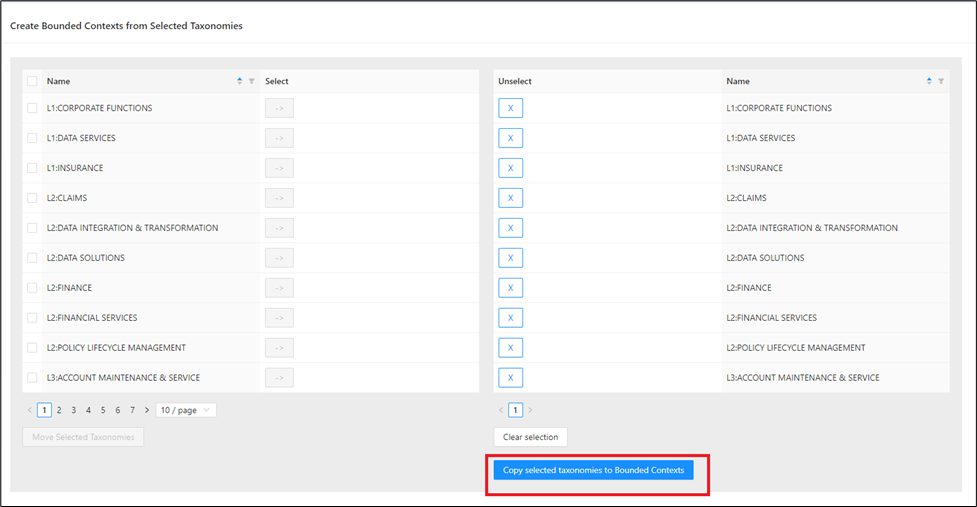
Step 1: Scroll to the taxonomy list and identify the taxonomies you want to convert. You can move taxonomies one-by-one or as a batch.
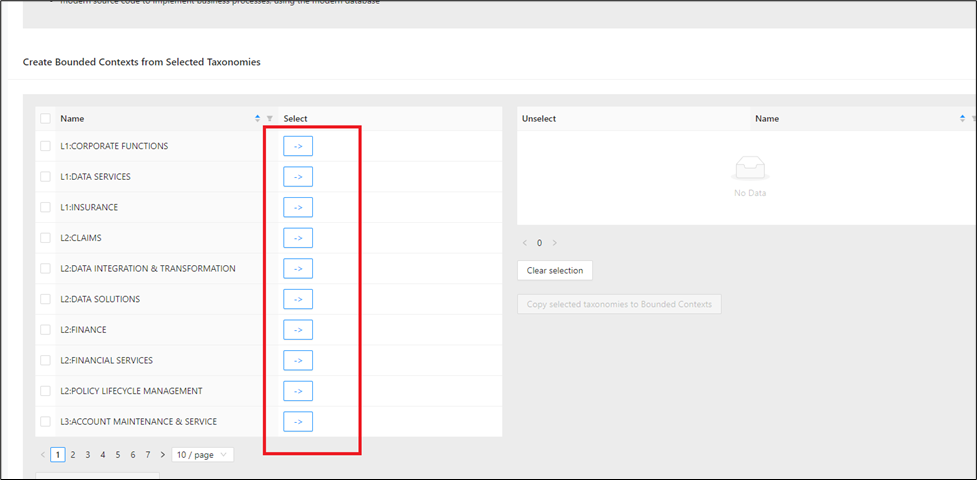
Step 2: To move one taxonomy, click -> on its row.
Expected output: the selected item appears in the right-side selection pane.
The selected bounded context appears in the pane on the right.
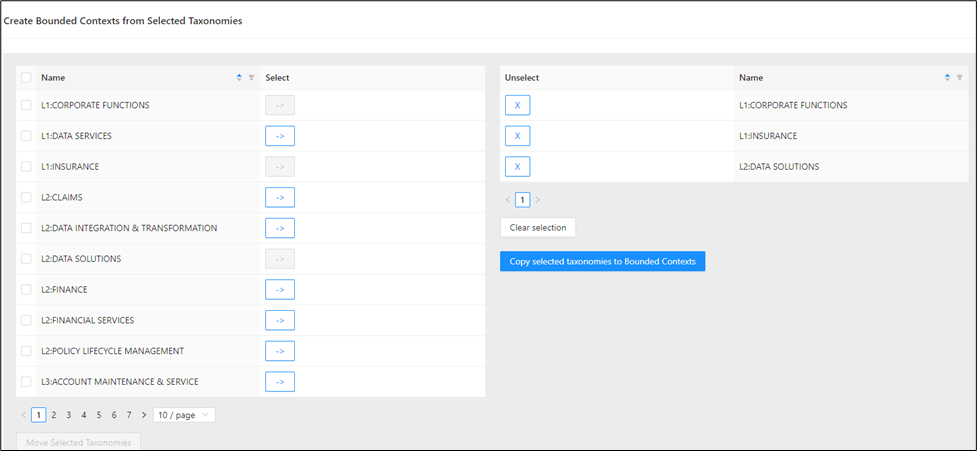
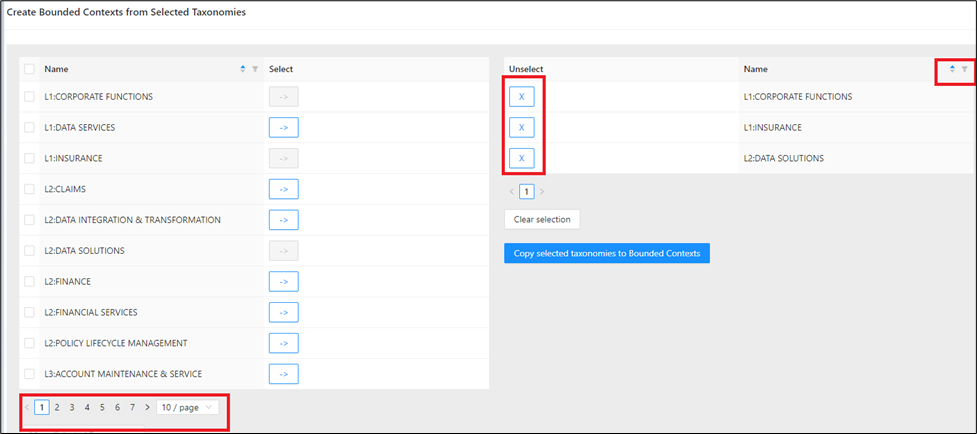
Step 3: (Optional) Use list controls to narrow the selection set before conversion.
Use filters, sorting, and pagination in the taxonomy list.
Expected output: the list updates immediately so you can target the correct taxonomy set for Test 3.
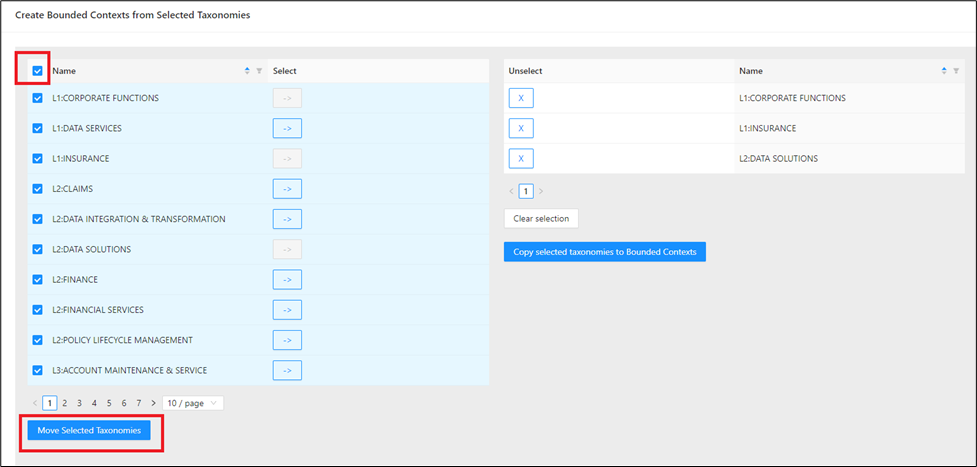
Step 4: To move all visible taxonomies, select the master checkbox and click Move Selected Taxonomies.
Expected output: all checked taxonomies move into the right-side pane.
Step 5: If you need to adjust the selection:
- Click next to an item in the right pane to remove one taxonomy.
- Click Clear Selection to remove all selected taxonomies.
Expected output: removed entries return to the left list.
Step 6: When the right pane contains your final Test 3 selection, click Copy selected taxonomies to Bounded Contexts.
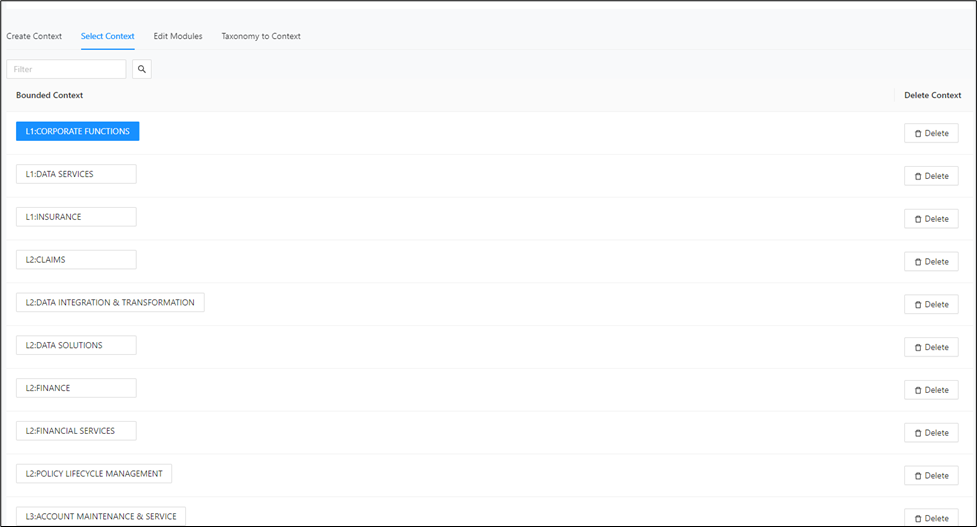
Expected output: selected taxonomies are copied and become available under Select Context.
Step 7: Open the Select Context tab and confirm the copied contexts are listed.
Expected output: new bounded contexts are available for graph analysis.
Continue with Bounded Context Graph to inspect and refine context boundaries.