Assign Taxonomies
Taxonomies are used to categorize and organize modules within a project and are categorized as either "Technical Taxonomies" or "Business Taxonomies" (configurable) to represent the technical categories of the application, for example, UI, Batch, etc., or the business domain of the application that each module belongs to. Modules can be assigned multiple taxonomies for maximum flexibility, including both Business and Technical Taxonomies. Business Taxonomies can be created and configured in the Configuration page.
When selecting modules in the modules table, there is an option to assign taxonomies directly from the Modules page.
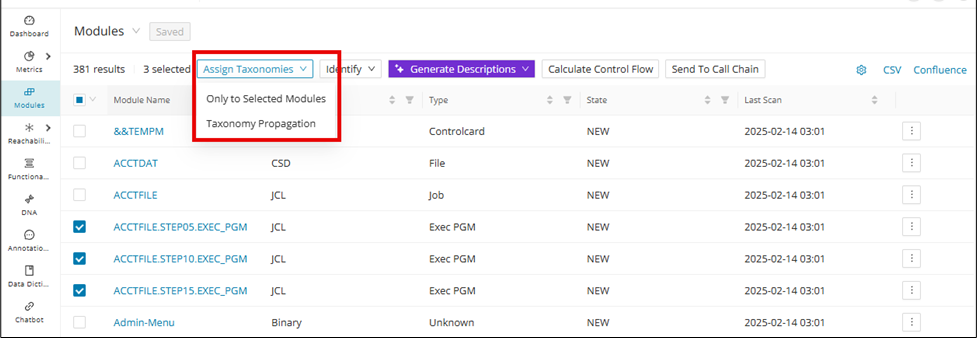
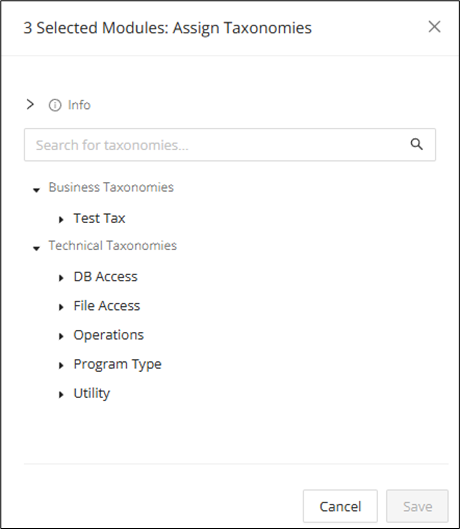
Select one or more modules and then click the Assign Taxonomies drop-down, and then click Only to Selected Modules . A window for assigning taxonomies will display on the right-hand side, in which you can check the taxonomies and assign them to the selected modules.
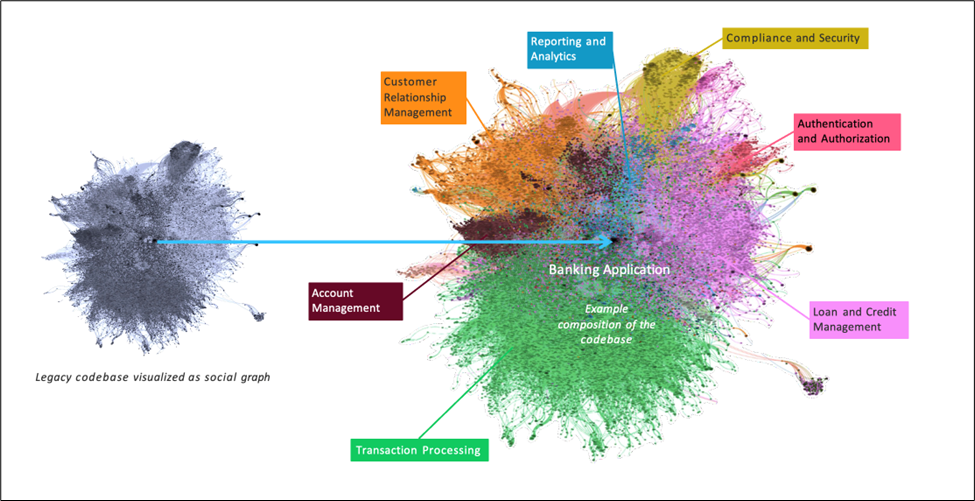
After assigning modules the appropriate Technical and Business Taxonomies, teams can gain a clearer picture of their system's structure and domain relationships from various outputs such as tables, graphs, and models. For example, when coupled with Social Graphs, teams are enabled with a visual that represents a high-level overview of the application's business domains, which supports informed modernization decision-making.
Info
Social Graphs are currently built using third-party tools (for example, Gephi) and are not built into Mining at this time.
Taxonomy Propagation
Taxonomy assignment is a mostly manual and labor-intensive task, especially when users must individually assign taxonomy terms to every module or use Taxonomy Batch Import. Taxonomy Propagation streamlines the process of assigning taxonomies to modules by automatically propagating taxonomies from parent modules to their dependent child modules and vice versa. Simply assign taxonomy terms to starting modules, and the Code Discovery & Mining intelligently applies these categories throughout related dependencies.
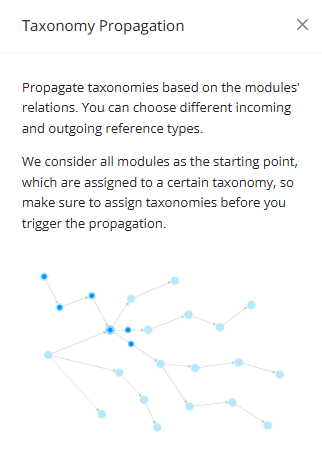
Navigate to the Modules page, select the module(s) to propagate, and click Taxonomy Propagation.

The Taxonomy Propagation window opens as a drawer on the Modules page, from which the user can select the taxonomies to propagate and select the outgoing reference(s).
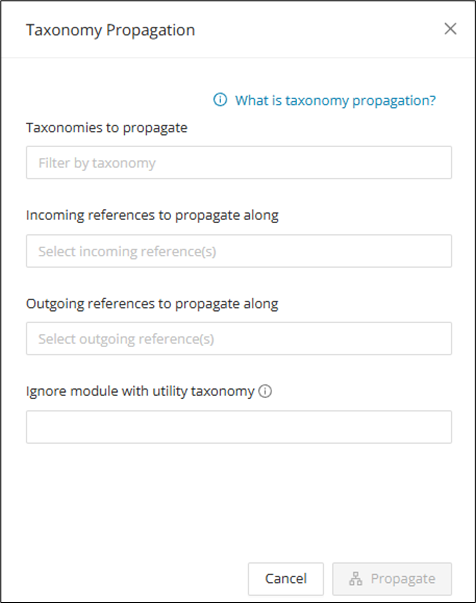
After making selections, click Propagate to open a window to see the modules that will be propagated. Click Proceed after confirmation. Note that taxonomy propagation cannot be reversed once applied and would have to be manually removed from the affected modules.
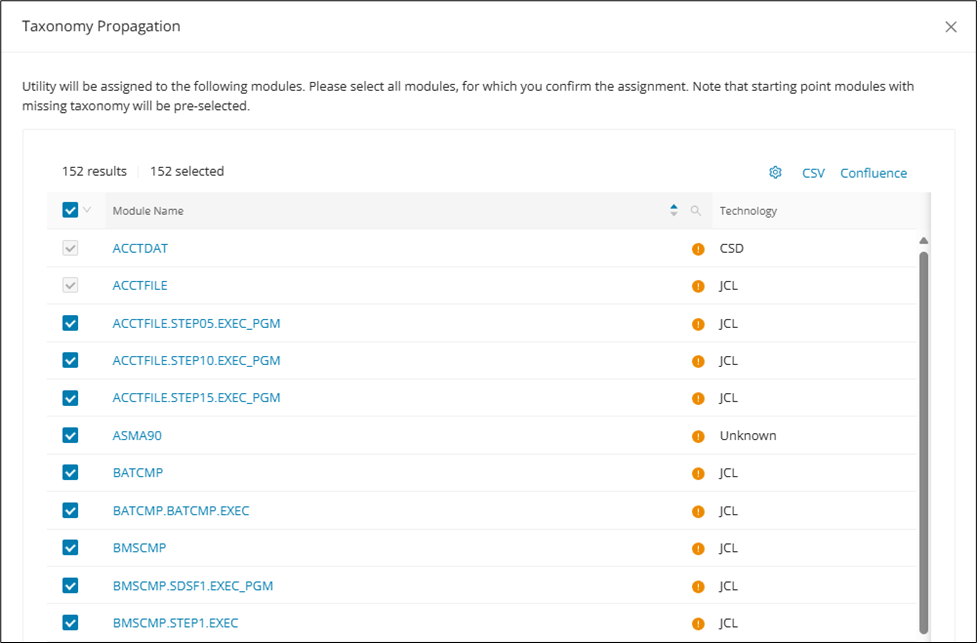
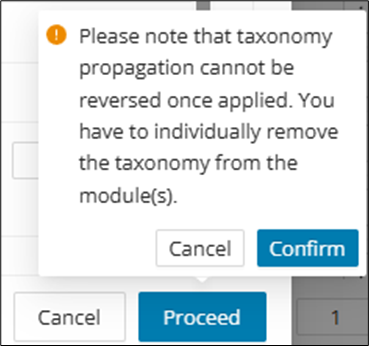
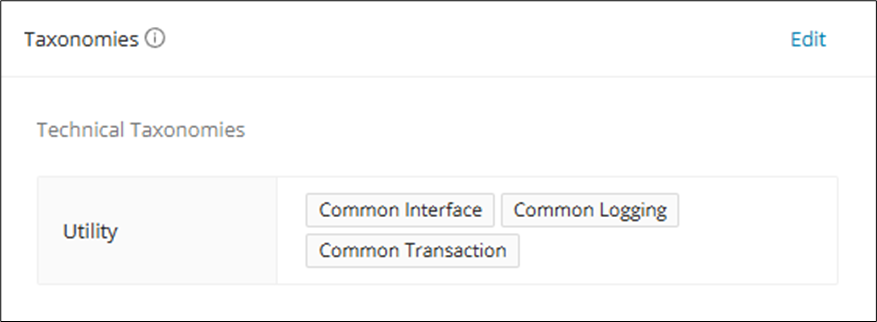
After Taxonomy Propagation is complete, click on the affected module(s) to access the Module Details and verify the taxonomies.
Propagation with conditional dependency
By default, Taxonomy Propagation logic uses module references and does not use call chains to identify dependencies between modules; thus, they also cannot account for conditional dependencies. To enable conditional dependency identification, enable the feature toggle callChainBasedTaxonomyPropagation, then run Taxonomy Propagation.
Configuration
The feature toggle callChainBasedTaxonomyPropagation has to be enabled for this feature.