Code Generator
After you create clients and projects and import the required files, you can use the Code Generator features described on this page. Decompose uses the imported database and application knowledge to drive AI-supported code generation for modernization tasks. This page explains how each generator area works so you can configure the right inputs and review the generated outputs effectively.
Tech Stack
The page is a questionnaire for gathering information about a database modernization project. It collects details about the legacy and target databases, the tools and frameworks used for migration, and the programming languages involved. The specific information collected includes:
-
Legacy database type
-
Target database type
-
Database migration tool
-
Database migration framework
-
Database migration language
-
Programming language of the modernized application
-
Object-Relational-Mapping framework
-
Web framework
-
Desired cloud provider, region and deployment environment
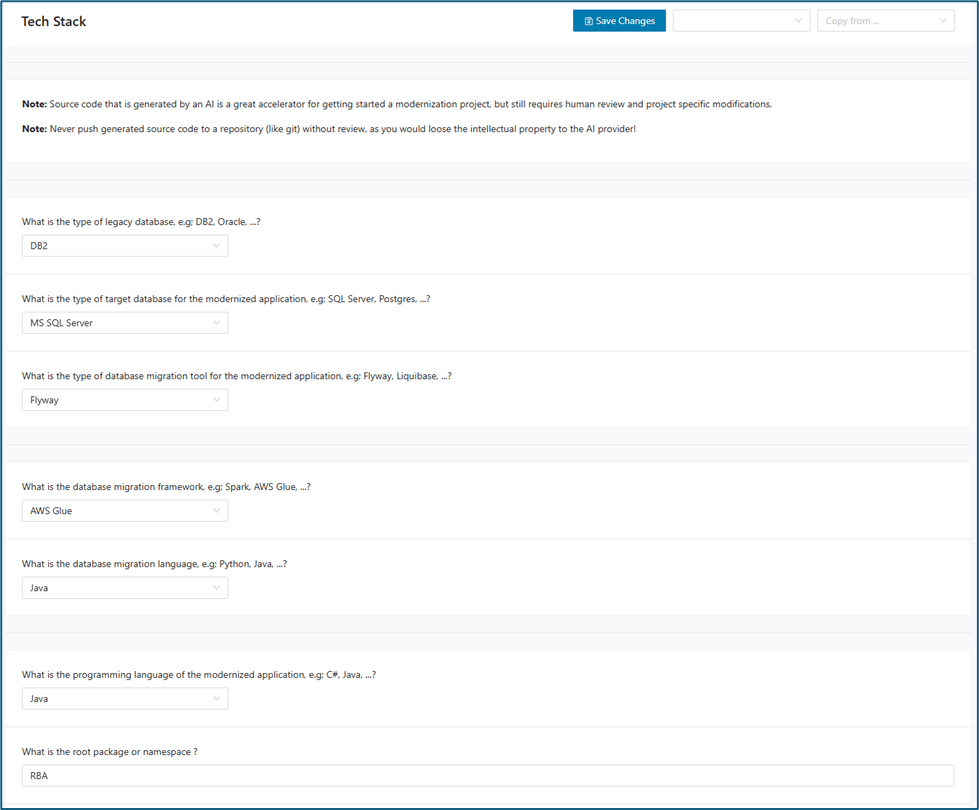
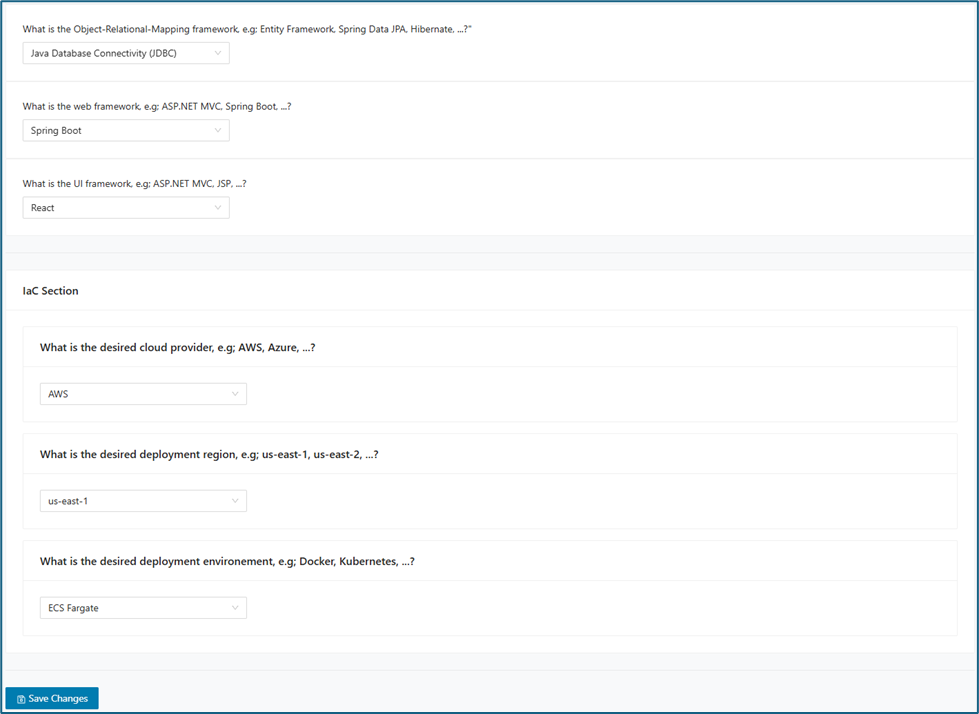
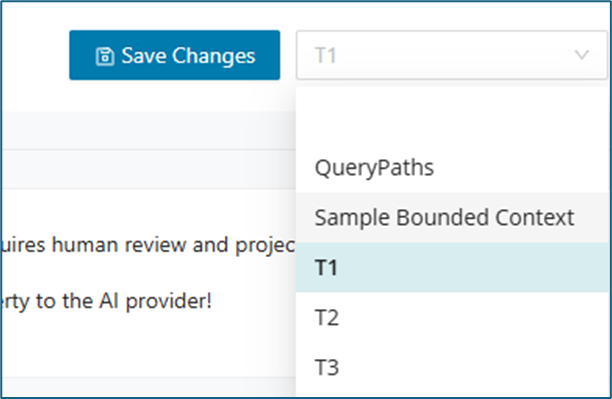
You can save tech stack preferences for a specific bounded context or table.
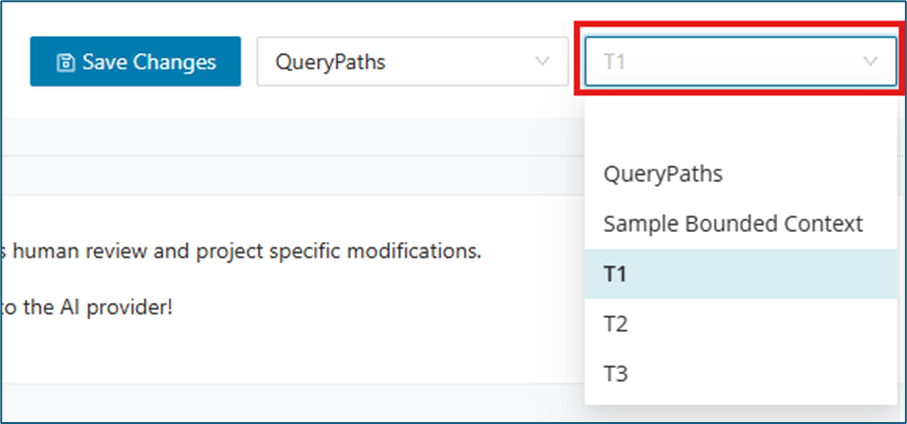
You can copy an existing tech stack from your saved preferences. Select the desired tech stack in the Copy from... drop-down, choose the destination where you want to apply it, and then click Save. The following screenshot highlights the Copy from... drop-down:
SQL Queries
On the Query Generator page, leverage GenAI to automatically translate SQL queries from your legacy database into equivalent queries for your modernized database. In addition to query conversion, GenAI also generates the source code required to invoke these new queries directly from your modernized application stack.
Queries are organized by business module and table. Each module and table is displayed in its own dedicated tab, making it simple to navigate between sections. Within every tab, you'll find both the original queries and their GenAI-generated modern equivalents, along with the corresponding invocation code for seamless integration.
To use this feature, select a bounded context or table in the drop-down.
Note: A Tech Stack must be set on that specific Bounded Context or Table to use this feature.

After selecting a Bounded Context or Table, all associated Modules and Tables will be loaded automatically in their respective tabs.
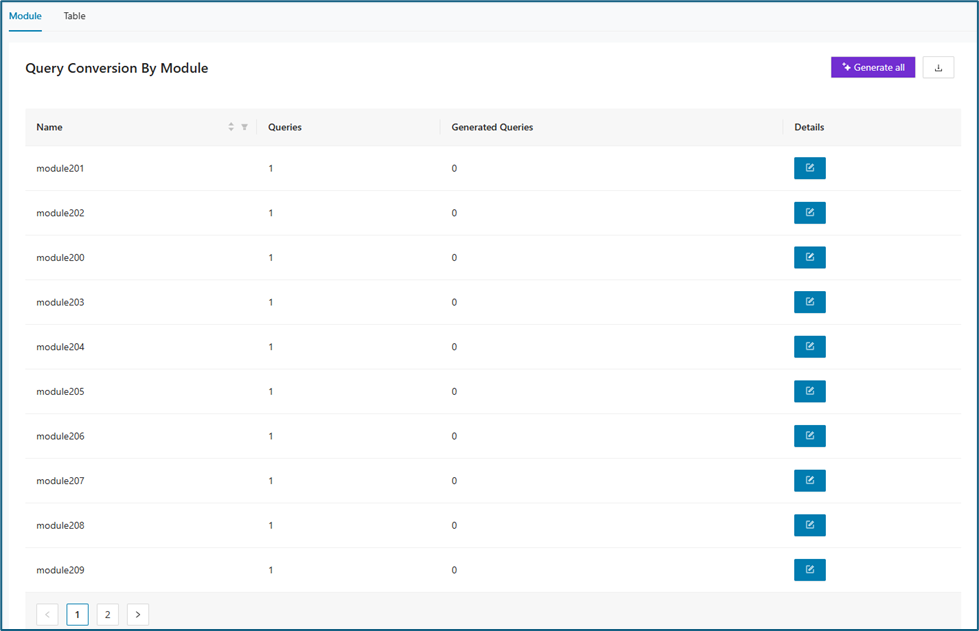
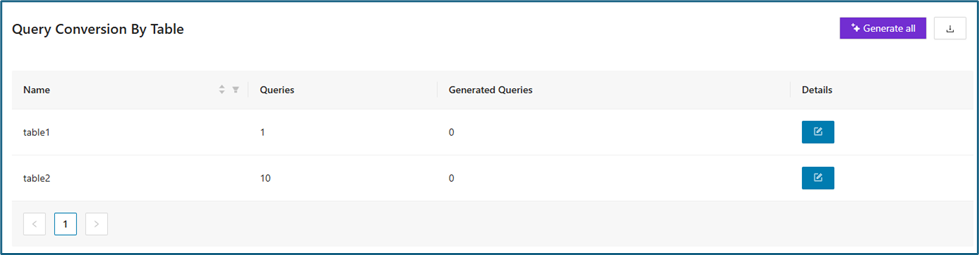
When the button on the Details column is clicked, the generated queries will be displayed.
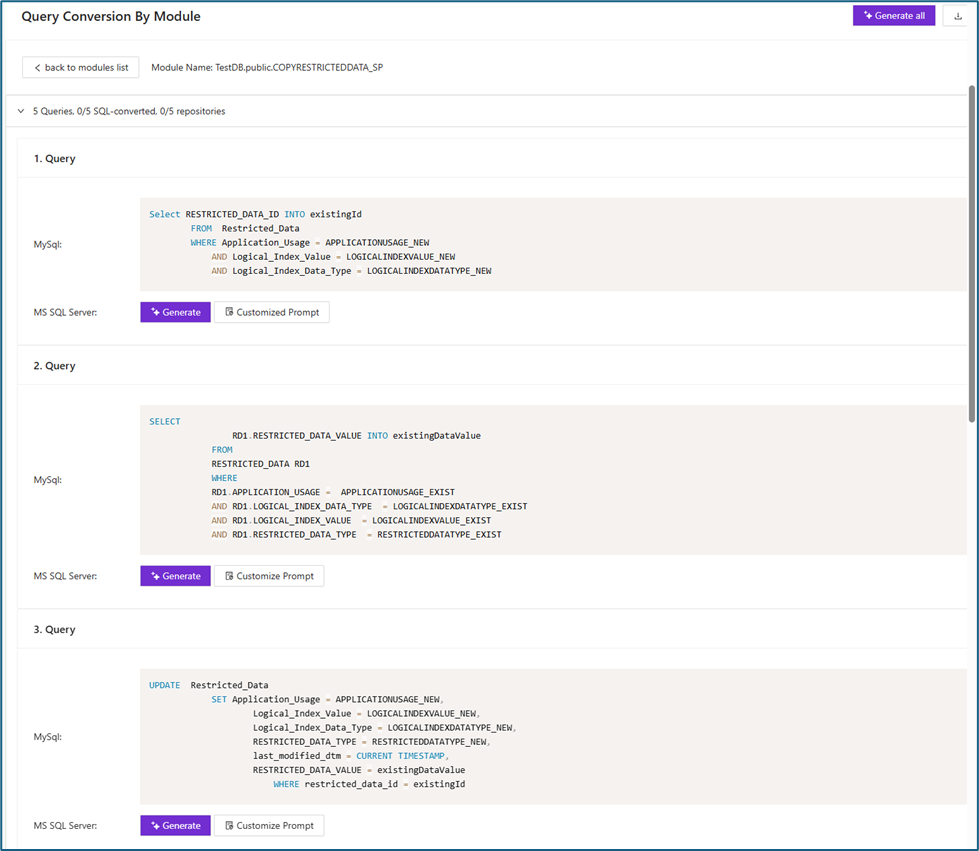
You have multiple options for generating queries. You can click Generate All in the upper right to generate all queries at once, generate each query individually, or customize the prompt for each query as needed.
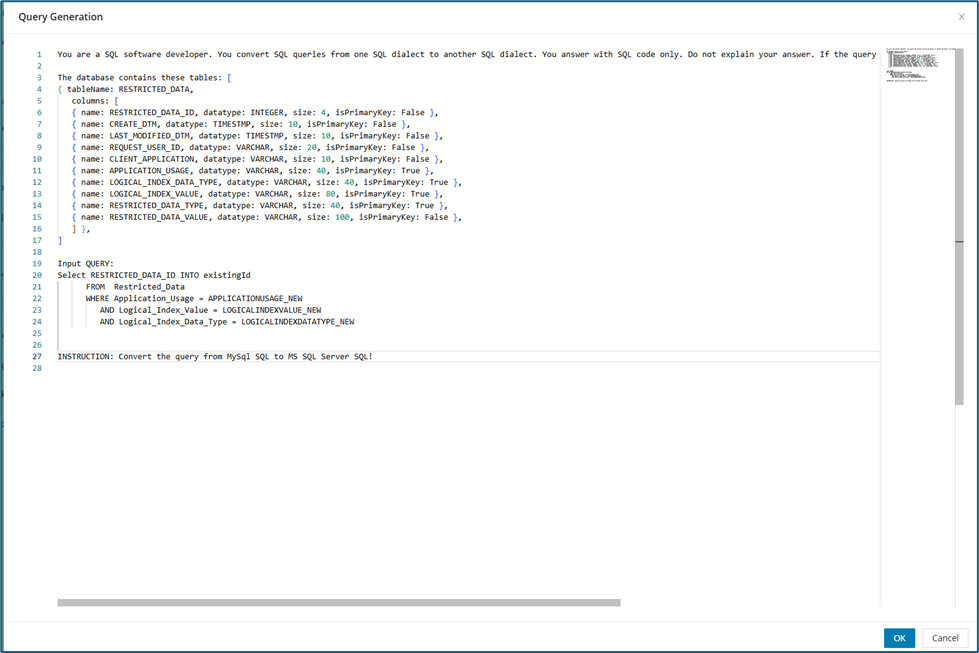
When you click Customized Prompt, you can give the AI more specific instructions.
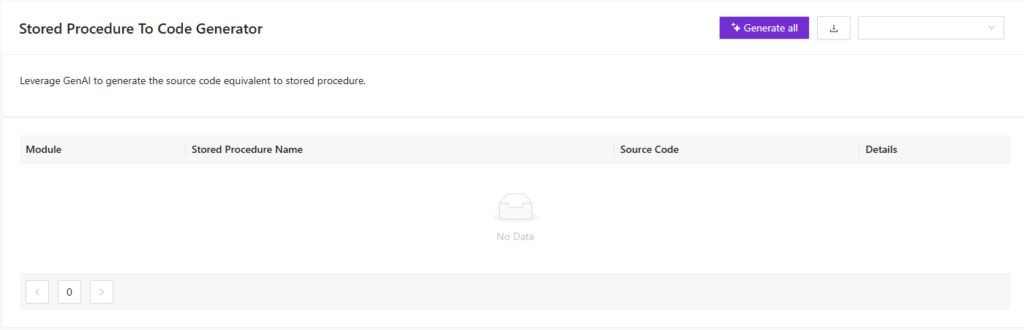
Stored Procedures
The Stored Procedures view is available in the current Code Generator UI. The following screenshot shows the page layout for this area.
Database Layer
This feature automates the creation of the Database Layer for existing legacy database tables. Instead of manually writing code to connect to each old table, this tool uses Generative AI (GenAI) to produce the required code structures for selected tables.
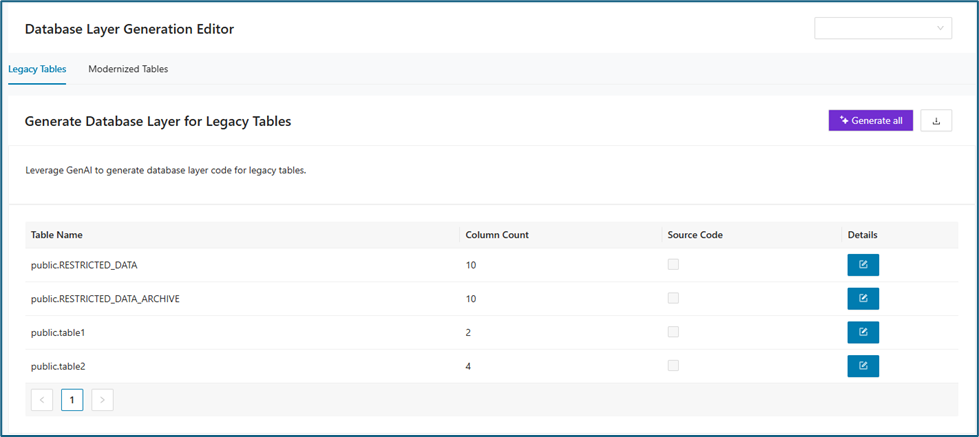
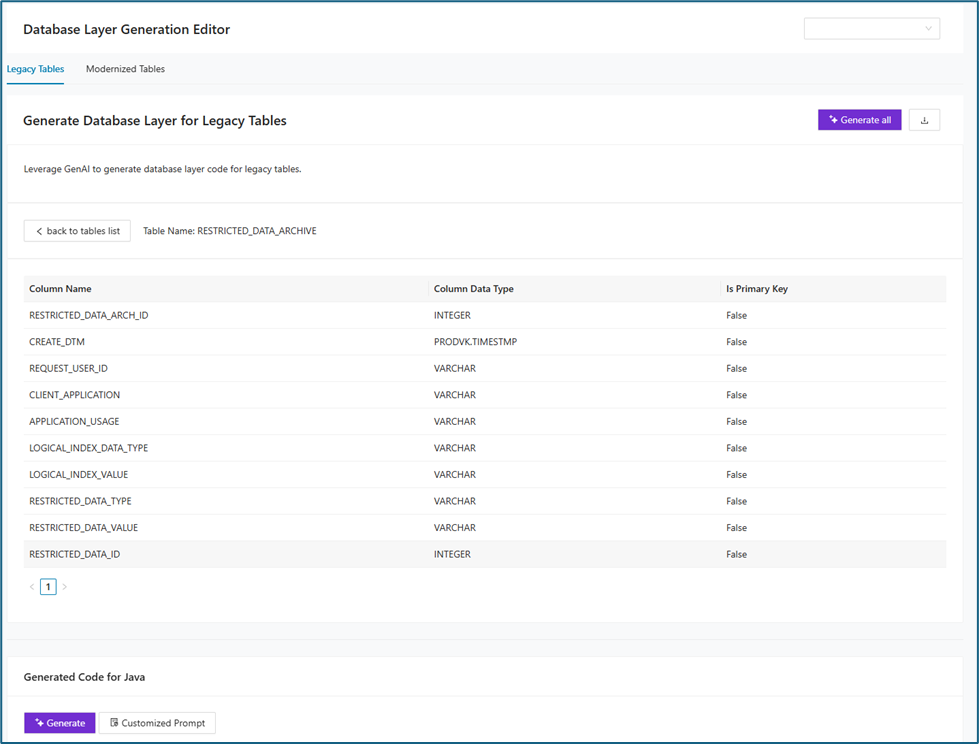
Clicking the edit icon in the Details column displays a breakdown of each table’s columns, including column names, data types, and primary key information. To instantly generate the corresponding database layer code, simply select either the Generate button for an individual table or the Generate All button for bulk creation. The code will be automatically produced in the programming language and framework you selected on the Tech Stack tab.
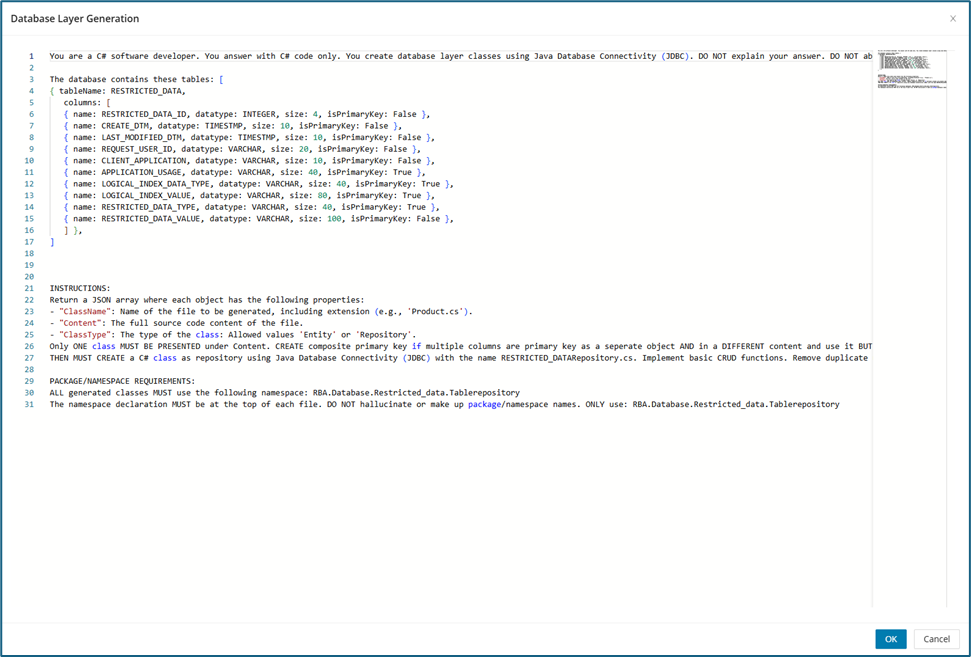
You can also customize the AI code generator instructions by clicking Customized Prompt. This lets you tailor the generated code to specific requirements.
Once code generation is complete, the results appear at the bottom of the page. You can review, copy, or edit the code as needed. In some cases, multiple code blocks are generated so that you can work with different sections individually.
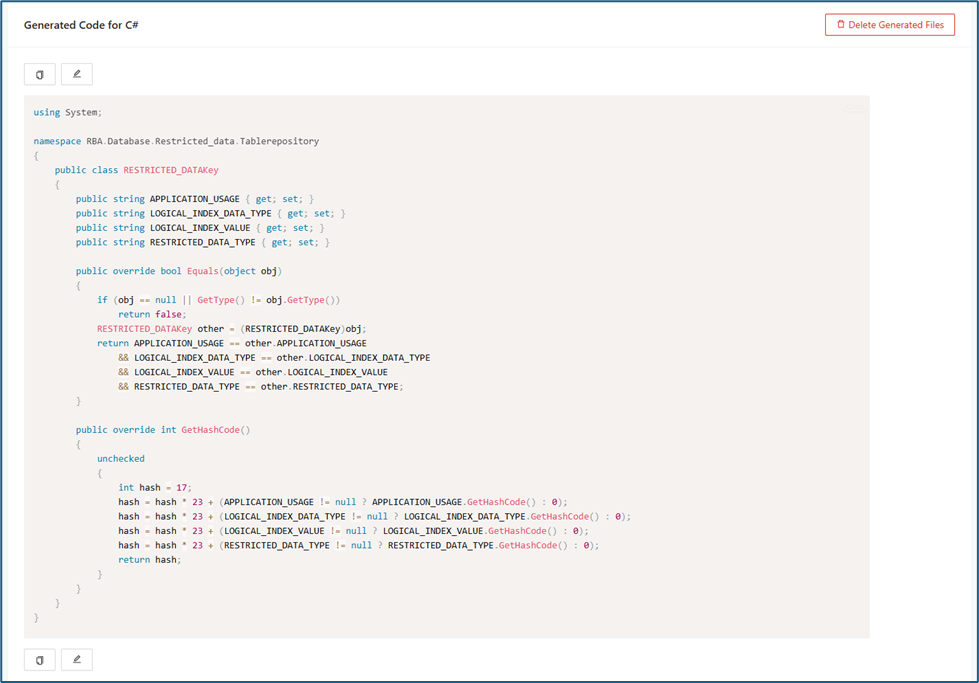
To edit the generated code, simply click the edit icon and make any necessary changes.

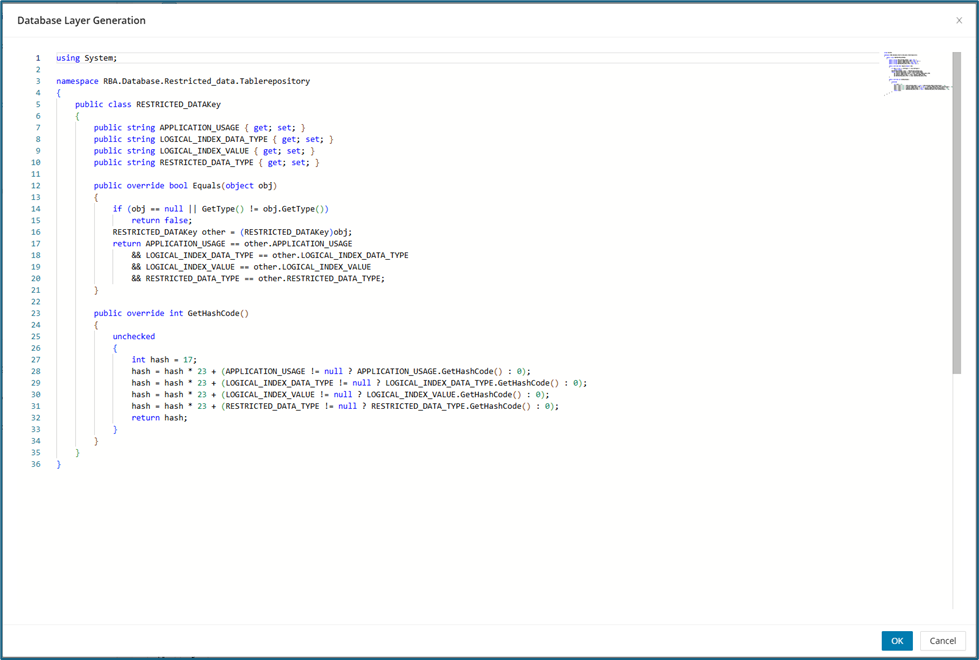
Modernized Tables
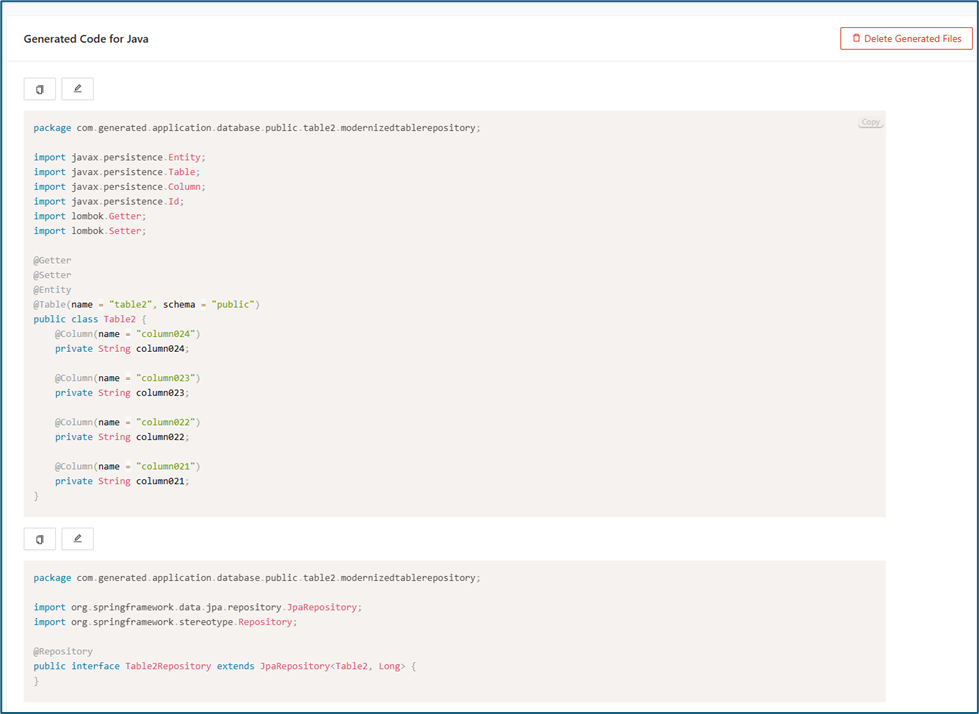
The Modernized Tables tab shows tables that have been updated or generated by the tool. Tables appear here after the cutting process is completed through DB Cutting. In this section, you can view the source code for each modernized table together with additional details about its structure and configuration. Select the required Bounded Context or Table from the upper-right drop-down.
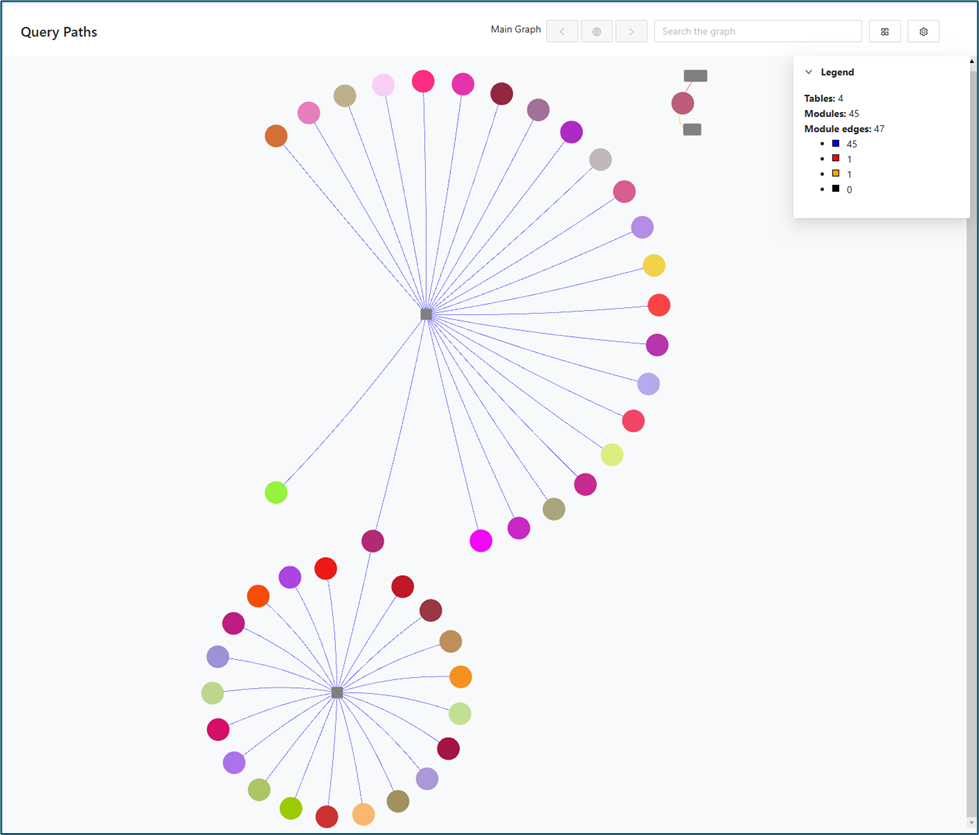
When the Generate All is clicked, the tool will generate the relevant code for all tables. The generated code for each table can then be viewed by clicking Details .
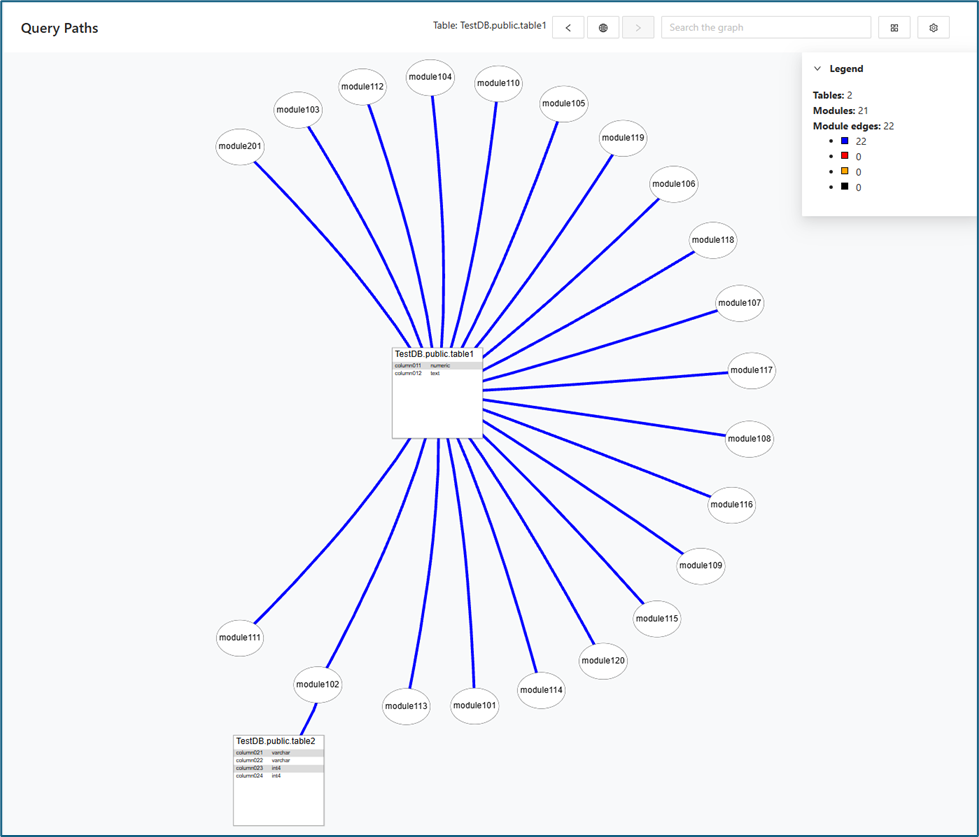
Service Layer
The Service Layer Generation is designed to further streamline and automate modernization projects by generating the “service layer” code that sits on top of the database layer for legacy tables. This feature leverages GenAI to create standardized, efficient service logic for interacting with legacy databases—a critical step in rebuilding or replatforming older systems.
To use the Service Layer feature, first generate the code for the Database Layer. This ensures that all necessary database components are in place.
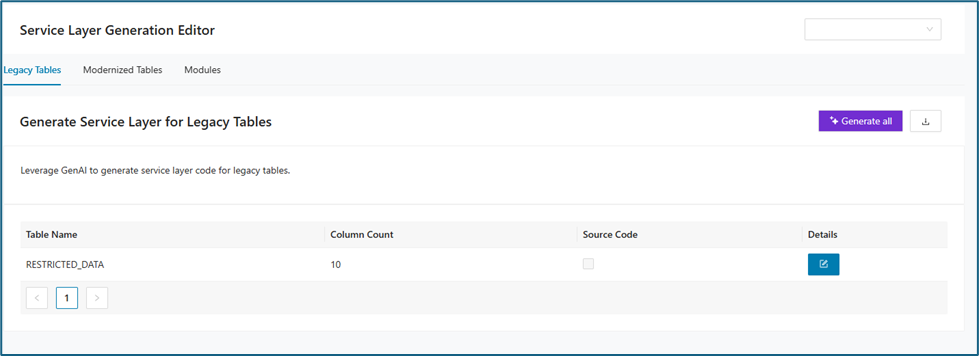
In the Legacy Tables section, you’ll find the generated code for the database layer. In this example, code for the RESTRICTED_DATA table has already been generated and is displayed here. As you generate code for additional tables, each one will appear as its own row in the Legacy Tables list.
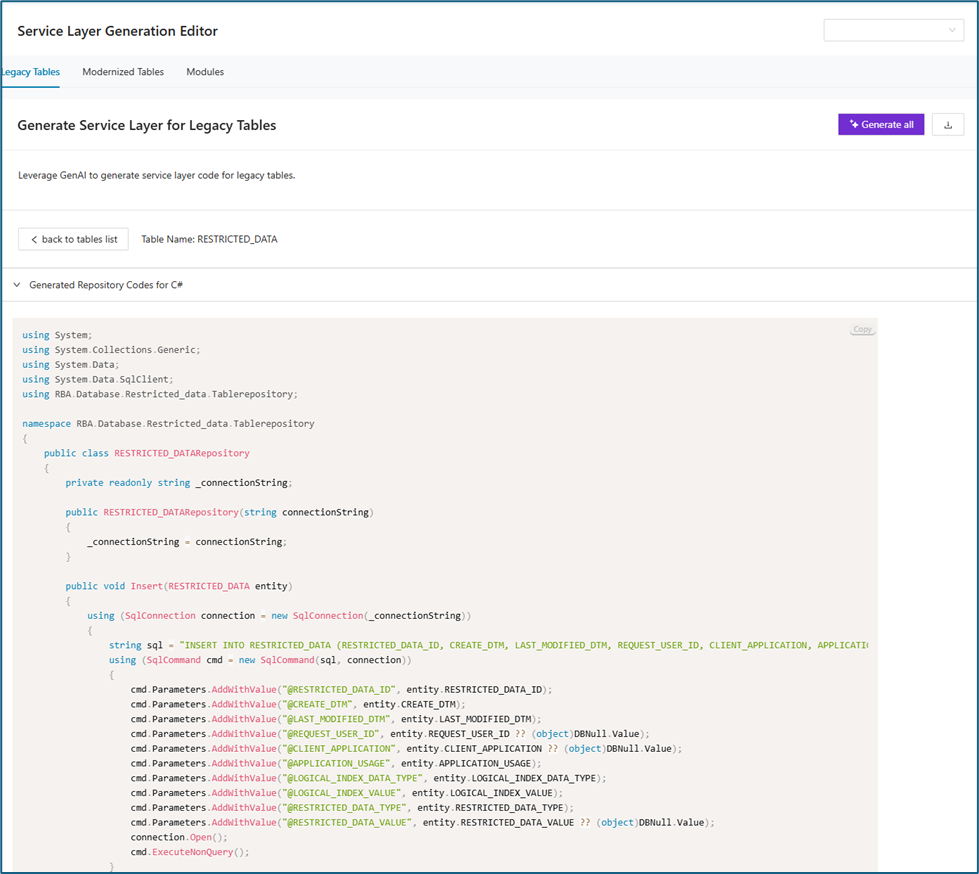
To view or copy the generated code, click the edit icon in the Details column. The first panel displays the Generated Repository Codes.
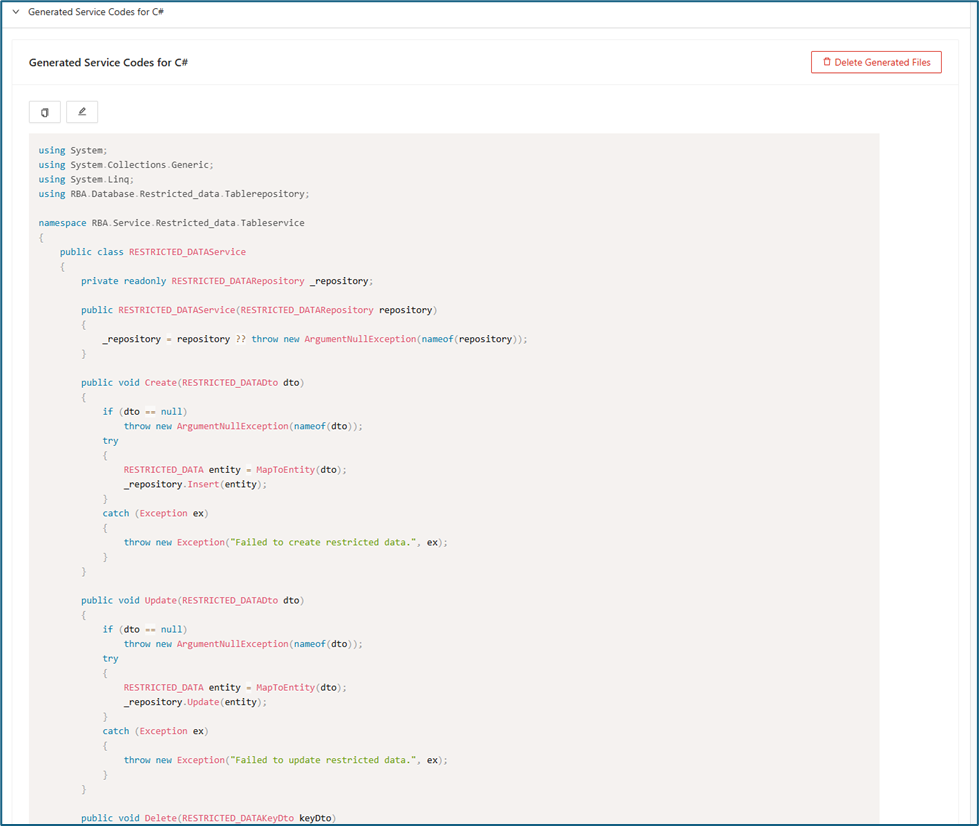
When you click either the Generate All or Generate button, the code generation process for the service layer will begin. Once complete, the second panel will display the generated service codes.
Modernized Tables
The Modernized Tables tab shows tables that have been updated or generated by the tool. Tables appear here after the cutting process is completed through DB Cutting. In this section, you can view the source code for each modernized table together with additional details about its structure and configuration. Select the required Bounded Context or Table from the upper-right drop-down.
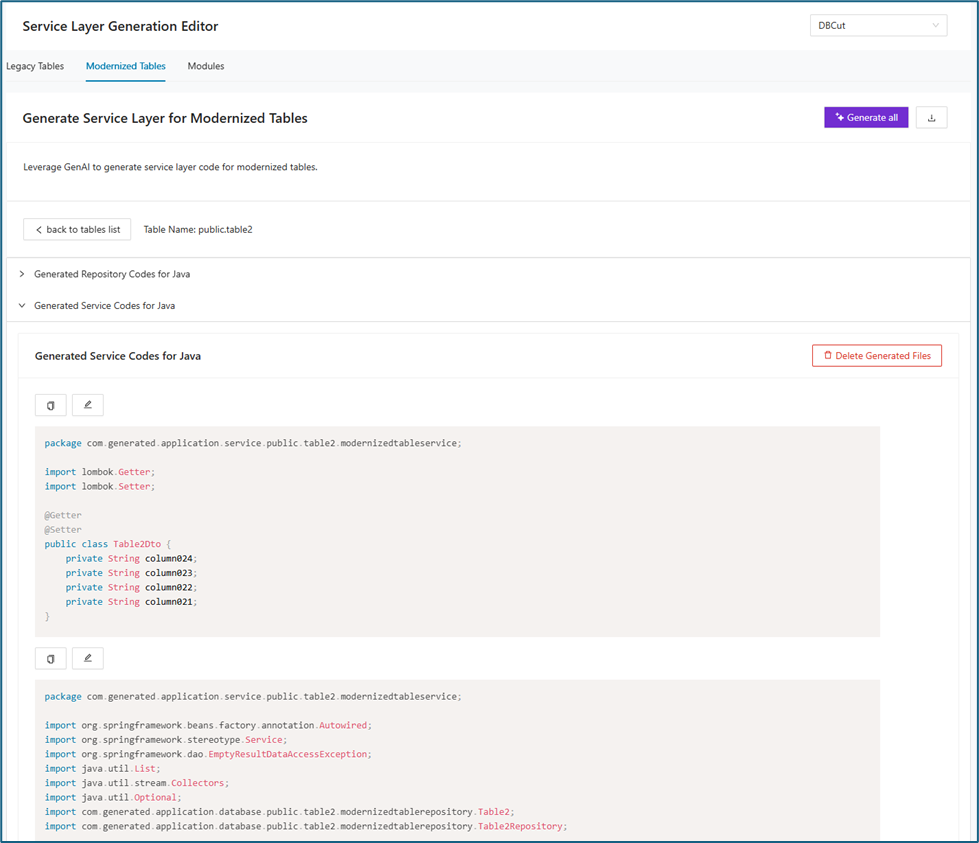
When the Details button is clicked on a specific row, the generated repository code for that table will be displayed. Clicking Generate All will generate the corresponding service code for the selected table.
Modules
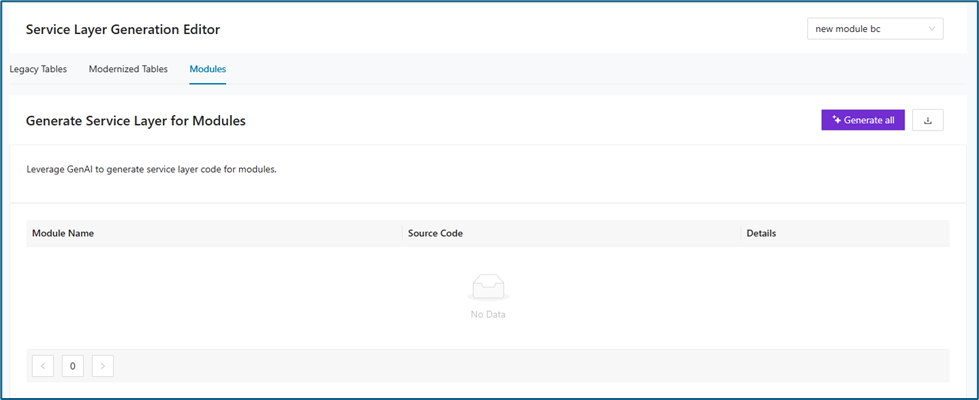
The Modules tab shows modules that have been updated or generated by the tool. Select the required Bounded Context or Table from the upper-right drop-down.
API Layer
The API Layer Generation Editor is designed to automate the creation of the API endpoints that expose legacy table data and business functionality to external systems, applications, or user interfaces. Using Generative AI (GenAI), this feature builds a fully functional API layer, facilitating a smooth modernization of legacy systems and aligning them with today’s best practices for connectivity, security, and scalability.
To use the API Layer feature, first generate the code for the Service Layer. This ensures that the required supporting components are already in place.
In the Legacy Tables section, you’ll find the generated code for the service layer. In this example, code for the RESTRICTED_DATA table has already been generated and is displayed here. As you generate code for additional tables, each one will appear as its own row in the Legacy Tables list.
To view or copy the generated code, click the edit icon in the Details column. The first panel displays the Generated Service Codes.
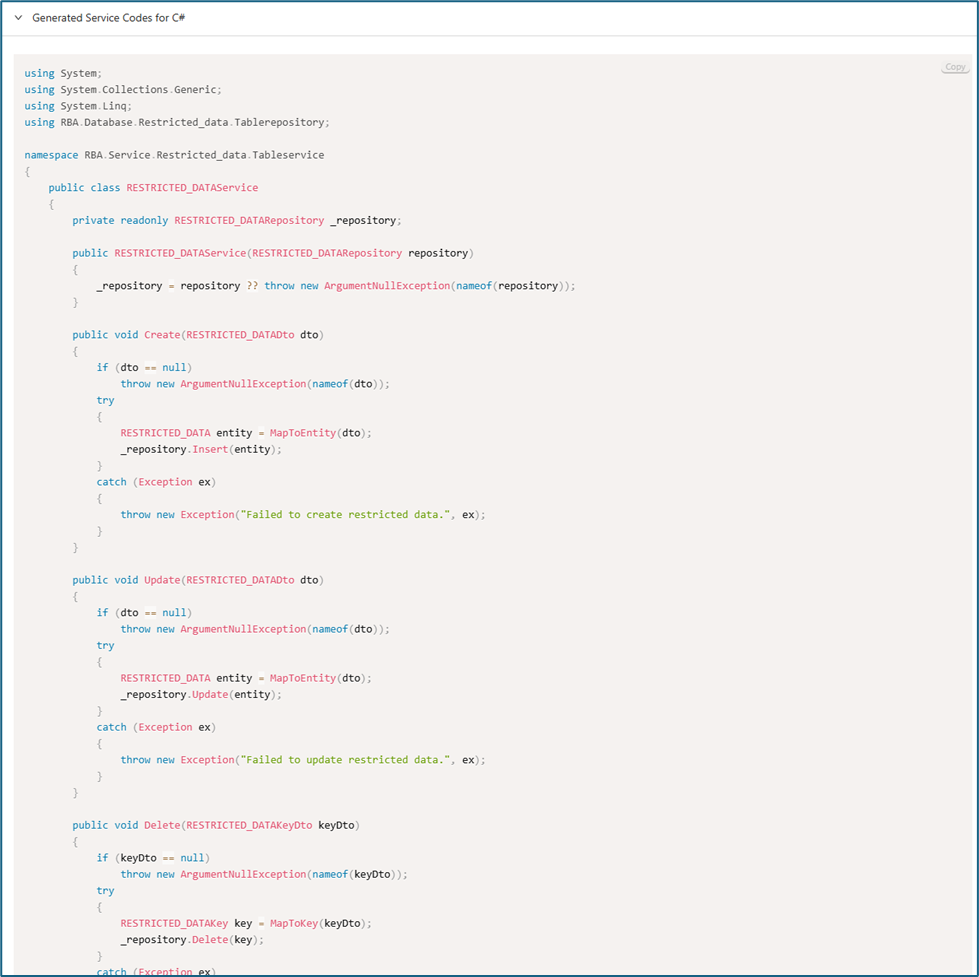
When you click either the Generate All or Generate button, the code generation process for the service layer will begin.
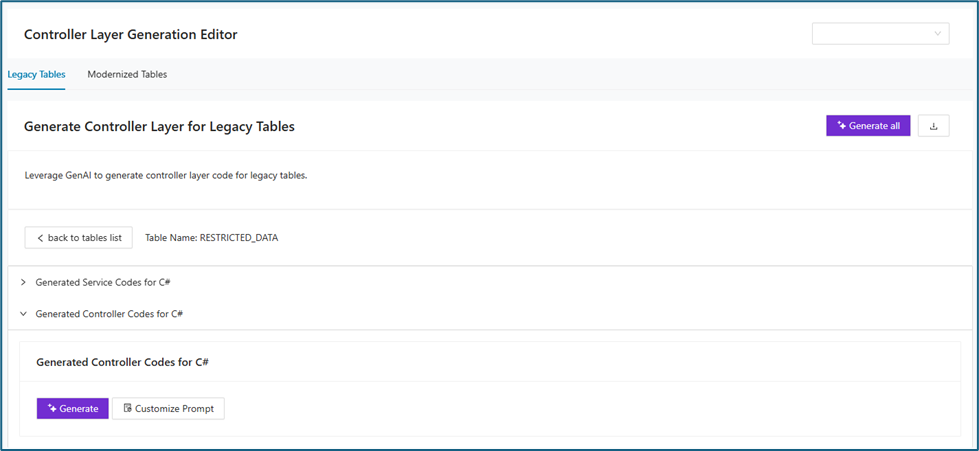
Once complete, the second panel displays the generated API code.
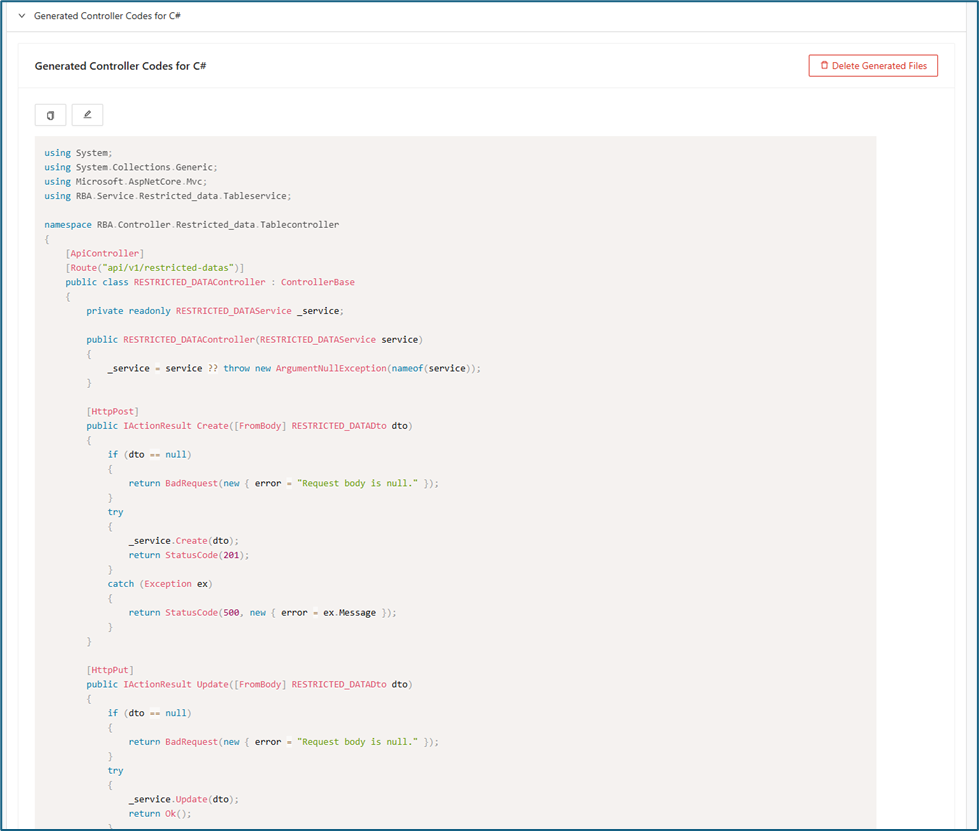
Modernized Tables
The Modernized Tables tab shows tables that have been updated or generated by the tool. Tables appear here after the cutting process is completed through DB Cutting. In this section, you can view the source code for each modernized table together with additional details about its structure and configuration. Select the required Bounded Context or Table from the upper-right drop-down.
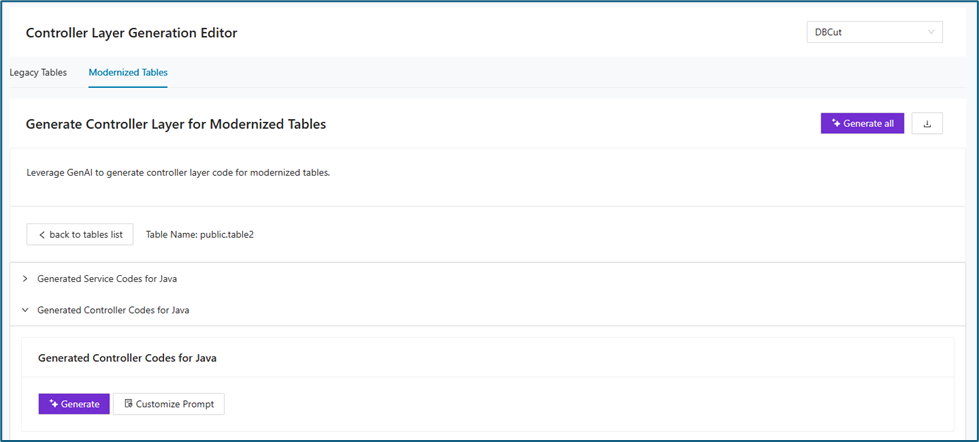
When Details is clicked on a specific row, the generated service code/s for that table will be displayed. Clicking Generate All button will generate the corresponding controller code for the selected table.
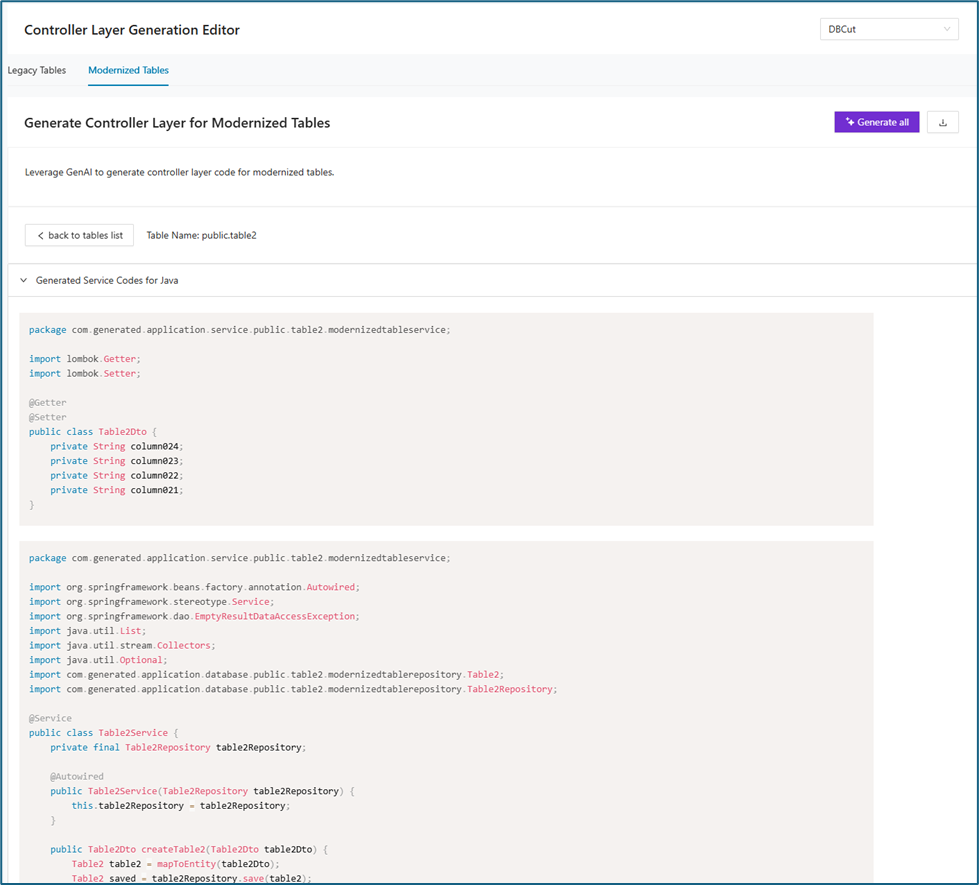
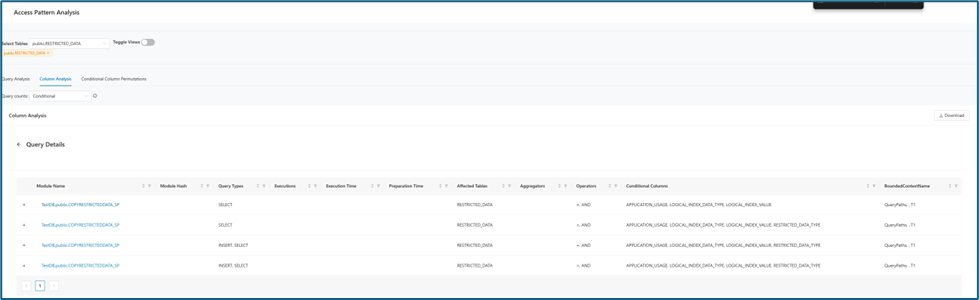
Here's the generated controller code:
Dependency Tree
This feature leverages Generative AI to modernize legacy code by generating updated source code along with all required dependencies. The table below displays all modules included within the selected bounded context.
Note: Before using this feature, please complete the following steps:
-
Import the Module Source Code and Module Relations CSV files to establish the dependency tree among modules.
-
Create a Bounded Context that includes all related modules.
-
Set your preferred technology stack within the created Bounded Context.
-
Click on Dependency Tree tab then Select the Bounded Context from the dropdown menu. This will display a table similar to the one shown below.
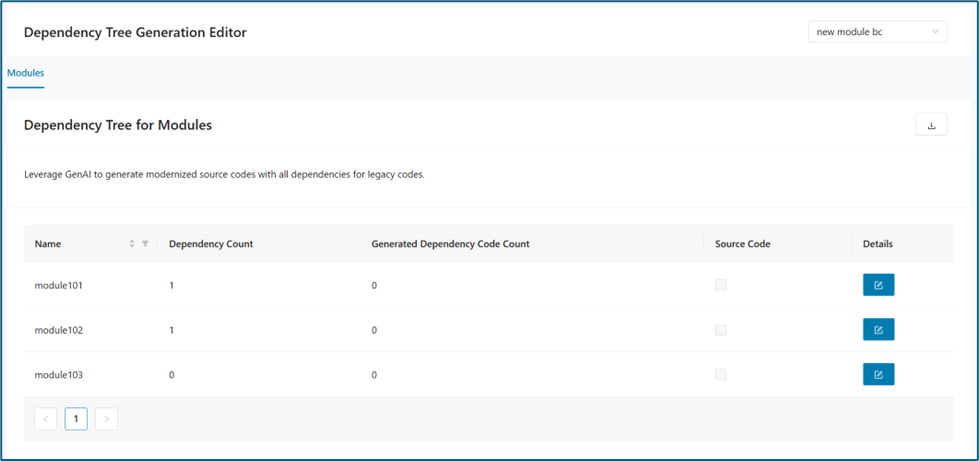
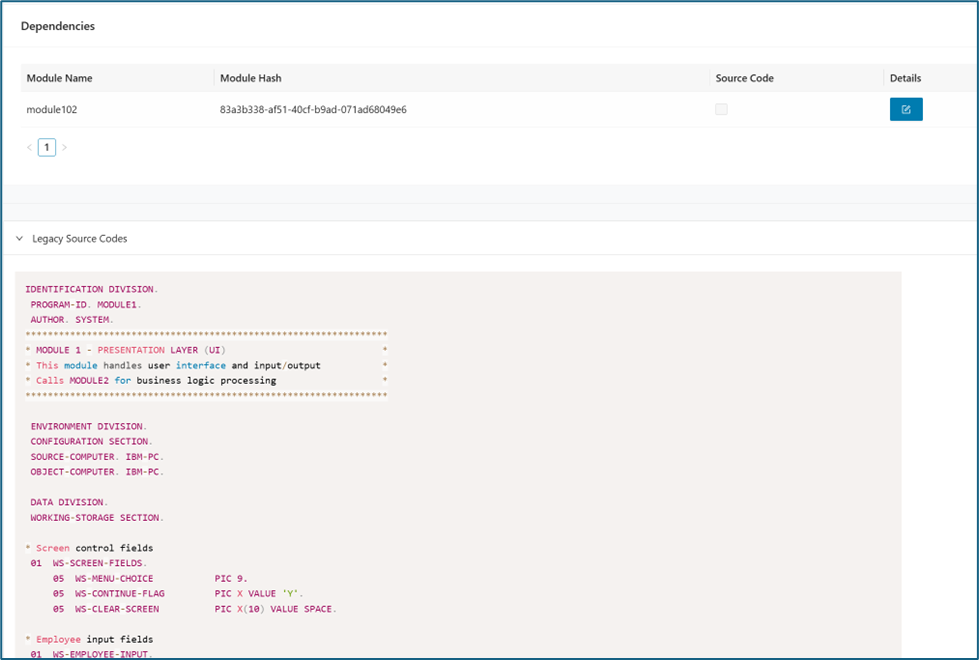
When the button in the Details column is clicked, any associated dependencies (if the module has dependencies) and the legacy source code will be displayed. To generate modernized code based on your selected language from Technology Stack, simply click Generate .
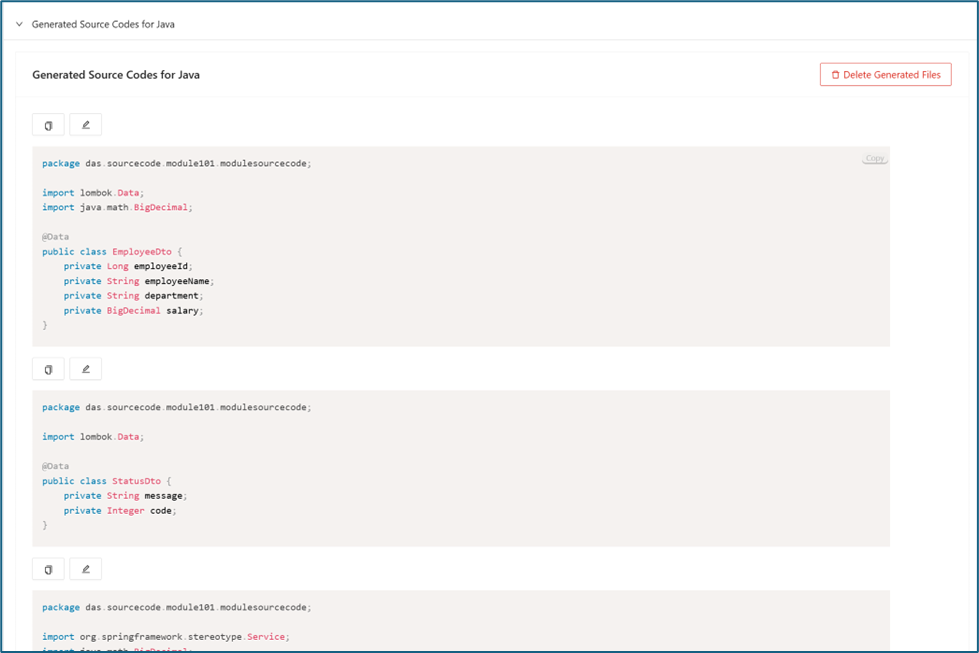
When the code is successfully generated, it is displayed in the bottom panel of the page.
Infrastructure as Code Generator
The Infrastructure as Code Generator is an experimental feature of the Decompose platform that automates and streamlines the creation, validation, and visualization of production-grade Infrastructure as Code (IaC) on Terraform. This tool harnesses structured metadata produced by Decompose’s bounded context extraction, leveraging large language models (LLMs) for code generation, iterative error correction, and automated architecture diagram synthesis. By integrating these advanced capabilities, the tool accelerates IaC delivery while supporting high-quality, maintainable infrastructure designs. Here are Infrastructure as Code Generator's key features:
-
Automated IaC Generation
- Terraform Decompose takes structured metadata related to microservices—such as service relationships, database requirements, and infrastructure dependencies—and translates it into validated Terraform code following best practices. The result is a ready-to-deploy, production-grade IaC setup.
-
Iterative Error Correction
- The system automatically detects syntax or configuration errors using terraform validate. Upon failure, it extracts diagnostic output and invokes the LLM to iteratively fix the issues. This process is repeated automatically (up to 10 times by default), ensuring correctness with minimal human involvement.
-
Architecture Diagram Generation
- Terraform Decompose uses the terraform graph -type=plan command to generate DOT-formatted infrastructure graphs. These are then converted into Mermaid.js syntax, producing clean and easy-to-understand architectural diagrams suitable for documentation or visualization purposes.
-
Agentic Workflow
- The workflow is managed by an autonomous agent that decomposes the task into subtasks, handles retries, interprets validation errors, and integrates feedback without manual intervention.
Info
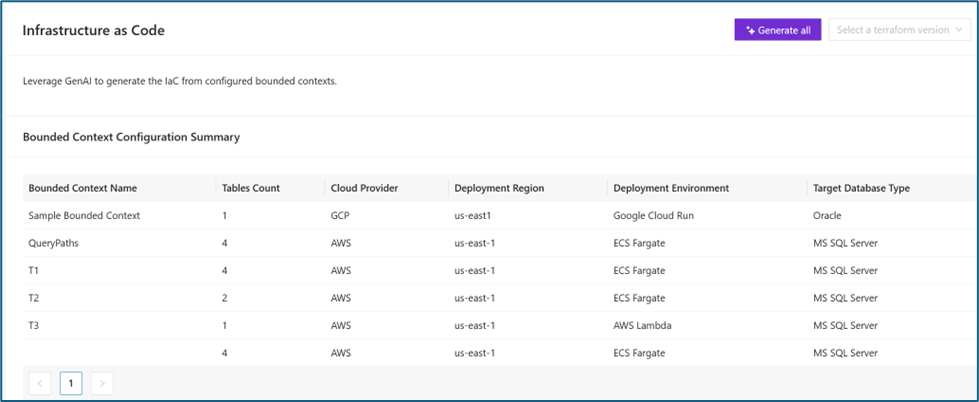
For the rows to display in Infrastructure as Code tab, all tables and bounded context must have a Tech Stack preference saved.
The Infrastructure as Code (IaC) workflow consists of the following steps:
1. Input: Bounded Context Metadata
Receives structured metadata for all bounded contexts (microservices) from Decompose, including:
-
Service names
-
Service relationships and dependencies
-
Estimated table counts
-
Deployment/environment details
2. Initial IaC Generation
Based on the metadata and user-defined parameters (cloud provider, resource types, networking settings, etc.), the LLM generates all foundational Terraform files:
-
provider.tf
-
variables.tf
-
terraform.tfvars
-
main.tf
-
output.tf
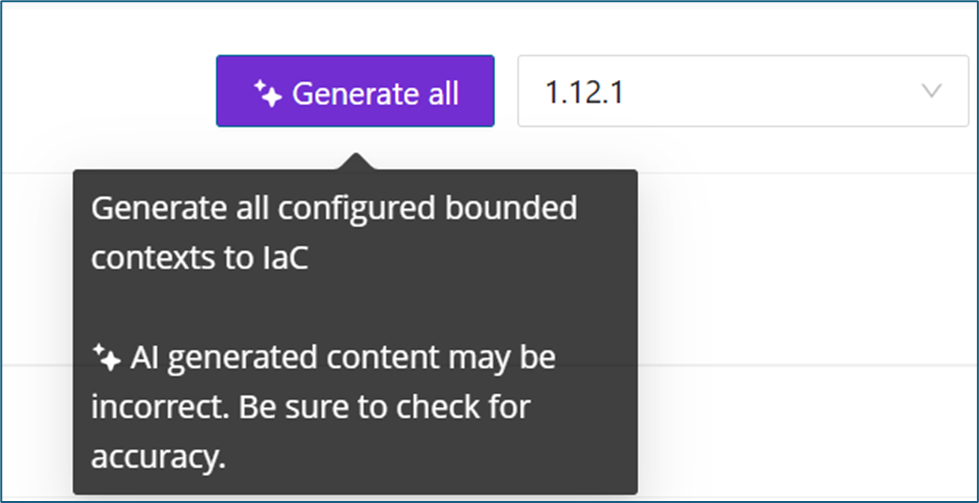
Choose on a terraform version and click Generate All , the IaC Generation Progress Bar will then appear.

3. Validation Loop
-
Executes terraform init and terraform validate on the generated files.
-
On validation failure, error diagnostics are captured and sent back to the LLM.
-
The files are regenerated based on the feedback, repeating the process for up to 10 iterations.

If validation fails, a Fix with AI button will appear, enabling you to automatically address the detected errors. When clicked, the system will initiate the correction loop again, allowing iterative fixes until validation succeeds.
4. Diagram and Code Generation
-
Once validation succeeds, the tool runs terraform graph -type=plan to produce the infrastructure graph in DOT format.
-
This output is parsed and converted to Mermaid.js diagrams, providing a human-readable architecture overview.