Data Dictionary
The Data Dictionary acts as a single domain data entity repository for storing metadata about the data for your codebase. This includes program and Copybook fields, BMS Map fields, SQL columns, and File Record Layout columns (extracted via COBOL field declarations). This Data Dictionary works hand in hand with annotations to provide greater context on the overall codebase, providing insights into the industry/client-specific data entities. All entries can be narrowed down according to your search and filter criteria for each metadata column to support quick data lookups.
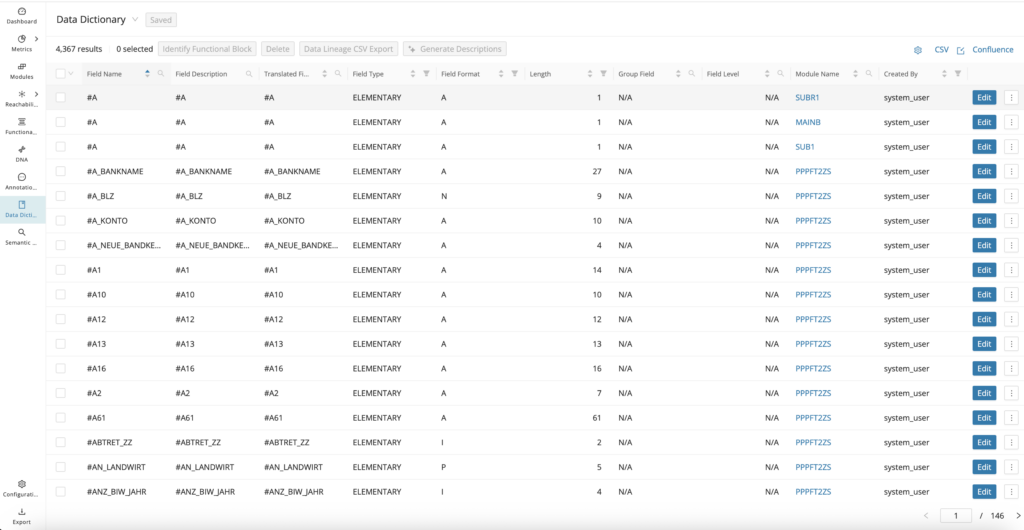
The data dictionary table can be customized via the settings icon in the top right corner.
Click the and arrows in the column headers to sort the result list. To refine the search, select specific values for the respective columns via the filter or search icons.
Once the desired data dictionary entries are displayed, export the list by clicking CSV in the top right corner.
Linking Data Dictionary entries
Data Dictionary entries can be linked together to form a larger data meaning. For example, you can link entry fields that are synonymous with each other or fields that share a file record layout to provide a layered context around these data entities. At the time of linking, it is possible to give them a meaningful group name that can be searched within the Data Dictionary tables.
Info
It is possible to have linked Data Dictionary entries be part of multiple groups of linked entries for maximum flexibility.
Creating a new group of linked entries
Step 1
Open the Data Dictionary editor from the Data Dictionary tables or from the CodeViewer.
Step 2
Scroll right on the tabs toward the top of the editor, scrolling past the "Details" tab to the "Linked Data Dictionary Entries" tab.
Step 3
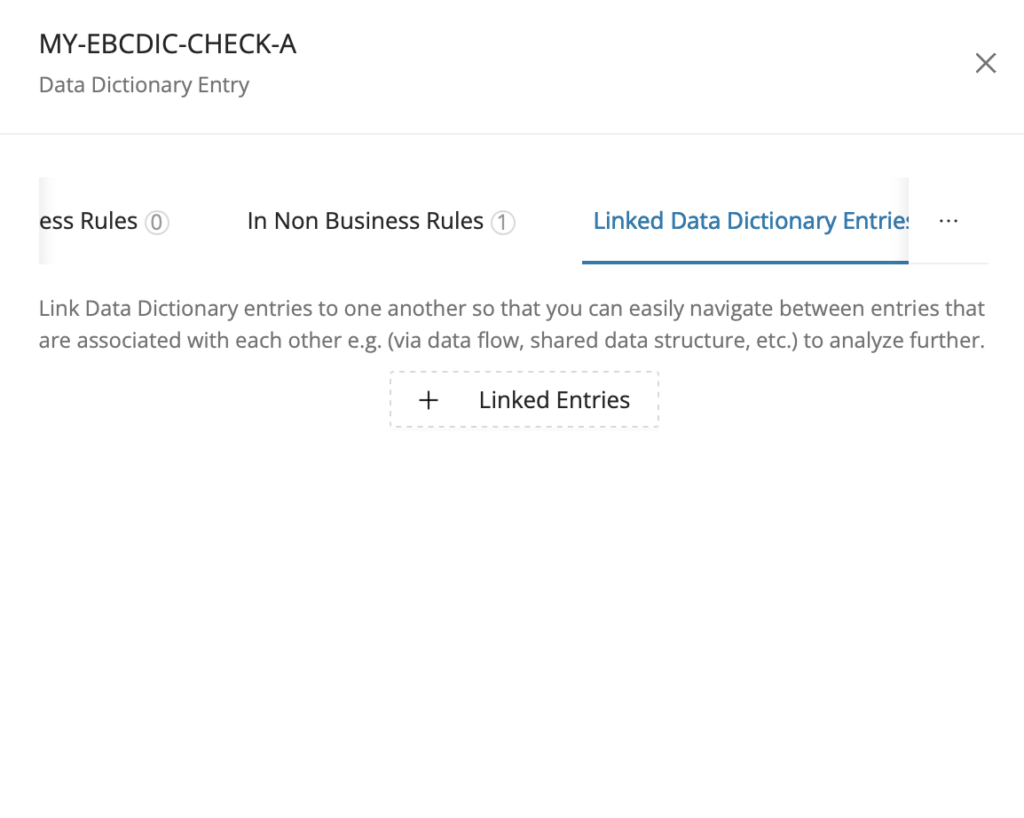
On the Linked Data Dictionary Entries tab, click + Linked Entries .
Step 4
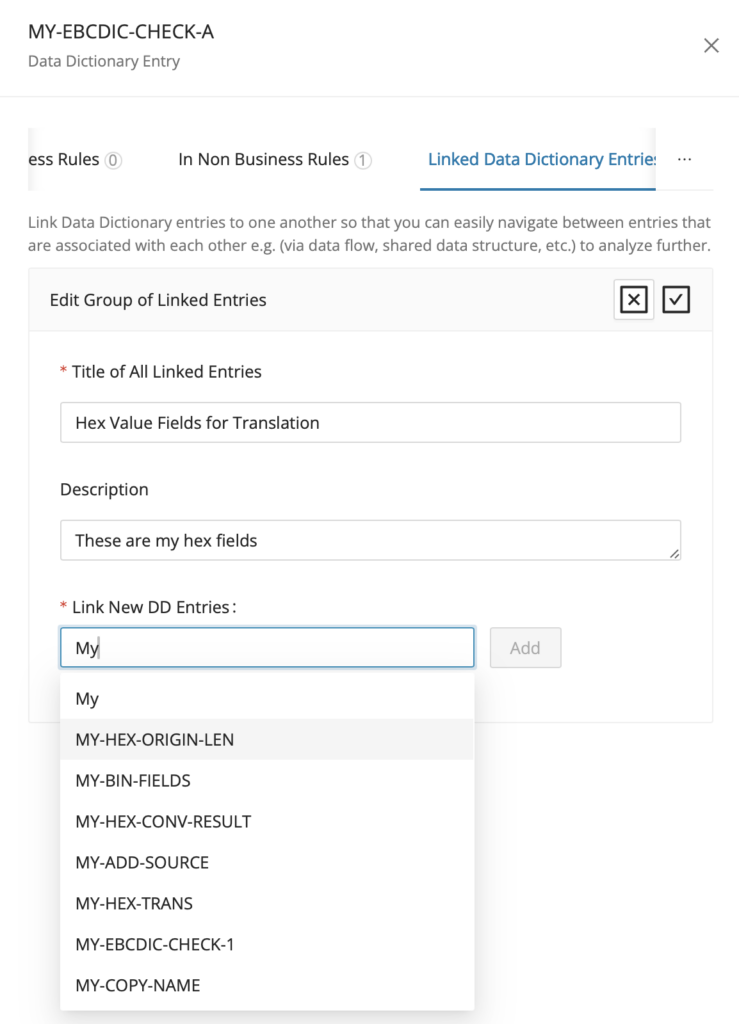
Enter the title of the group of linked entries, provide an optional description, and click in the Link New DD Entries field to select fields to link and click Add .
Step 5
Click the button and click Save to complete the Data Dictionary entry linking.
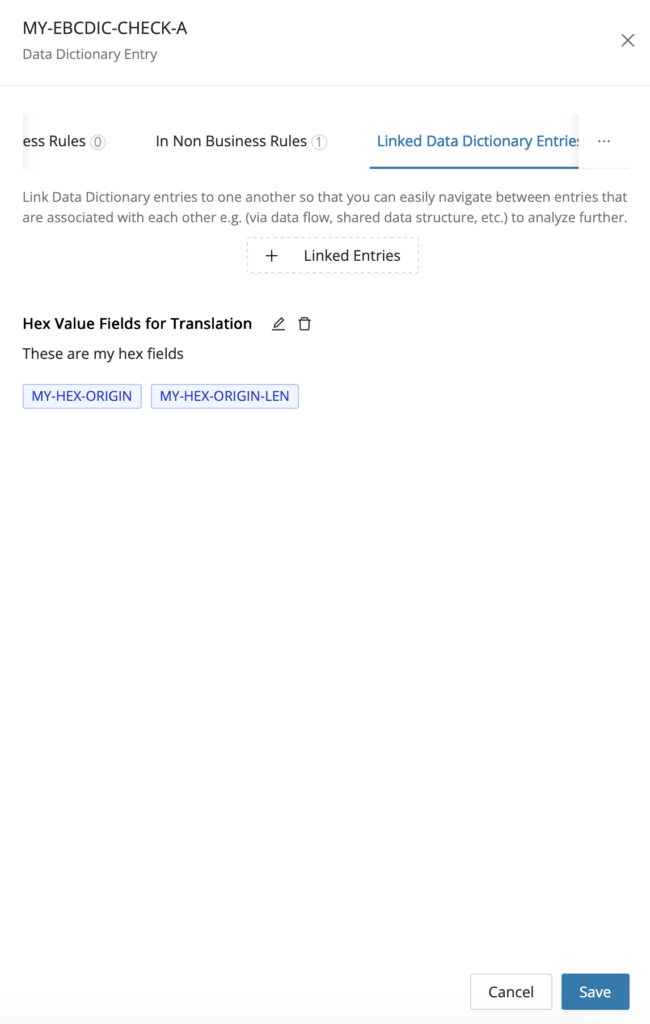
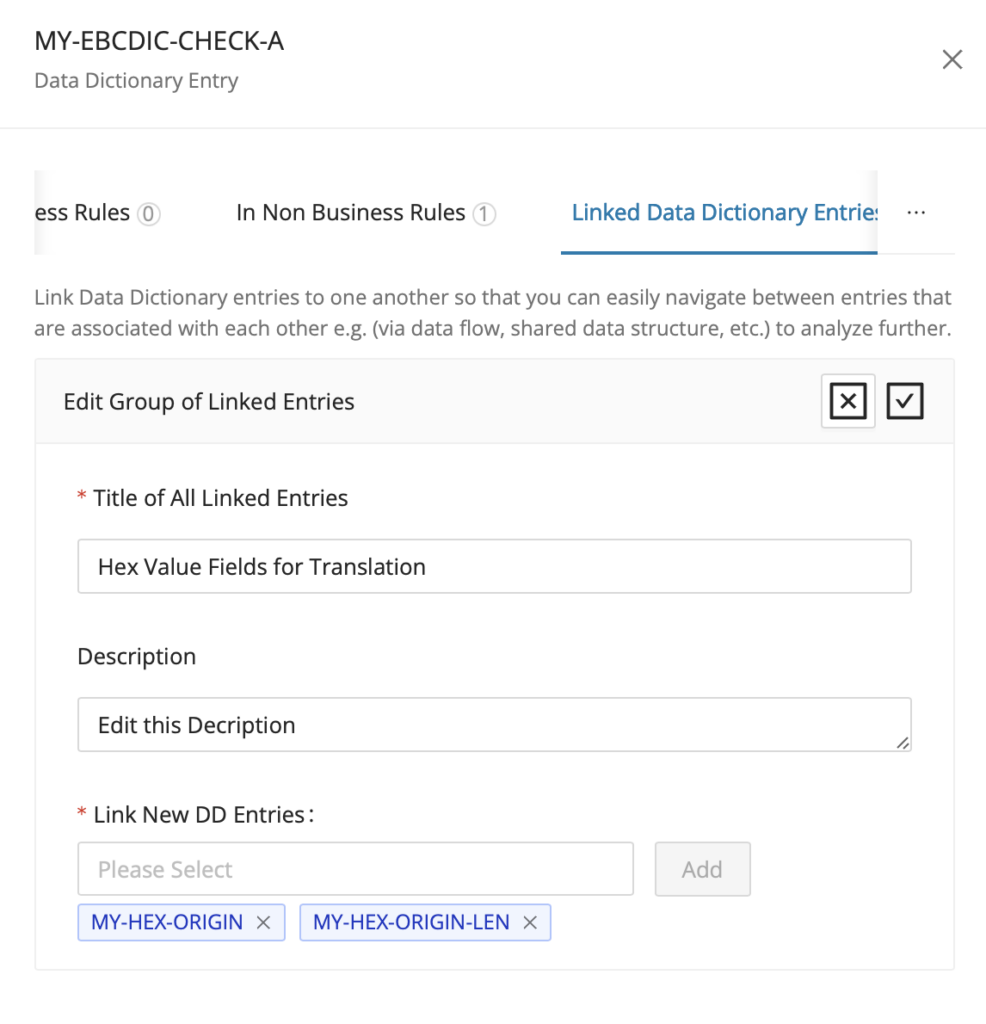
Editing a group of linked entries
Click the edit icon to enable the editing of a group of linked DD entries.
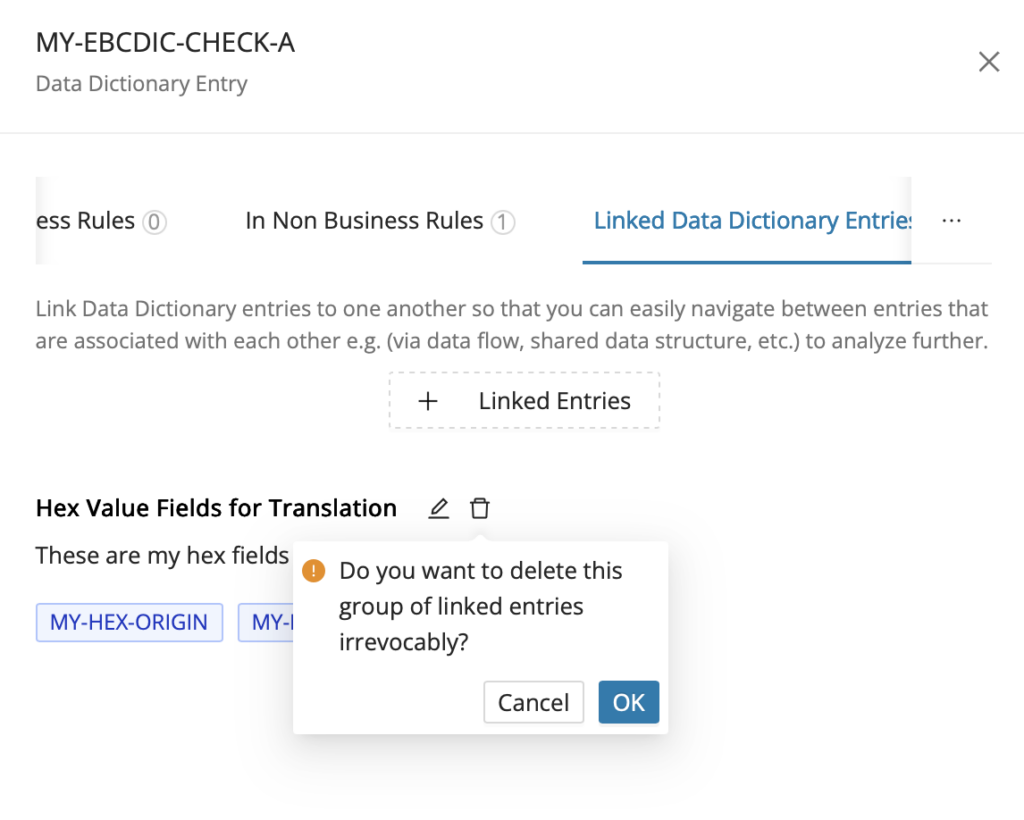
Deleting a group of linked entries
The delete icon is located to the right of the edit icon, enabling the removal of a group of linked DD entries.
Searching the Data Dictionary for linked entry groups
After linking Data Dictionary Entries and giving them meaningful group names, it is also possible to easily search at the group level from the Data Dictionary tables based on those group names.
Step 1
Open the Data Dictionary Reporting page and click the down arrow next to the title Data Dictionary to open the available saved searches.
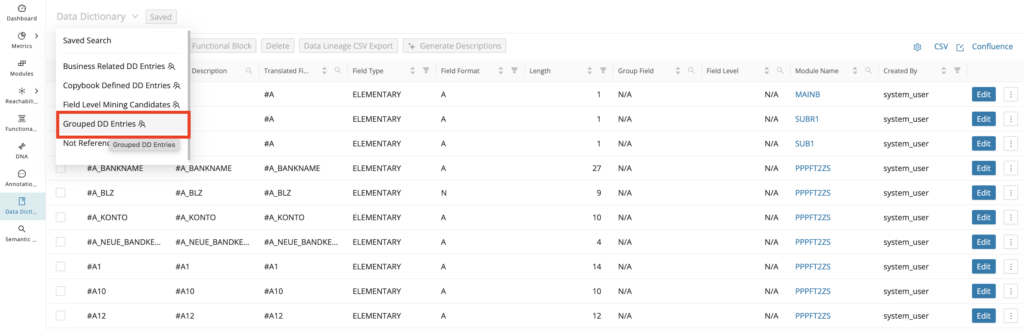
Step 2
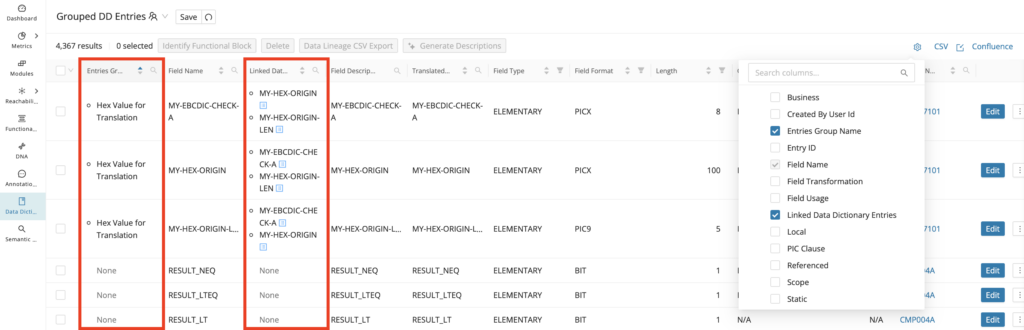
From the list of available custom and global saved searches, select Grouped DD Entries. This shows the Group Names and Linked Data Dictionary entries in the table.
Step 3
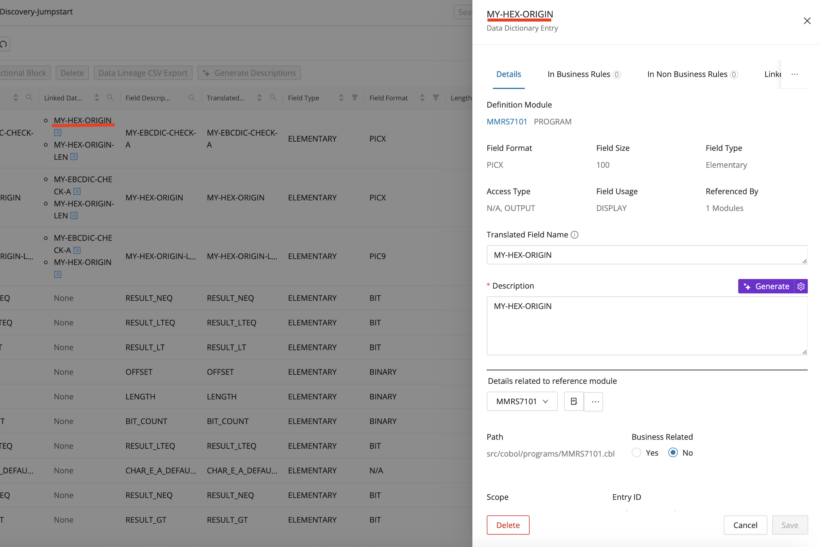
The Entries Group Name column is sorted alphabetically, A-Z by default, and you can click the search icon to search for a specific group name if you know in advance (includes wildcard usage). Additionally, you open the Data Dictionary editor for any of the linked entries that are part of the group under the Linked Data Dictionary Entries column by clicking the blue side panel icon next to each entry in the list.
Business Variables
Business variables are fields that are identified to have some business relevance within the project codebase. These variables are either used as the target result field for a computation/transformation statement or are used in input-output operations transferring data between the program and an external data source, for example, (Resource File, Database Table, etc.), which raises a high level of confidence that the data they hold is relevant to business purposes. For COBOL, these are the variables used to extract the underlying annotated business rules. Both business variables and annotated business rules are identified when executing Identify Candidates from the Modules Reporting page.
Viewing Business Variables in Mining
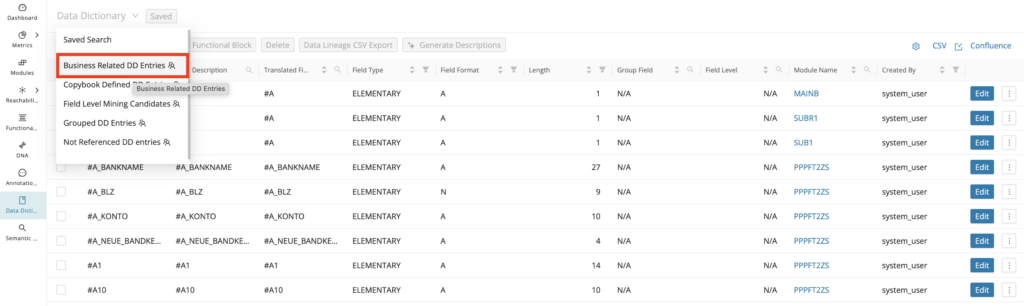
To display the identified Business Variables on your project, open the Data Dictionary Reporting page and click the down arrow next to the title Data Dictionary to open the available saved searches. From the drop-down list, select Business Related DD Entries.
Alternatively, you can click the settings icon in the top right corner and select Base Data > Business:
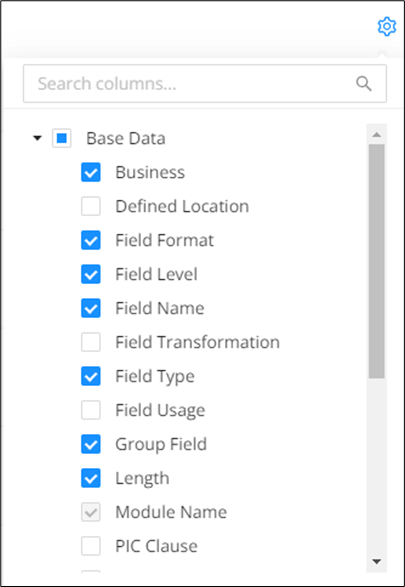
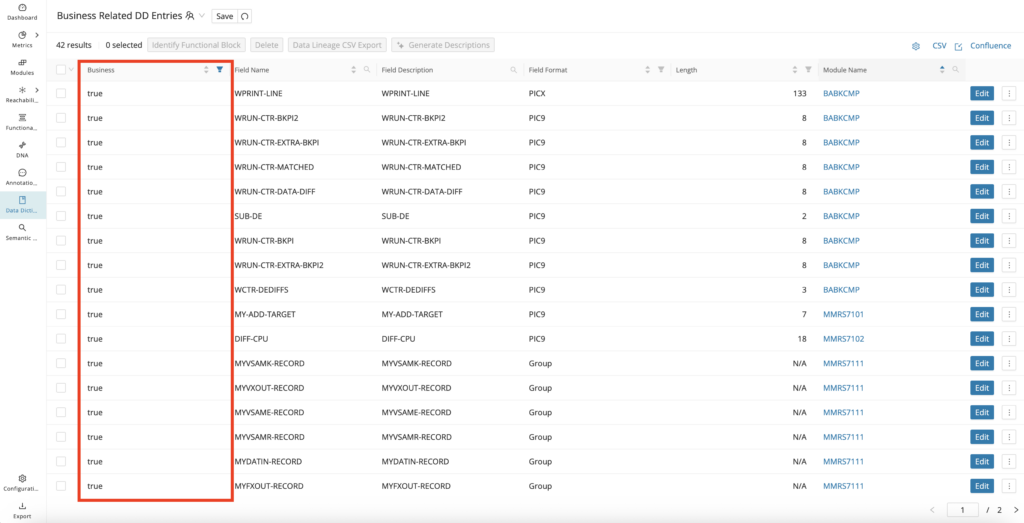
The Data Dictionary table now contains a new column, “Business”. To display only business variables in the table, click the filter icon next to the column name “Business” and check true:
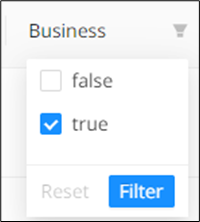
The table now displays the identified business variables.
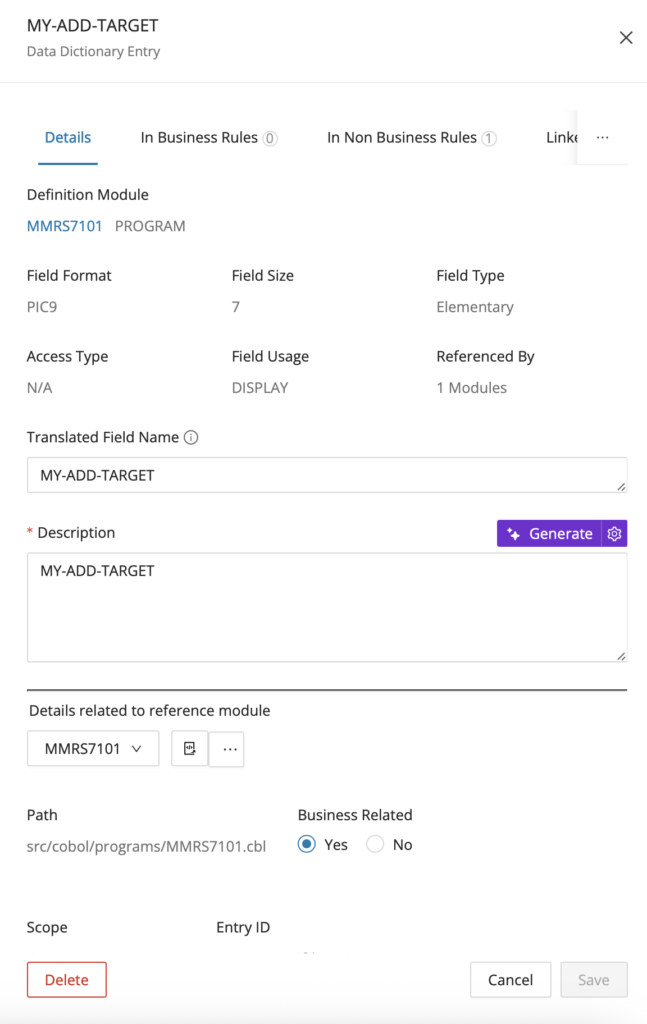
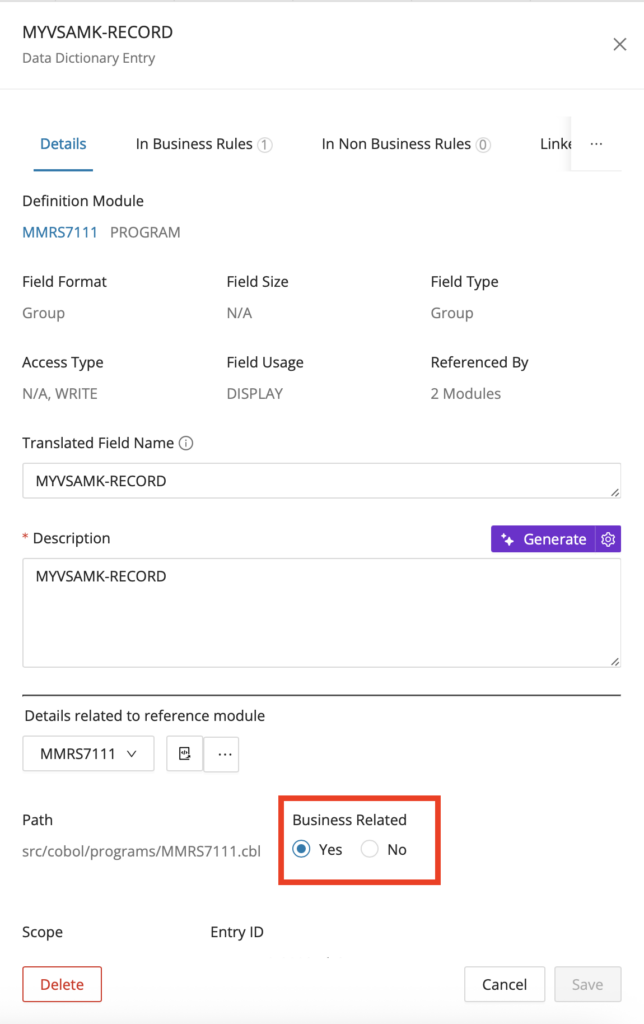
The data dictionary entry of a module also indicates whether the data dictionary is a business variable. Click Edit . The displayed Data Dictionary entry contains a "Business Related" field with "Yes" set as default.
Data Dictionary attributes
In the Data Dictionary Editor inside the mining UI, you can see a few readable and editable data dictionary attribute fields. These attributes combine system-derived metadata with fields that users can maintain manually. The sections below distinguish which values are read-only and which ones can be edited during curation.
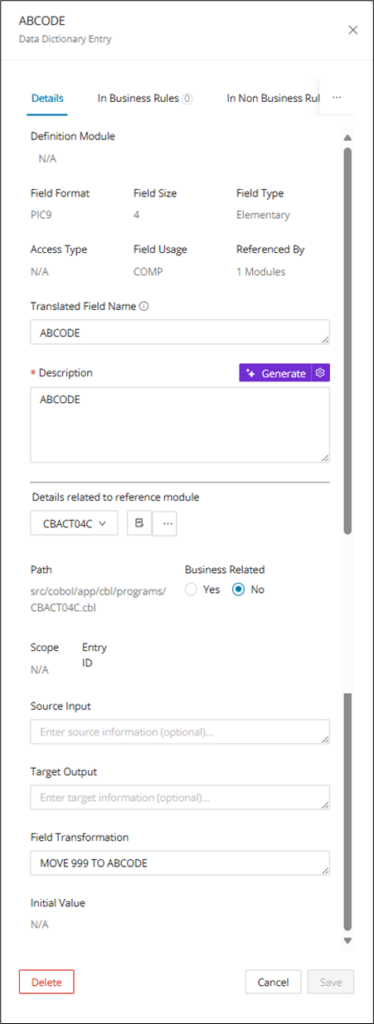
Read only Data Dictionary attribute fields:
-
Definition Module: the module where the data dictionary entry field is defined.
-
Field Name (top-left corner): the name of the data dictionary entry field.
-
Field Format: the data dictionary entry field format, for example, (PIC9, PICX).
-
Referenced By: indicates the total number of modules that reference the Data Dictionary Entry field.
-
Field Size: data Dictionary entry field size.
-
Access Type: indicates how the field is accessed with the codebase, for example, (Write, Read, UI Input/Output, etc.).
-
Scope: the identified scope or usage of the data dictionary entry field, for example, (Calls, CICS UI, Database I/O, etc.).
-
Field Type: indicates whether the field is declared at the parent GROUP level or if it is an ELEMENTARY level defined field.
-
Field Usage: shows the internal of the USAGE clause for COBOL fields, for example, (COMP, DISPLAY, etc.).
-
Path: shows the file path to the module that defines the field.
-
Initial Value: shows the literal value that the field is initialized with.
Edit-based Data Dictionary attribute fields:
-
Description: the description of the data dictionary entry field.
-
Translated Field Name: used as an alternate name for the field with greater meaning. Used in the English Translation of referencing annotations.
-
Business Related: indicates whether the data dictionary field is business-related with yes/no radio buttons, which is a single select.
-
Field Transformation: line of code where the data dictionary entry field's final value is computed or a value is moved into it
-
Source Input: any manually defined source/input information about the data dictionary entry field.
-
Target Output: any manually defined target/output information about the data dictionary entry field.
All of these view and edit-based data fields will be visible while creating new data dictionary entries or while editing existing data dictionary entries.
Java-related Data Dictionary attribute fields
-
Access Modifier: (Private, Public, Protected)
-
Local: (True, False) Class-level vs Locally Defined Variable
-
Static: (True, False) Per Instance vs Per Class Variable
Non-business related Data Dictionary entries
Users can manually change the Data Dictionary entry to Non-Business related.
Step 1:
Click Edit from the Data Dictionary page for an entry that is Business Related.

Step 2:
Select No in the Business Related field.
Step 3:
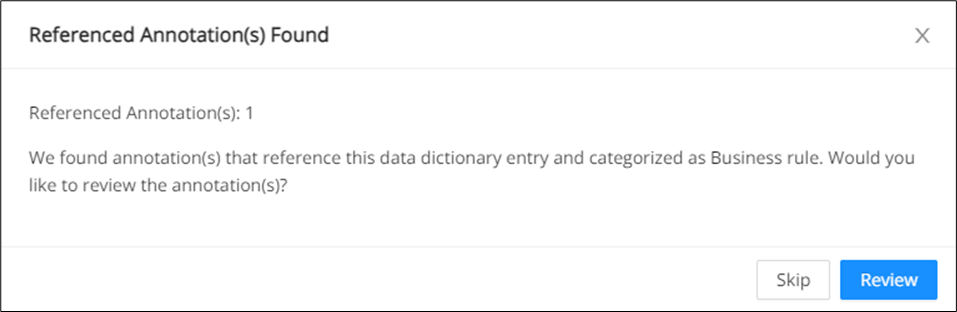
After clicking Save , a confirmation window appears displaying the annotation(s) that contain the reference to this data dictionary with the option to either Skip or Review.
Step 4:
Click Review to verify the annotation(s) and go to the Annotations page displaying the referenced annotation. Alternatively, if no verification is required, click Skip .
Data Lineage
You can launch Data Lineage from a Data Dictionary entry to trace how a field moves through the application. This is useful when you begin from a data element rather than from source code. Follow the Data Lineage page for the full workflow and graph options.
Annotation referencing entry
The Data Dictionary not only provides metadata about the different data entries of your project, but it also shows at a glance all of the annotated code that references each entry, as data and code go hand in hand to provide greater context on your codebase. For Data Dictionary entries, all of the associated annotated Type Rule annotations are linked for quick reference from the Data Dictionary tables (viewing all entries) or the Data Dictionary editor (viewing a single entry).
Viewing referenced Annotations
To display the column “Annotation Referencing Entry”, click the settings icon in the top right corner and select Base Data > Annotation Referencing Entry.
The column contains a list of annotations and links to each annotation candidate of type "RULE" after executing Identify Candidates.
From the Data Dictionary tables
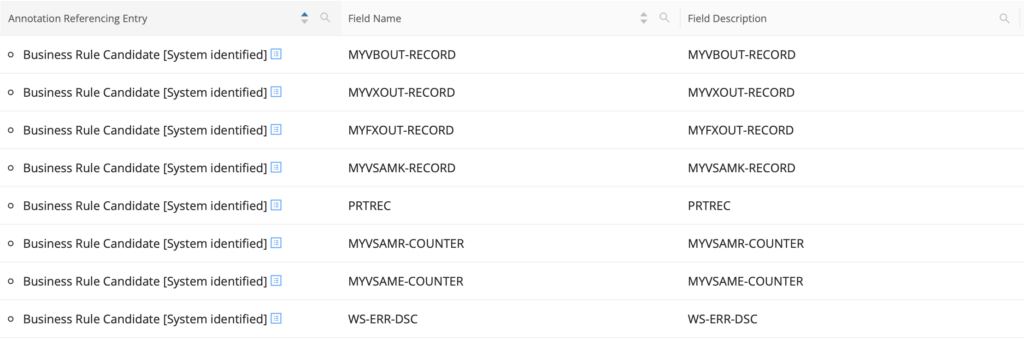
The column "Annotation Referencing Entry" only contains entries if the Data Dictionary entry is referenced by any annotations of Type Rule. Clicking the blue side panel icon next to the annotation description opens the associated annotation in the Data Dictionary editor.
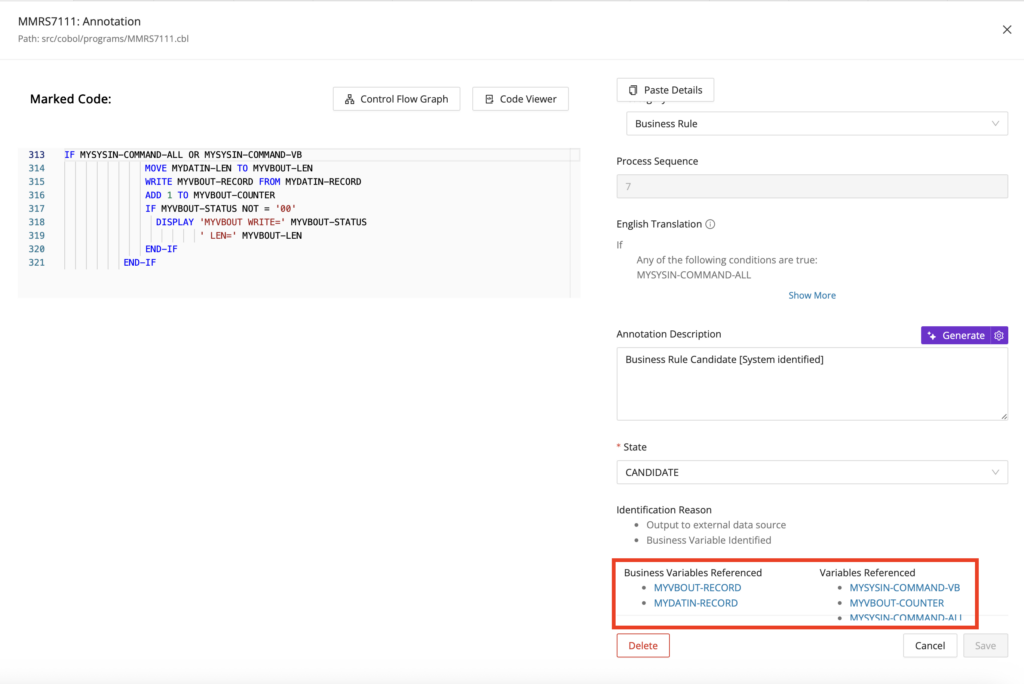
The Annotation drawer contains the section "Business Variables Referenced" and "Variables Referenced" with a list of referenced Data Dictionary entries for this specific annotation. This link is bi-directional, so that clicking the hyperlinked entries in these sections opens the associated Data Dictionary Editor per entry.
From the Data Dictionary editor
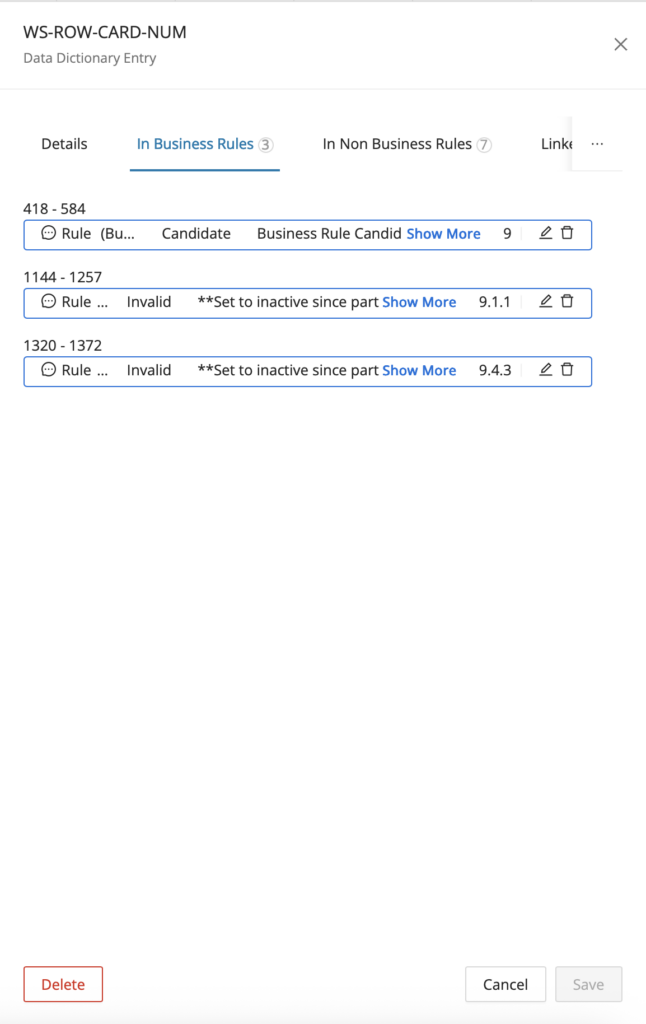
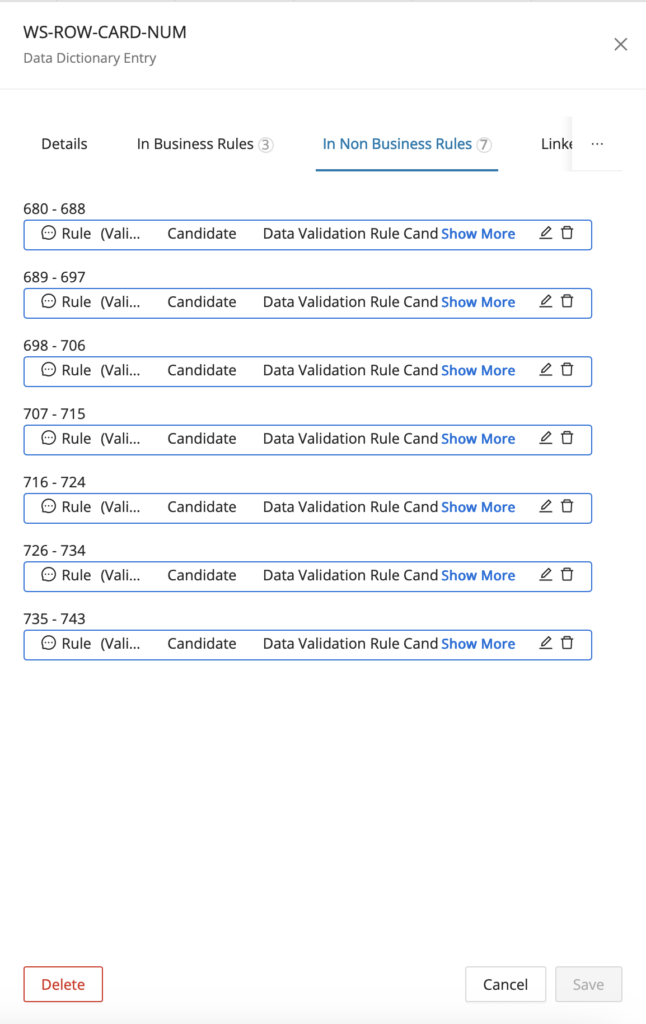
Open the Data Dictionary Editor from the Data Dictionary table or from the CodeViewer and scroll right from the "Details" tab to either the "In Business Rules" or "In Non Business Rules" tabs. From here, you can click the edit icon to make edits to the referencing annotations or click the delete icon to delete the referencing annotations.
Identify Functional Block
You can also trigger Functional Analysis from supported Data Dictionary entries. This lets you move from a field-centric investigation into the related functional behavior captured across modules. Follow the Functional Analysis page for Field Level Mining for the full workflow.
Bulk entry deletion
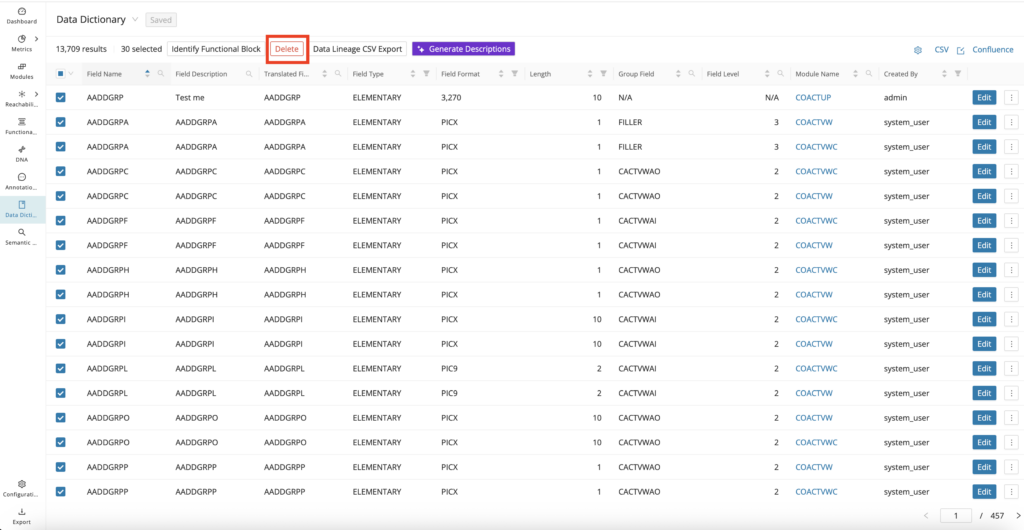
Rather than open the Data Dictionary Editor for every entry you would like to remove from the Data Dictionary, you can do bulk deletion directly from the Data Dictionary reporting page by searching or filtering for the entries you would like to remove and selecting them in the table before clicking the delete button in the toolbar. Use this workflow when saved searches or filters have already isolated the entries that are no longer needed. It helps you clean up the repository without repeating the same deletion steps one record at a time.
Data Lineage CSV Export
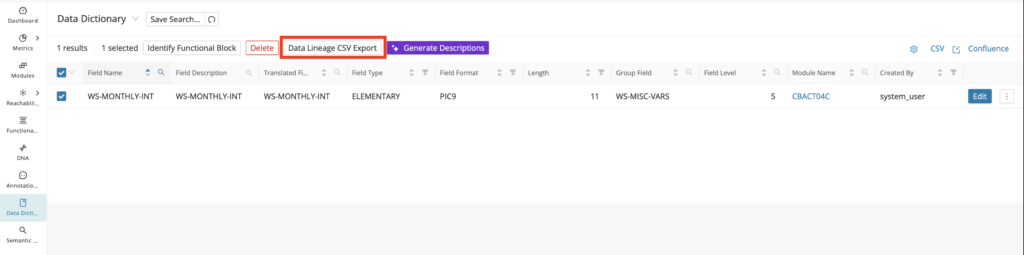
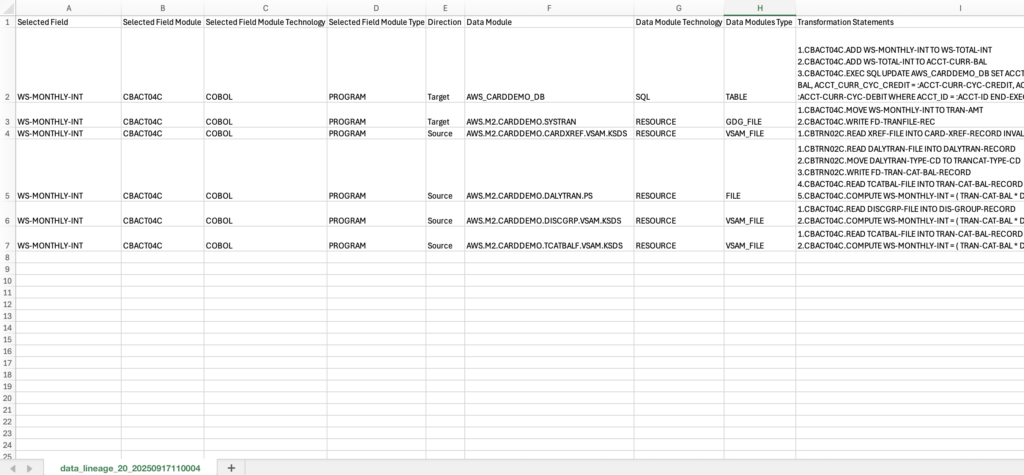
Mining provides automation via the Data Dictionary to conduct Data Flow Mapping using Data Lineage under the hood. For any field(s) selected on the Data Dictionary tables, you can click Data Lineage CSV Export in the toolbar to generate and download an Excel file showing how the data is mapped from source to target destination across the codebase. The file provides the following columns:
-
Selected Field - The field that was selected from the Data Dictionary table to base the data flow mapping on.
-
Selected Field Module - The module where the selected field is declared.
-
Selected Field Module Technology - The technology of the module where the selected field is declared.
-
Selected Field Module Type - The Type of the module where the selected field is declared.
-
Direction - Signals the upstream - from (source) or downstream - to (target) direction between the selected field module and the data module.
-
Data Module - Where the data is ultimately coming from (source module) or going to (target module). This is typically an external data source, for example, (Resource File, SQL Table, etc.).
-
Data Module Technology - The technology of the module where the data is ultimately coming from or going to.
-
Data Module Type - The Type of the module where the data is ultimately coming from or going to.
-
Transformation Statements - Shows the ordered transformation statements on the data flow path.
Bulk generation of Data Dictionary descriptions
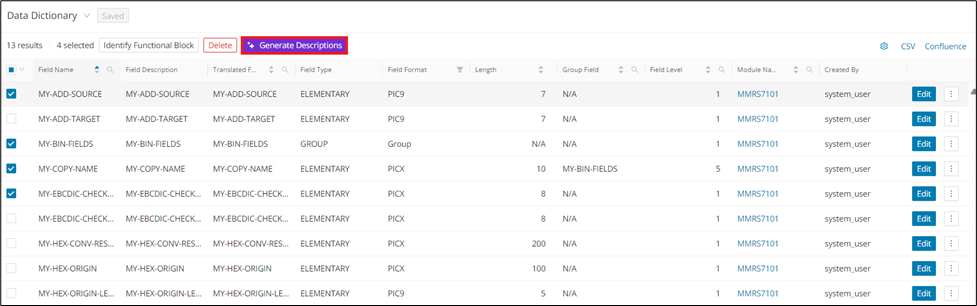
Generate Descriptions is present on the Data Dictionary page, which allows users to bulk-generate Data Dictionary descriptions directly from the Data Dictionary page. This feature helps you draft descriptions consistently across multiple entries. It is most useful after discovery or candidate identification has populated a large set of fields that still need readable summaries.
Step 1:
Select two or more Data Dictionary entries and click Generate Descriptions .
Step 2:
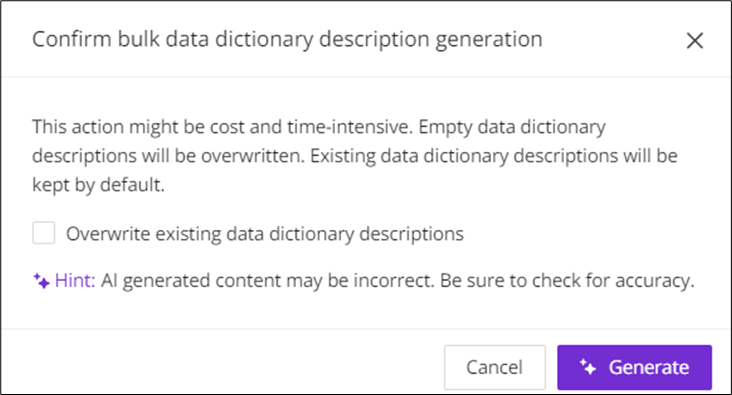
Click the checkbox if you want to overwrite the existing Description and click Generate .
Custom properties for the Data Dictionary
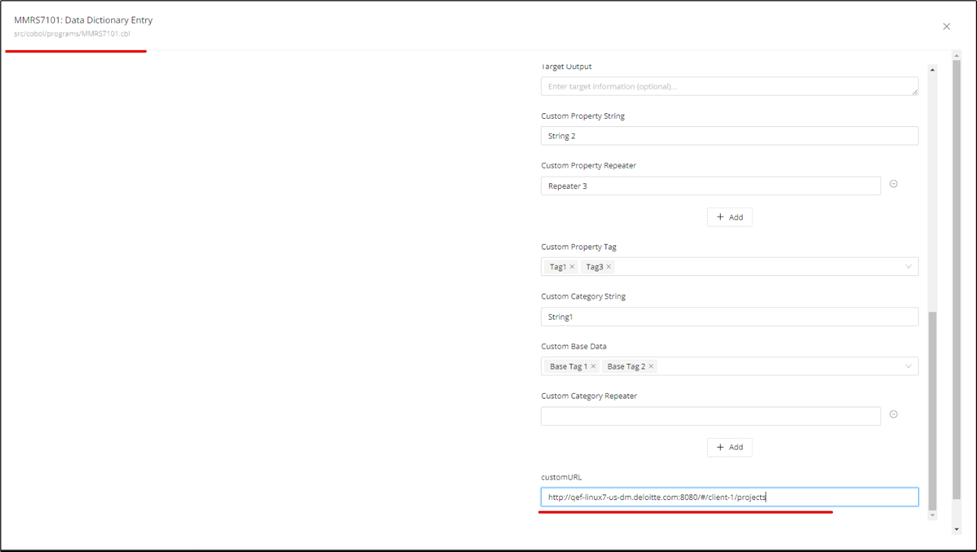
Finally, you can use custom properties to expand the attributes stored for each Data Dictionary Entry. Similar to the use of custom properties across Mining, you can create custom String Input, String Repeater, URL, and Select Tag fields and edit them for each Data Dictionary Entry to provide additional context, for example, (industry or client-specific meaning surrounding the entry).
Specify the custom property while creating or editing a data dictionary entry from the Data Dictionary Editor.
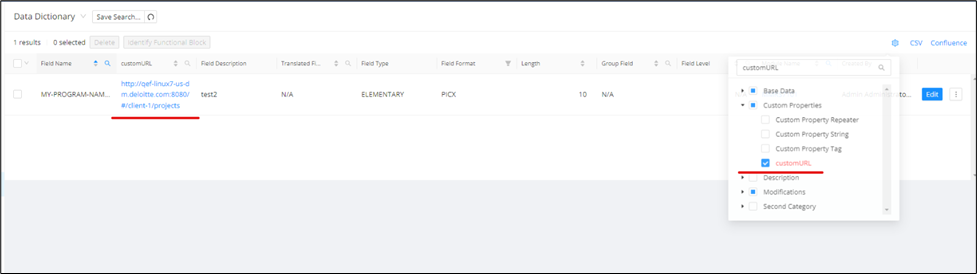
Then, from the Data Dictionary tables, you can add the custom property as a column where Data Dictionary entries can be sorted, filtered, or searched based on the custom property data.