Migration Generator
The Migration Generator helps you create and review migration assets for a selected bounded context. In one place, you can generate database creation scripts, data migration scripts, and query equality test artifacts for legacy and modernized data models.
Note
Use this page after you select your working project and bounded context. The bounded context must also have a saved Tech Stack.
DB Creation Scripts
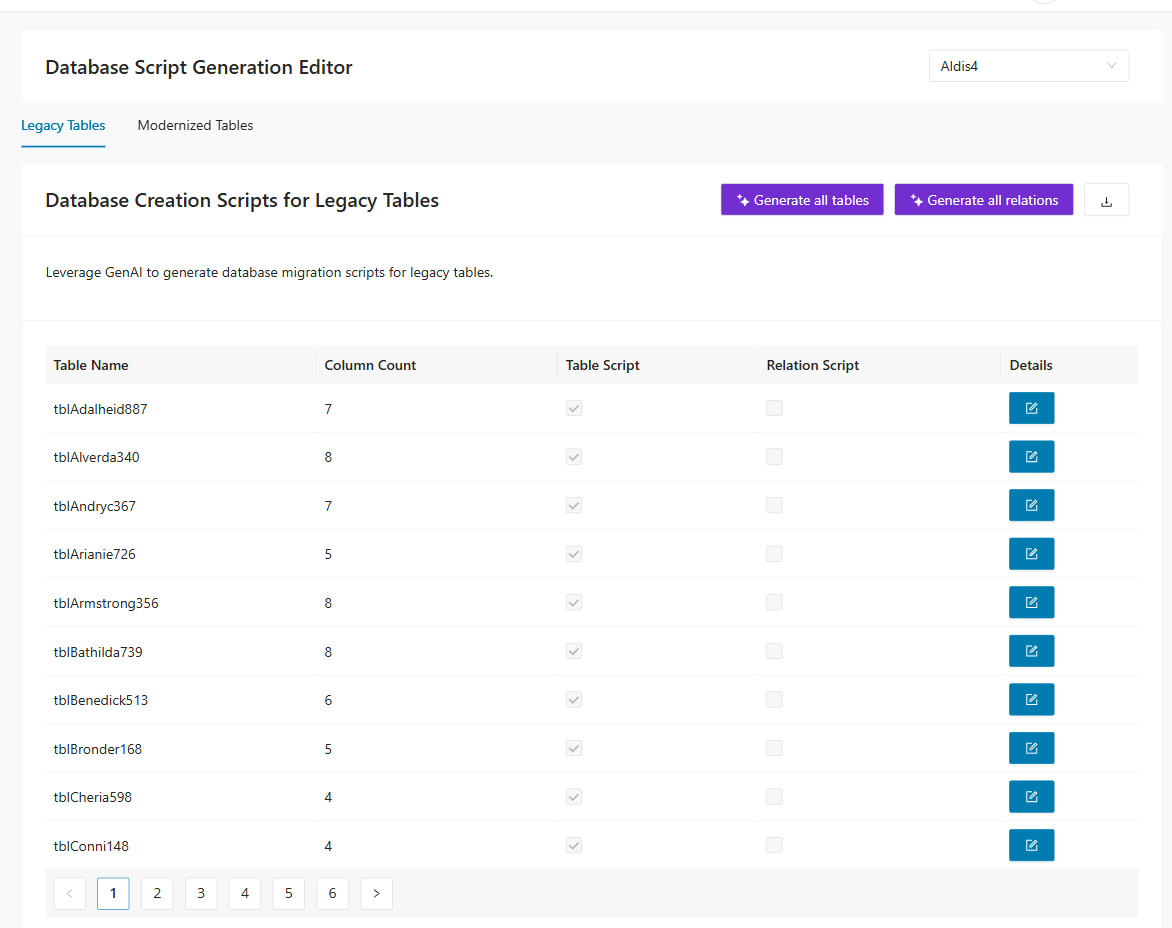
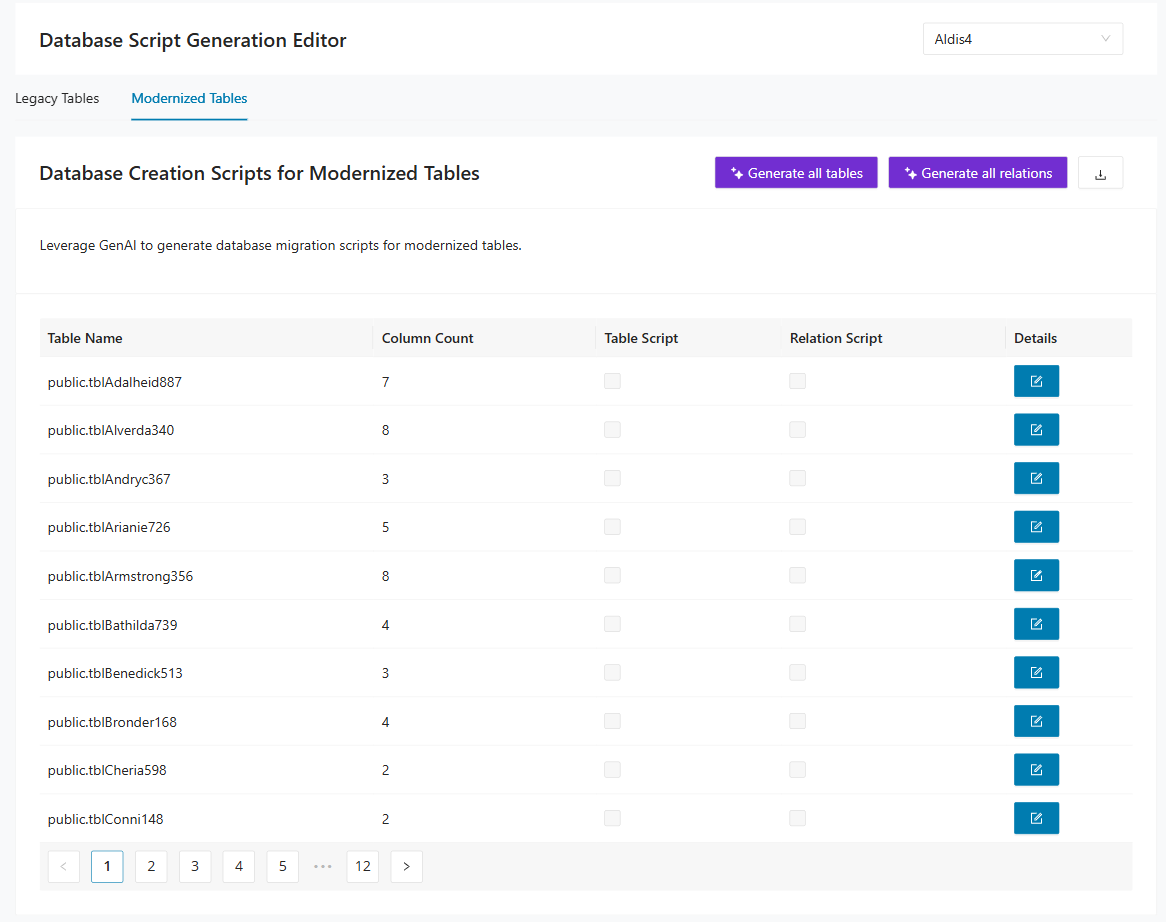
Use DB Creation Scripts to generate DDL assets for both legacy and modernized tables in the selected bounded context. This tab helps you create the structural database artifacts needed for implementation and review. Use it when you want to inspect, generate, or validate table and relation scripts before downstream migration work. This tab provides:
- A Legacy Tables sub-tab and a Modernized Tables sub-tab
- Bulk actions for Generate all tables and Generate all relations
- Row-level status for generated table scripts and relation scripts
- A Details action for table-level inspection and generation
How to use DB Creation Scripts
Select the bounded context from the selector in the upper-right area in Migration Generator > DB Creation Scripts, then choose either Legacy Tables or Modernized Tables. Select Generate all tables to create table DDL in bulk and Generate all relations to create relationship scripts in bulk.
Explore details in Legacy Tables
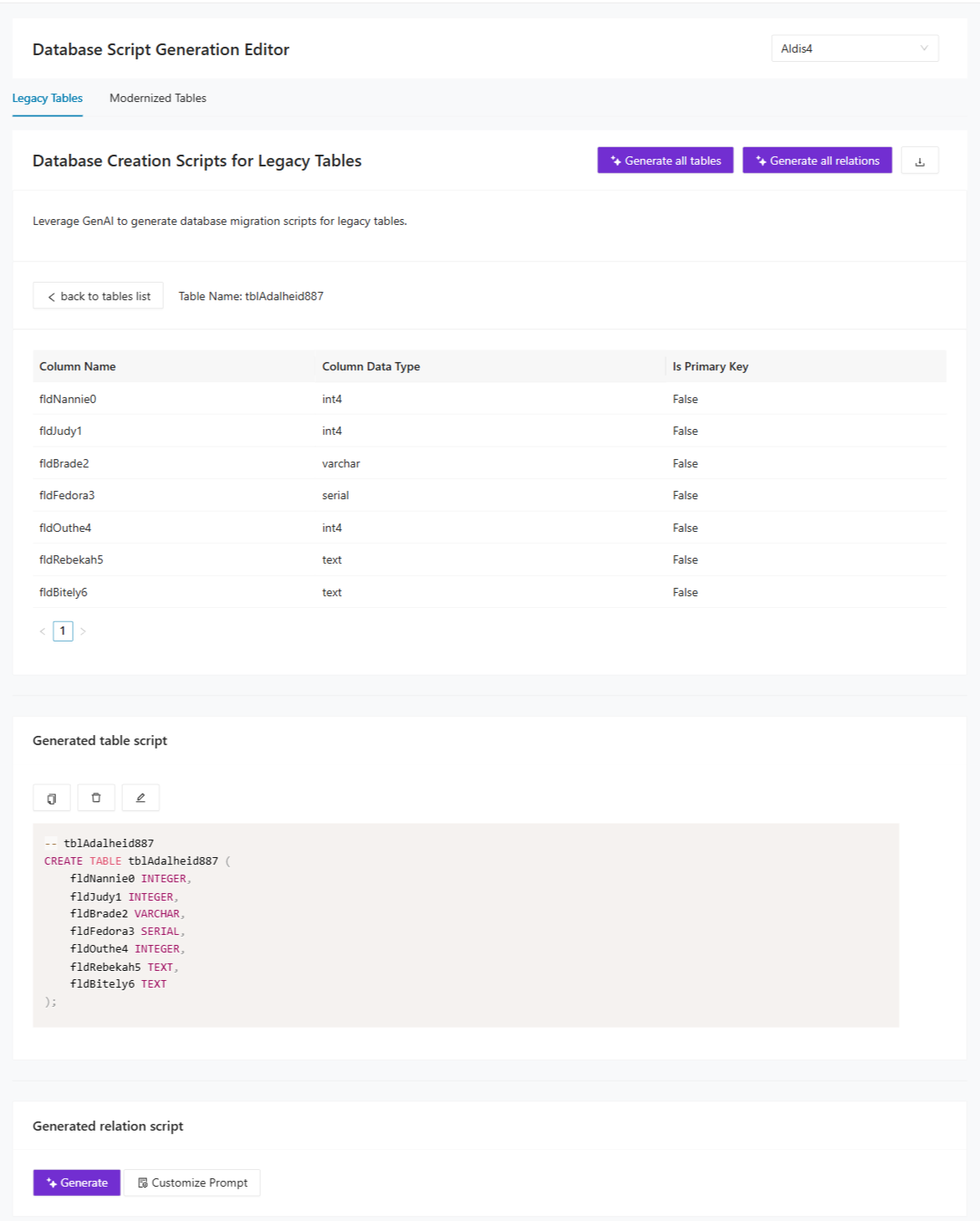
When you select Details on a legacy table row, the page shows a table-level work area with:
- The selected Table Name and a back to tables list action
- A column metadata grid (Column Name, Column Data Type, Is Primary Key)
- A Generated table script panel
- A Generated relation script panel
Explore details in Modernized Tables
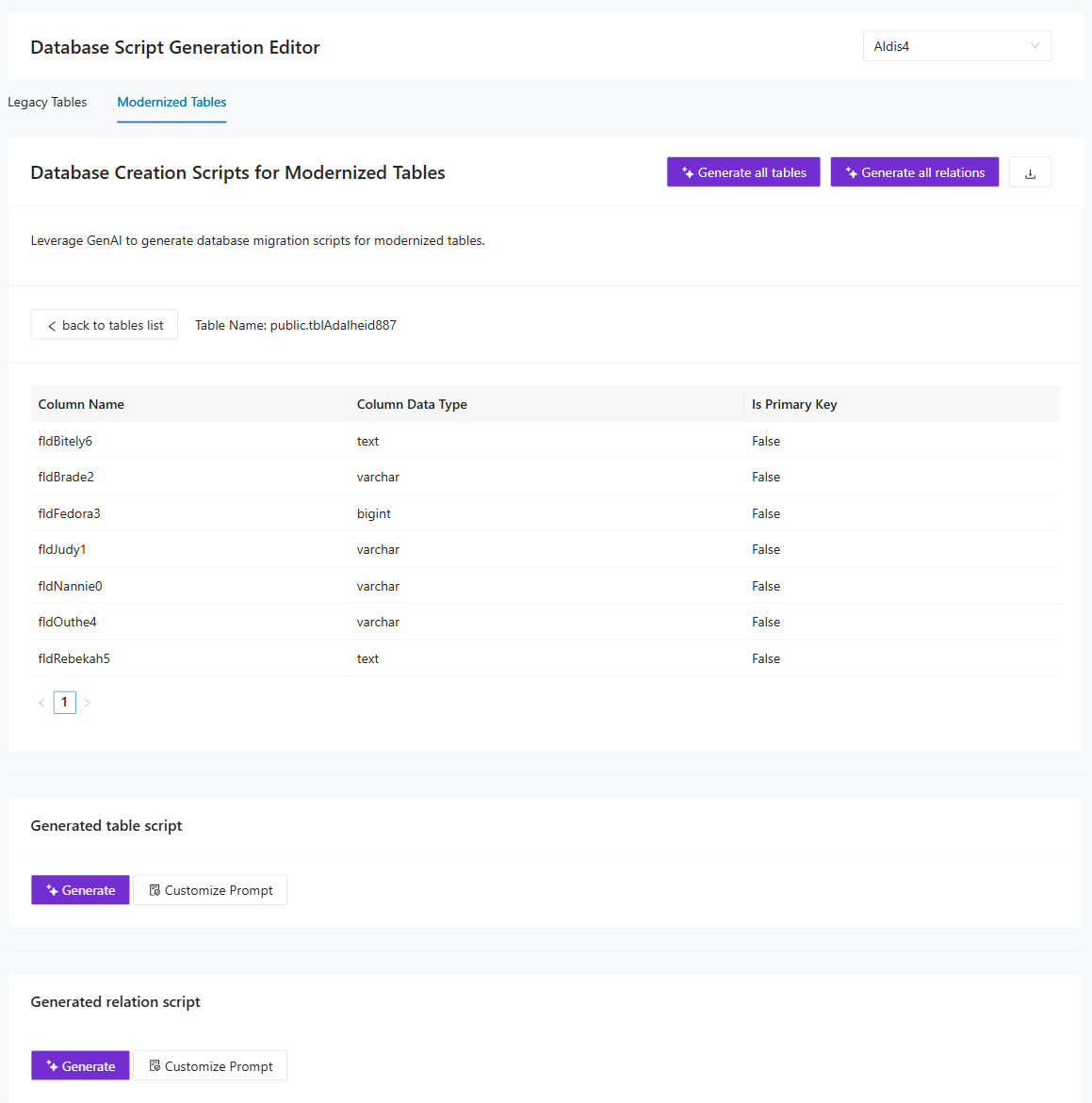
When you switch to Modernized Tables and open Details for a row, you can inspect the modernized table structure and generate script outputs for that specific table.
Expected result: You can verify table-level structure, generate DDL artifacts in bulk or per table, and validate script coverage for both legacy and modernized scopes.
Data Migration Scripts
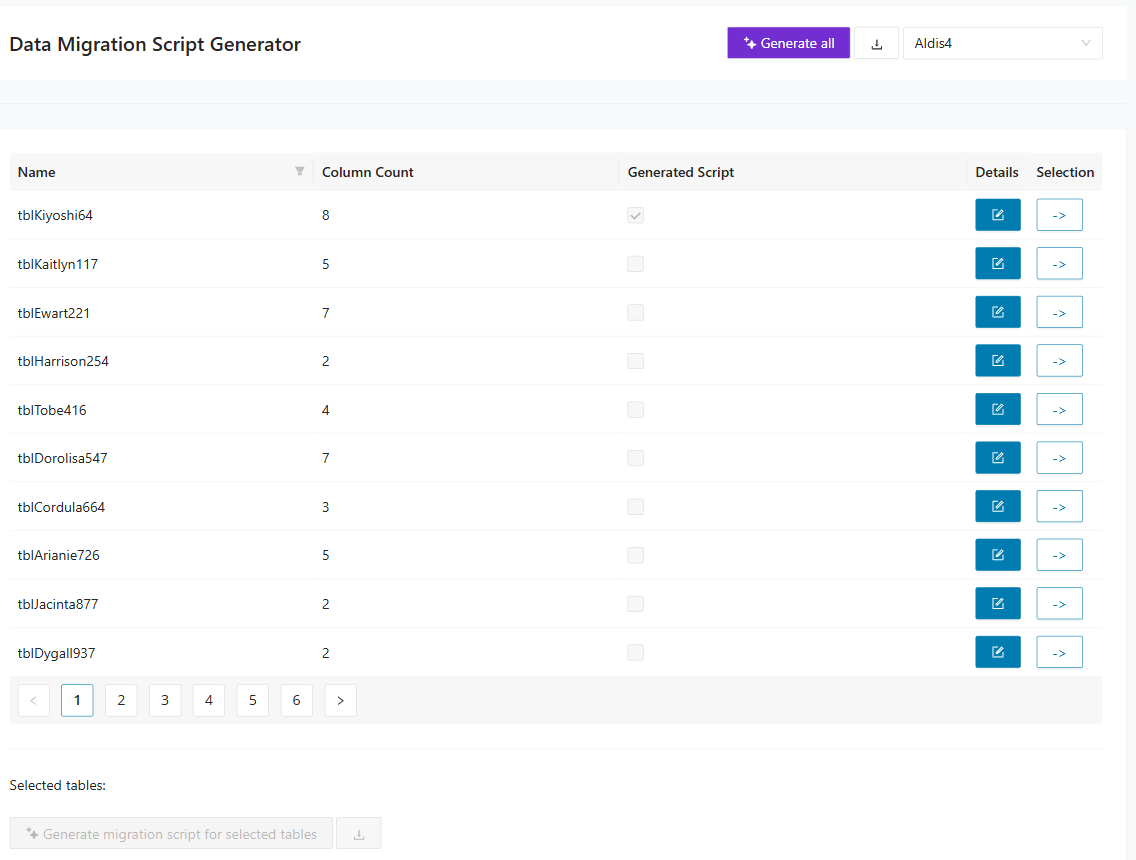
Use Data Migration Scripts to generate executable migration logic that moves data from legacy tables to modernized targets. It focuses on the transformation logic required to populate the new data model from the legacy source. Use it when you are ready to inspect or generate the code that performs table-level migration. This tab provides:
- A Generate all action for bulk migration script generation
- A table-level status grid with row-level diagnostics
- A Details drawer for each row with metadata and generated script content
- A Selection action for targeted table operations
How to use Data Migration Scripts
Select the bounded context in Migration Generator > Data Migration Scripts, then select Generate all to run migration script generation for all listed rows. To inspect metadata and generated code for a specific table, select Details for that row.
Explore details in Data Migration Scripts
The Details drawer provides:
- The selected table name
- Source column metadata (Column Name, Column Data Type, Is Primary Key)
- A Generated Data Migration Script panel that shows generated code
- Row-level generation actions, including Generate migration script for this table and Customize Prompt
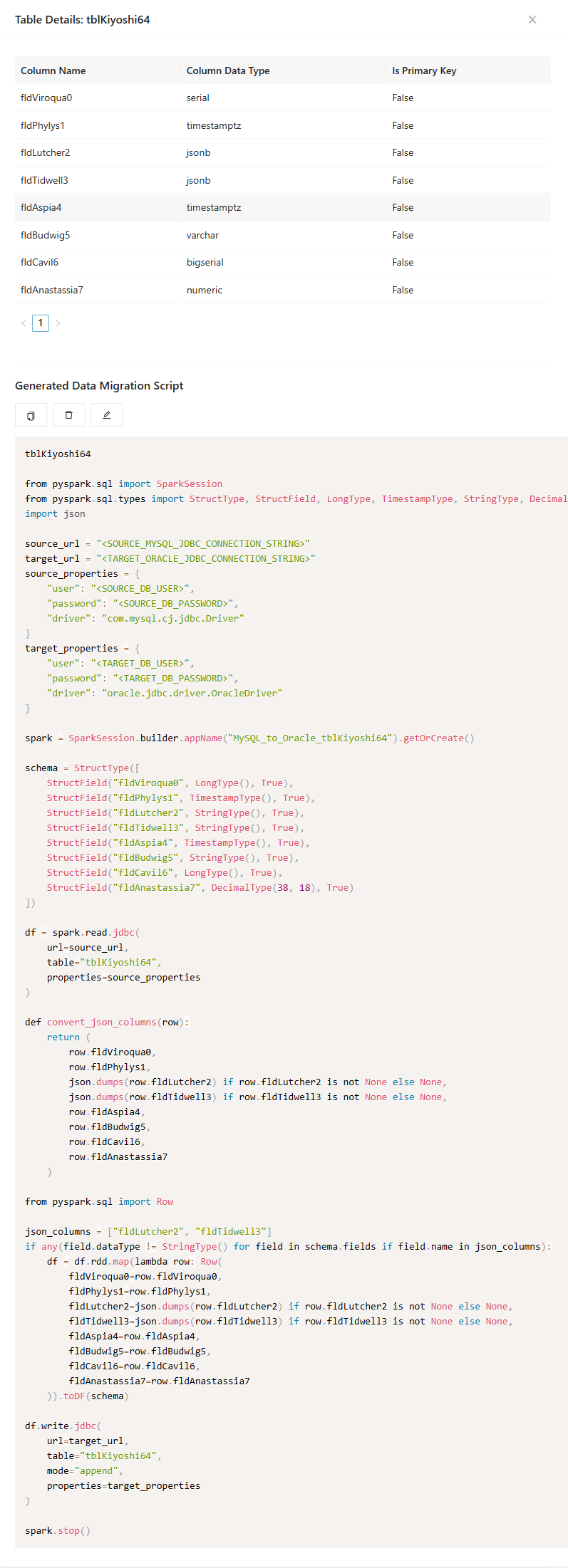
Expected result: You can inspect generated migration logic for each table, verify script completeness, and regenerate or customize prompts where needed.
Query Equality Tests
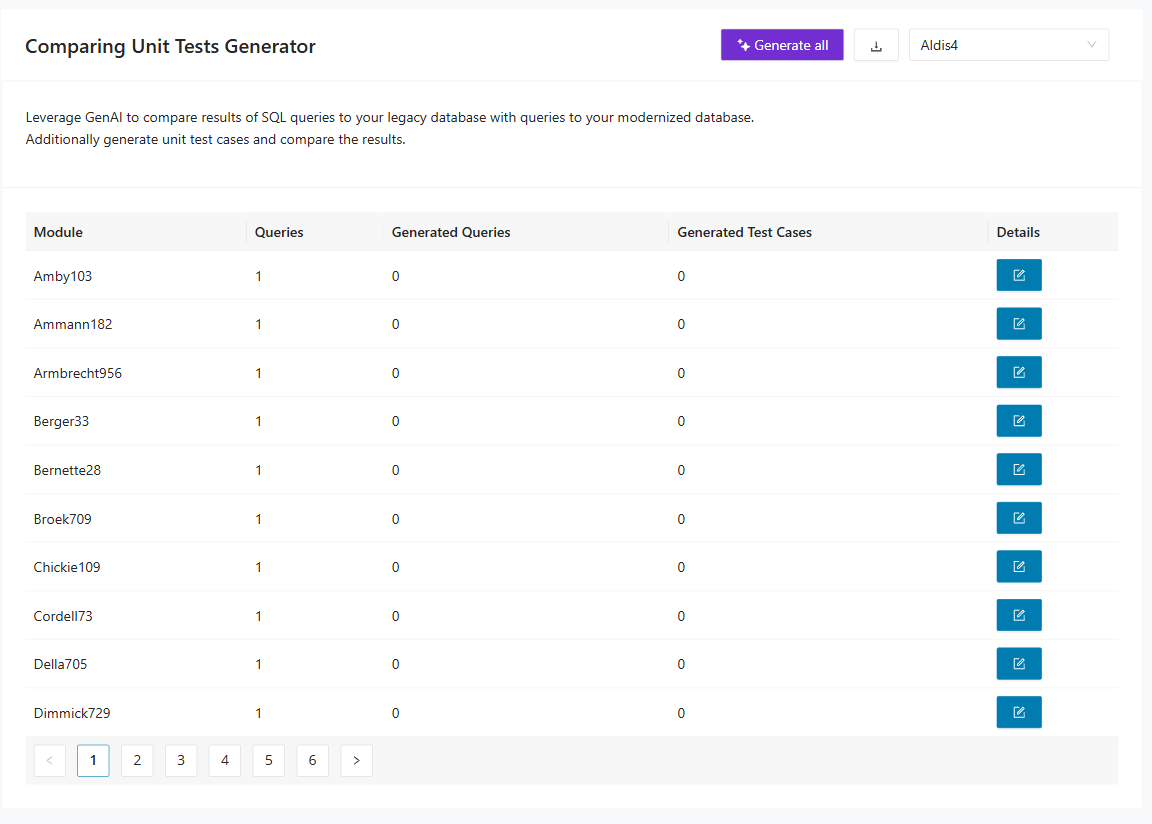
Use Query Equality Tests to compare legacy query behavior with modernized query behavior and to generate related test artifacts. This area helps you verify that generated modernization outputs still behave correctly against the intended query semantics. Use it when you need evidence that query conversion and generated tests are ready for review. This tab provides:
- A Generate all action for query conversion and test-generation tasks.
- Module-level progress indicators for generated SQL and unit-test artifacts.
- Row-level Details expansion for query-by-query review.
How to use Query Equality Tests
Select the bounded context in Migration Generator > Query Equality Tests, then select Generate all. Open Details for a module to inspect query-specific outputs and confirm query conversion and test-generation progress.
Explore details in Query Equality Tests
The module details area shows:
- Query counts and generation status per module
- The source query (for example, MySQL)
- Target query generation action (for example, Oracle > Generate)
- A language-specific output area (for example, Java) for generated test scaffolding
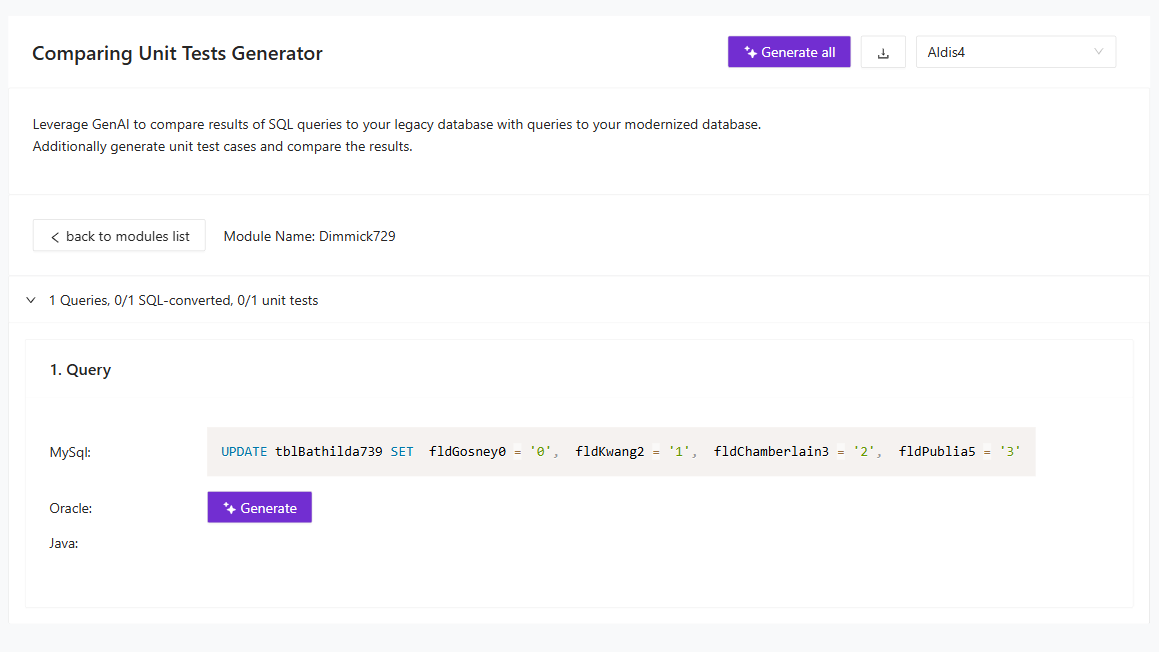
Expected result: You have module-level evidence of query conversion status and test-generation readiness for equality validation.
Downloading scripts
This section explains how to collect the generated outputs after script creation completes. It covers both bulk downloads and targeted downloads for selected migration rows. Use it when you want to package the generated assets for review, handoff, or execution outside the UI.
Select Generate all tables to generate scripts for all tables in the table list. If processing takes time, a loading screen appears:

You can also generate table and relation scripts individually. Select Details for a row, then select Generate in Generated table script or Generated relation script. To download every generated file at once, select the download button to save a ZIP archive that contains the corresponding .sql files.
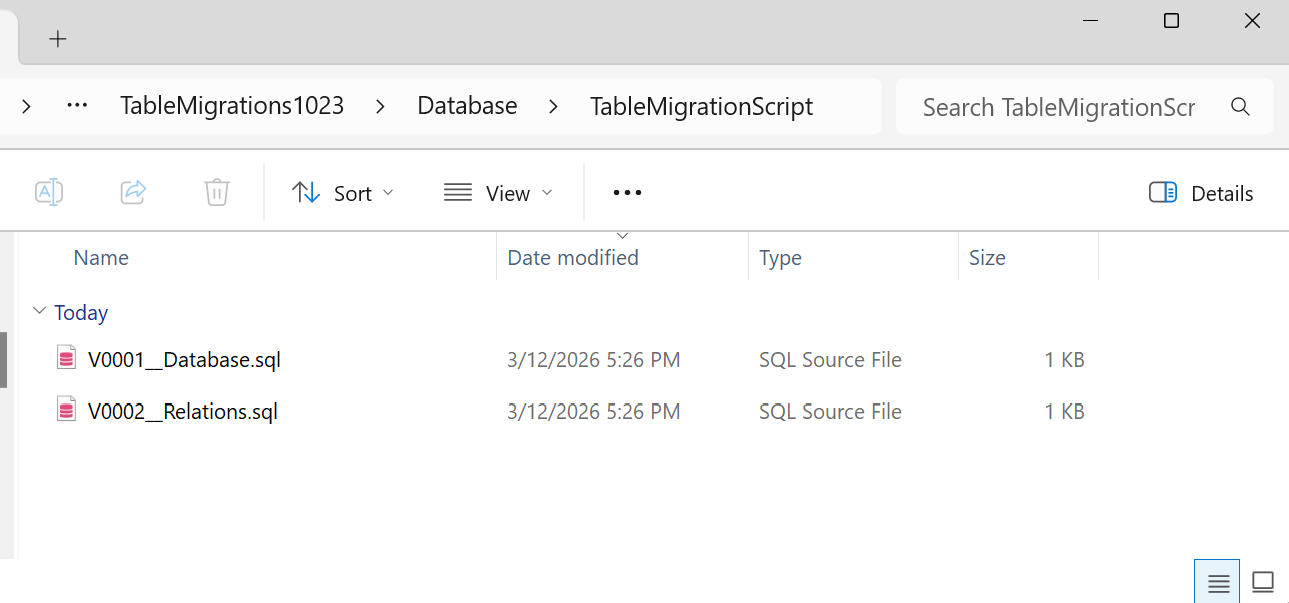
Generate and download selected data migration scripts
Use the Selection column in Data Migration Scripts to choose one or more tables for targeted generation and download. Select the arrow button for each table that you want to include. The selected tables appear in the Selected tables area at the bottom of the page, where you can clear the list, generate scripts for the selected tables, or download the generated scripts.
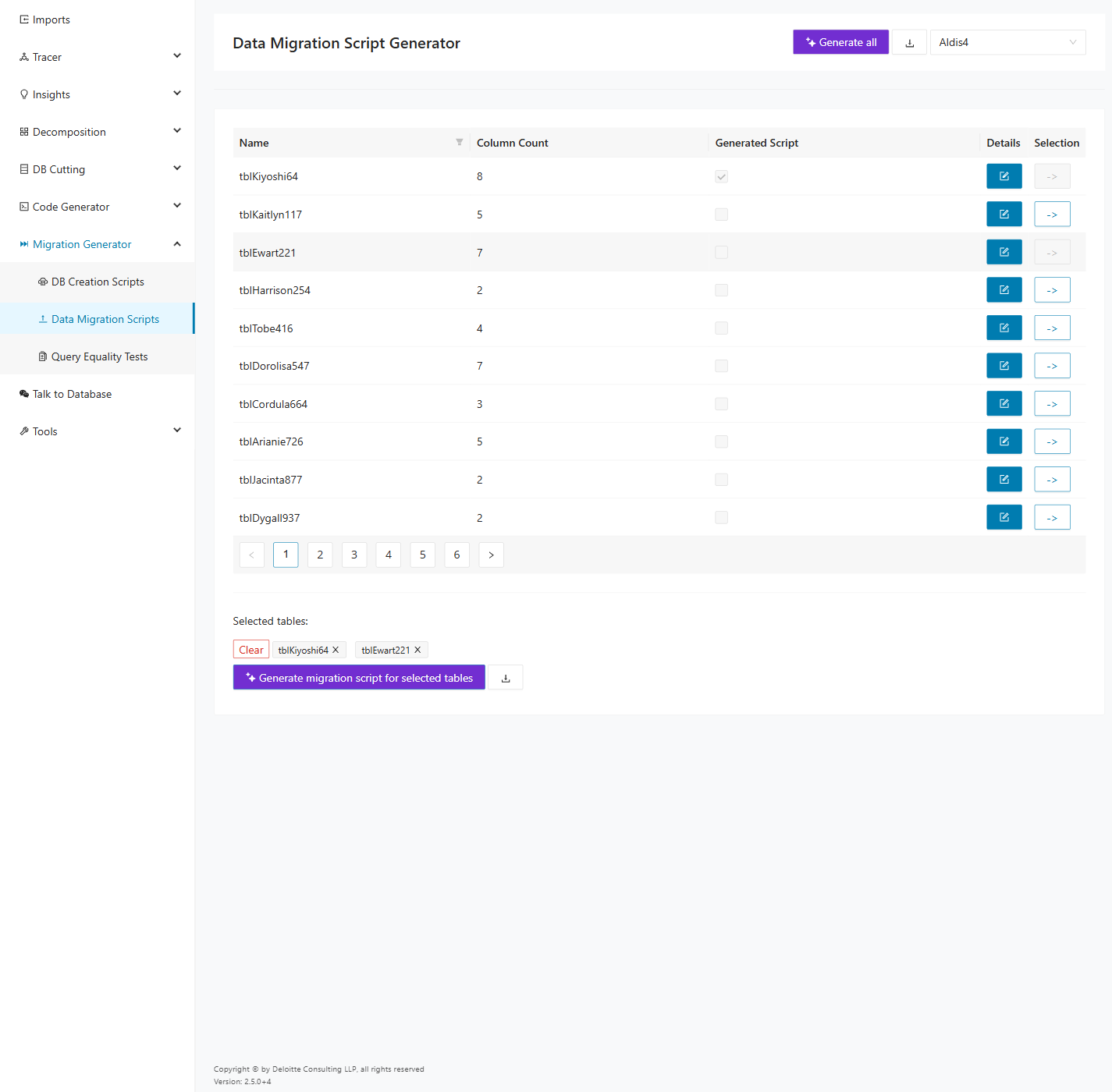
After you select the tables, choose Generate migration script for selected tables to create scripts only for those rows. When generation completes, the Generated Script status is updated for the selected tables and a success message appears.
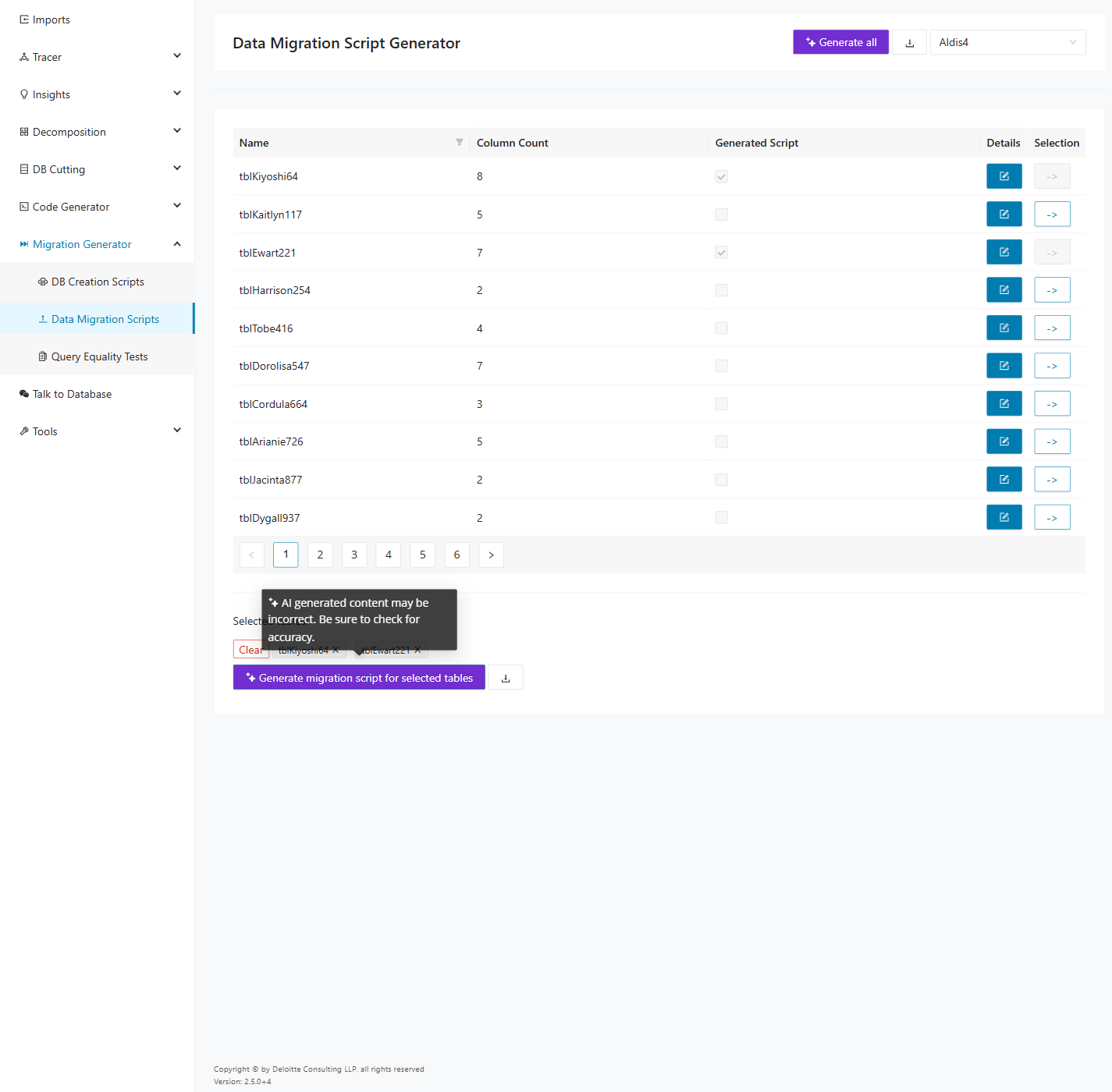
To download the generated scripts for the selected tables, select the download button next to Generate migration script for selected tables. The application downloads a ZIP archive that contains the generated migration scripts for the selected tables.