Identify
When selecting modules in the modules table, there is an option to identify candidates, dead code, technical taxonomies, module descriptions, and functional blocks directly from the Modules page. Click the Identify drop-down above the modules table to open a menu with the following options. Use these actions when you want to generate candidate metadata or structural analysis without opening each module individually.
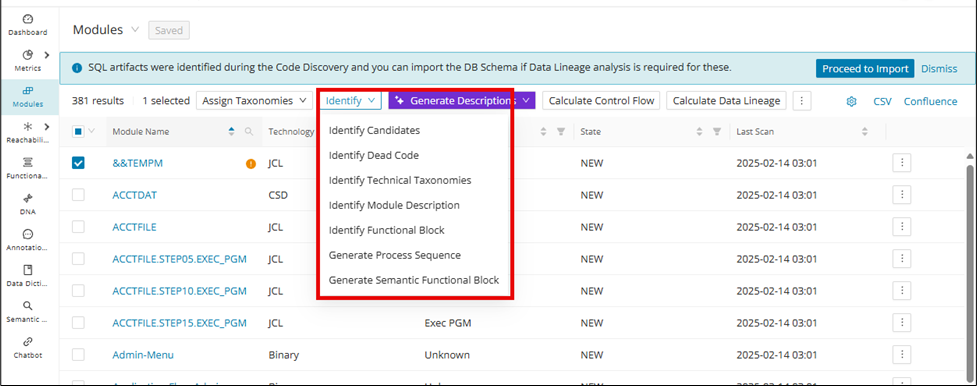
- Identify Candidates: Identify system rules, DB operations, and Data Dictionary Entries.
- Identify Dead Code: Identify dead code based on control flow and annotate the dead code.
- Identify Technical Taxonomies: Identify technical system domains and usages, for example, batch, UI, File read/write, etc., automatically assigning these technical taxonomies to supported modules.
- Identify Module Description: Provides an initial module description in the system based on the source code (comment-based). However, for a Gen AI-based module description (recommended), refer to Generate Module Descriptions.
- Identify Functional Block: Generates Functional Blocks for the selected modules based on the skeletal outline of the program, for example, (PGMNAME (Parent FB) -> PARA1 (Child FB) - PARA2 (Child FB) - PARA3 (Child FB)).
- Generate Process Sequence: Generate a process flow sequence of existing annotations on each module.
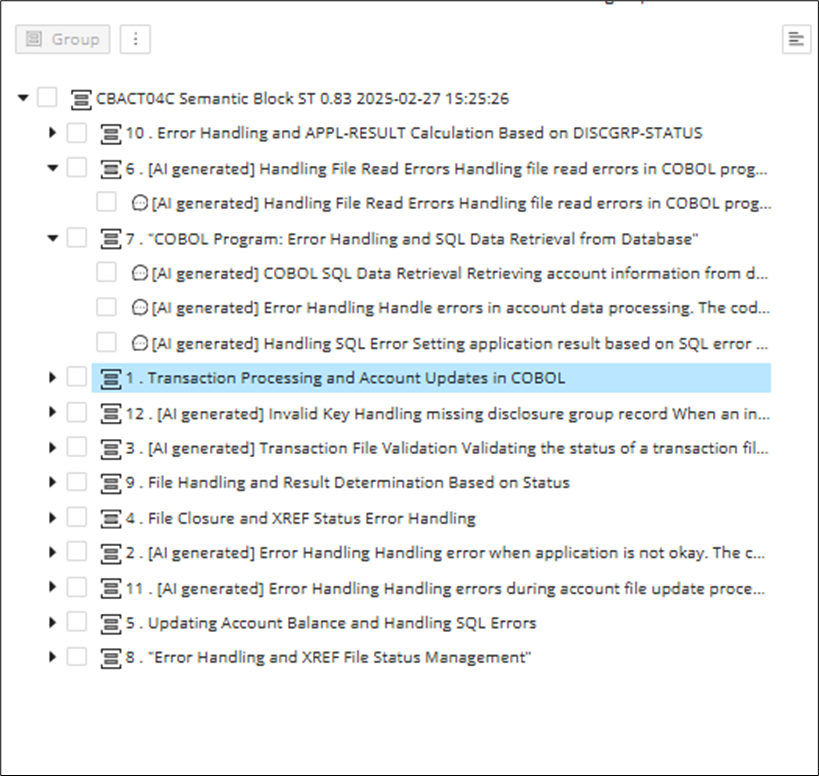
- Generate Semantic Functional Block: Generates Functional Blocks for the selected modules based on related functions within the program.
Info
To use Identify Candidates for Action and Condition Annotations, enable the feature toggle identifyActionConditionAnnotations.
Automated Annotation generation for Java
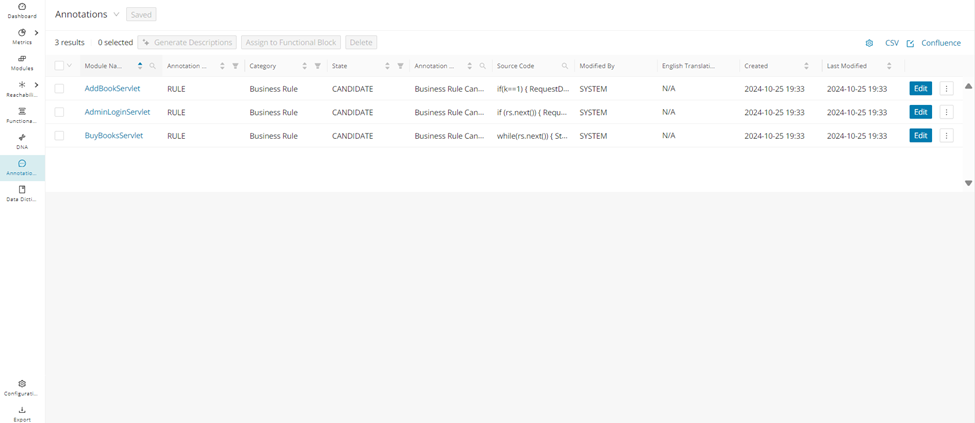
Single and bulk auto-annotation generation can be done, and the generated annotations will be related only to the Business rule. This option is intended for Java compilation units that you want to annotate quickly from the Modules table. The steps below show the basic selection and execution flow.
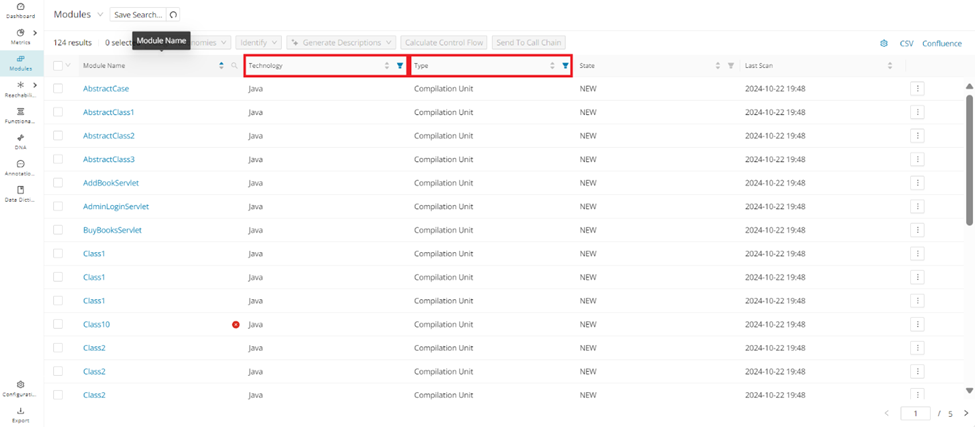
Select Technology as Java and Type as Compilation Unit.
Select the modules and click Identify Candidates .
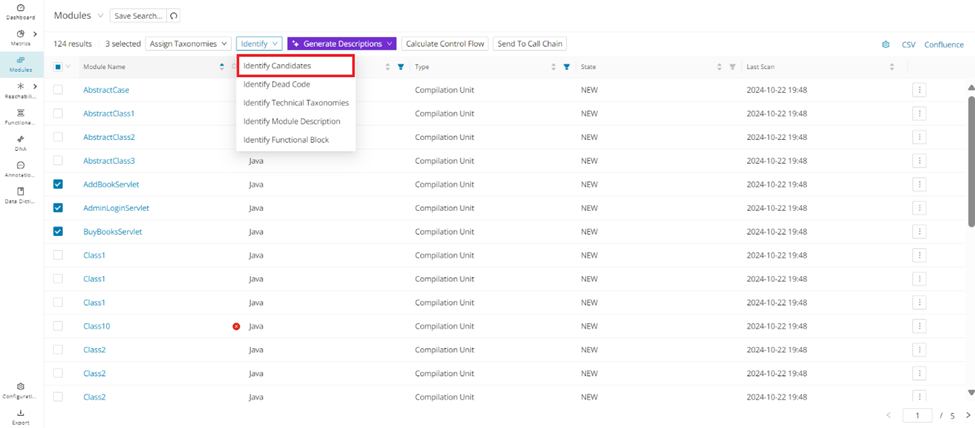
Annotation for category Business Rule is generated
Generate Process Sequence for Annotations
After extracting Business Rules with Identify, you can run into the time-consuming, mistake-prone process of manually sequencing the generated annotated rules. "Generate Process Sequence" automates the sequencing of functional business logic, significantly reducing the time and effort required for manual processing.
From the Modules page, select the module(s) to automate the sequencing, click Identify , and then click Generate Process Sequence .
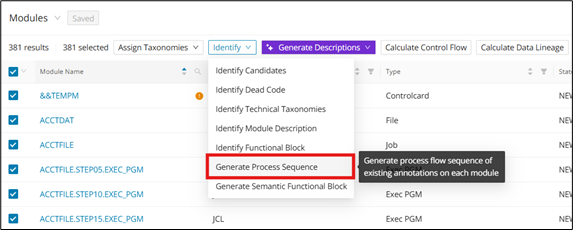
After the "Generate Process Sequence" job is complete, each annotation will have a new Process Sequence datapoint that is auto-populated.
Generate Semantic Functional Block using GenAI
Generate Semantic Functional Block uses GenAI to group related code into higher-level functional units. It is intended for cases where structural grouping alone does not capture the logical process flow. Review the generated results carefully, because the output is based on AI interpretation of the control flow.
Configuration
The feature toggle semanticFunctionalBlockGeneration must be enabled in the WebUI feature console.
A semantic functional block is similar to a functional block, but feeds its control flow graph to GenAI to generate the functional process flow. Semantic functional blocks find and group code snippets that may be related to one another to create a more comprehensive block. As with all GenAI-generated content, be sure to check for accuracy.
Click Identify and then click Generate Semantic Functional Block .
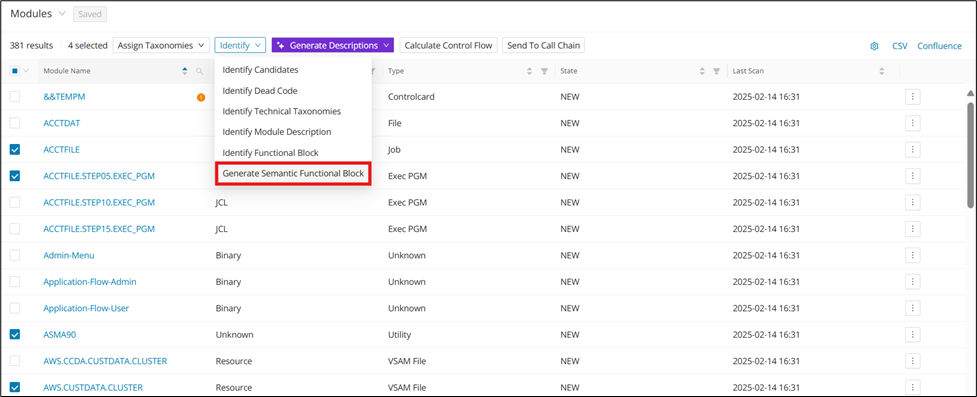
After clicking Generate Semantic Functional Block ,a pop-up window appears for configuration of the desired semantic functional block.
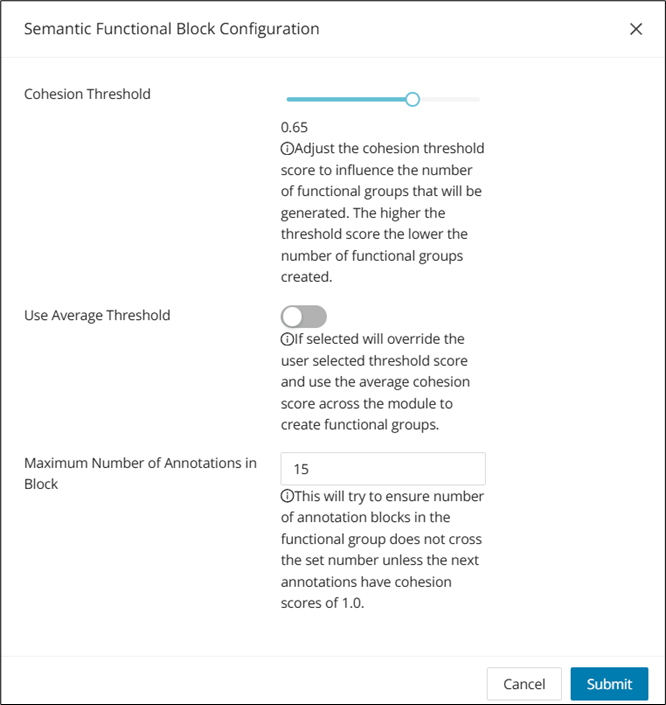
After choosing the desired configurations, click Submit to generate the semantic functional block.