Generate Descriptions
Generate Descriptions lets you add AI-generated annotation, module, or Data Dictionary descriptions directly from the Modules page. It is useful when you want consistent first-draft text for a selected set of artifacts. Review the generated output before publishing or relying on it in analysis.
Configuration
The feature toggle generativeAiTranslations must be enabled in the WebUI feature console.
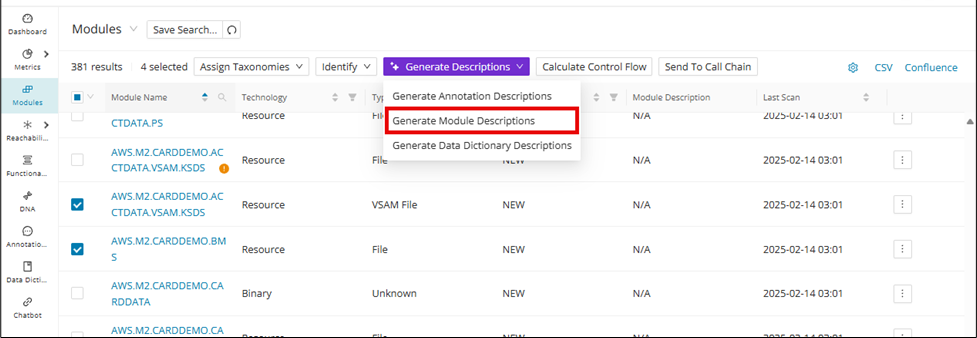
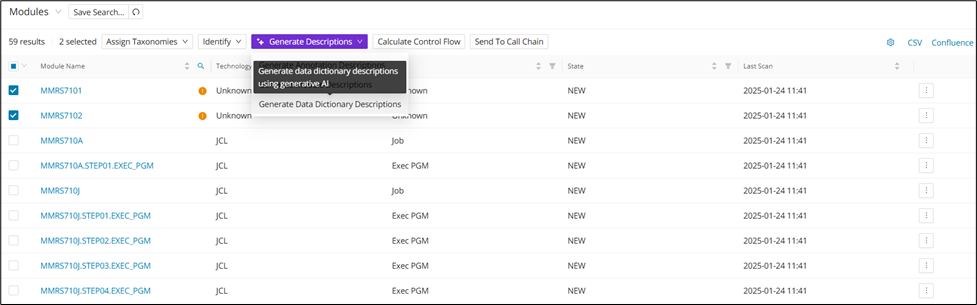
When selecting modules in the modules table, there is an option to add AI-generated annotation, module, or Data Dictionary descriptions from the Modules page. Click the Generate Descriptions drop-down above the modules table to open a menu with following options:
- Generate Annotation Descriptions
- Generate Module Descriptions
- Generate Data Dictionary Descriptions
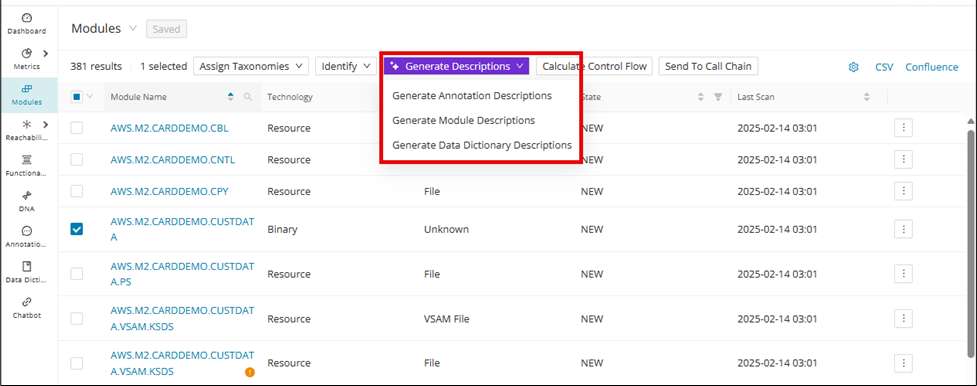
Generate Annotation Descriptions
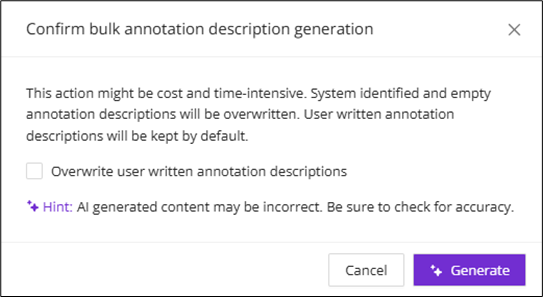
Select the type of description (Annotation, Module, or Data Dictionary) that needs to be generated. In this example, we want to generate annotation descriptions, so click Generate Annotation Descriptions and then click Generate in the following confirmation window. If the selected modules already contain user-written descriptions, they can be overwritten by clicking the checkbox.
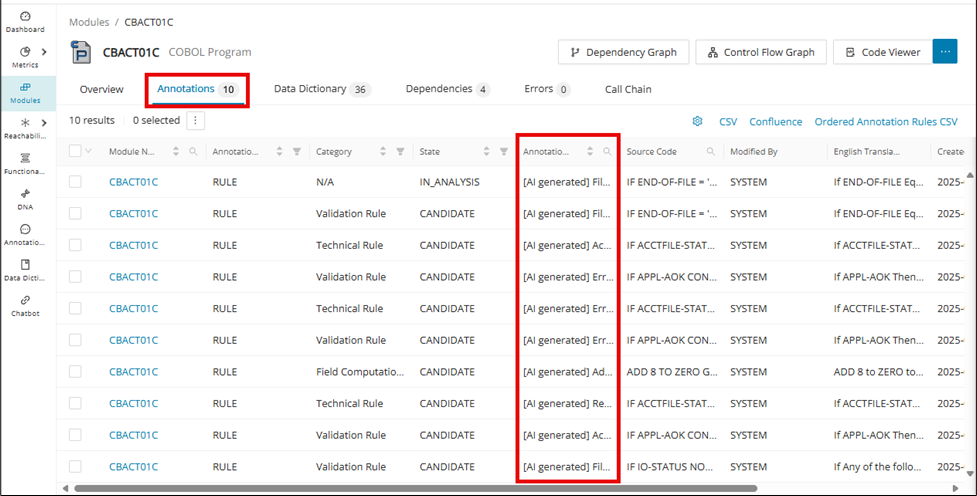
To view the newly generated annotations, click one of the selected modules to enter its Module Details page and click the "Annotations" tab.
Annotations can also be automatically generated directly from the Annotations page as described in Bulk Generation of Annotation Description.
Advanced AI options
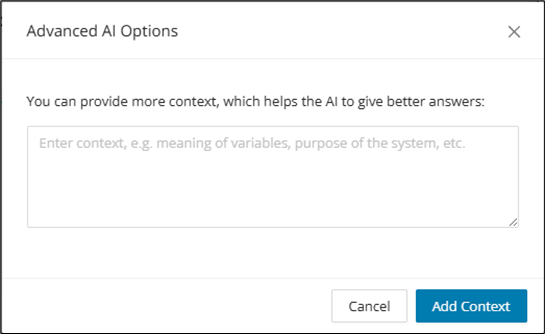
To increase the accuracy of generated annotation descriptions, you may want to consider providing further context from the Advanced AI Options feature. First, access the edit pop-up on the annotation for which you want to generate a more accurate description (you can access this edit from Module Details, Code Viewer, or the Annotations page). From here, click the settings icon next to Generate to open Advanced AI Options.
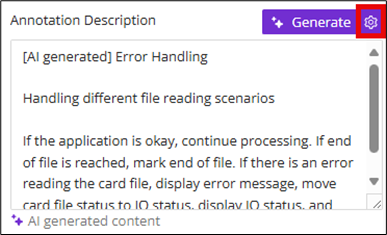
Provide context (for example, meaning of variables, purpose of system, etc) to the annotation that you want the GenAI to capture in the description, and then click Add Context.
Generate Module Descriptions
Configuration
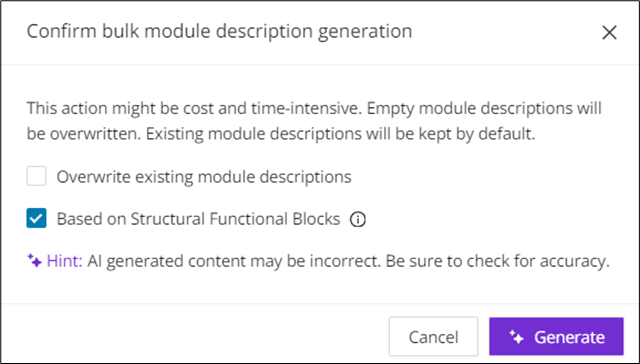
There is an option to generate module descriptions based on functional blocks. Enable the structuralFunctionalGroups feature toggle to access this feature.
First, select the modules that need to generate descriptions and then click Generate Module Descriptions from the drop-down list. With the structuralFunctionalGroups feature enabled, a new checkbox for generating module descriptions based on functional blocks will be displayed. Check this box and click Generate .
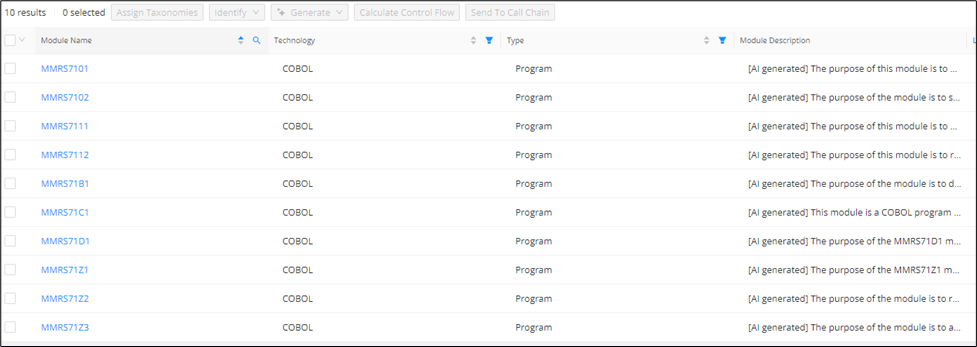
The module descriptions associated with the selected modules will be updated under the "Module Description" column.
Generate Data Dictionary Descriptions
Info
Data Dictionary Entries must already exist for selected modules before generating their descriptions. Running Identify Candidates on supported modules will auto-generate the Data Dictionary Entries for application fields, for example, (variables, CICS, file record layout), while uploading a DB Schema or executing Discover Metrics on a project containing SQL DDL Scripts will create the SQL-related entries.
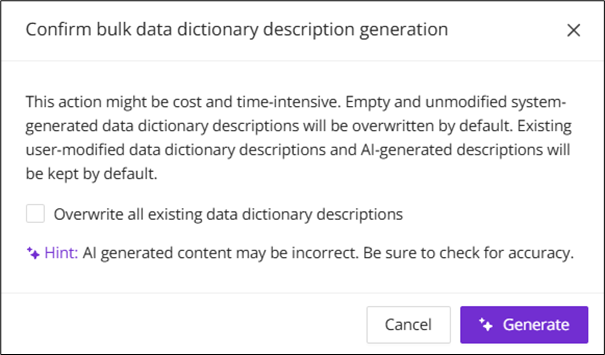
To generate Data Dictionary Descriptions, first select the module(s) for generation and click Generate Data Dictionary Descriptions from the drop-down menu. Click Generate in the following confirmation window.
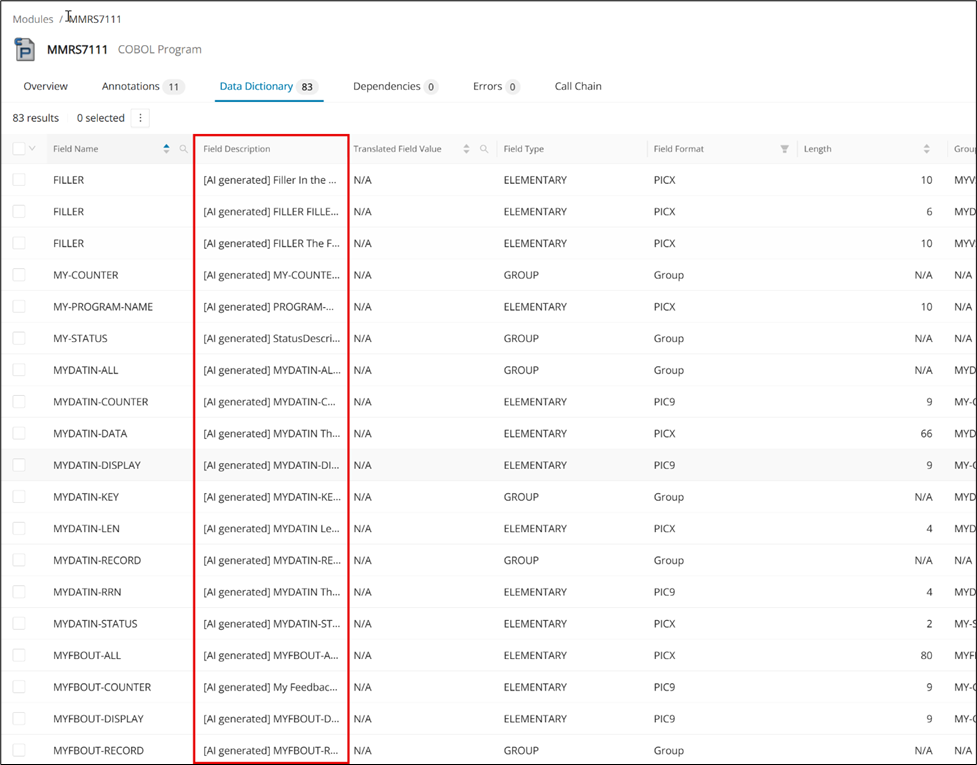
To find the newly generated descriptions, click on one of the selected modules to open up its Module Details page, then click the "Data Dictionary" tab.
Data Dictionary descriptions can also be automatically generated directly from the Data Dictionary page, as described in Bulk Generation of Data Dictionary Description.